
Everything was fine last night. Netflix streamed without a hiccup, your video calls were clean, downloads moved along like normal. Then today, out of nowhere, pages take ten seconds to load and your smart TV keeps buffering at the worst possible moment.
If that’s you right now, take a breath. Sudden Spectrum WiFi slowdowns are common, and most of them trace back to a short list of causes you can check yourself in about fifteen minutes. No tools, no technician, no new equipment in most cases.
The trick is figuring out which cause you’ve actually got. Rebooting your router won’t help if the problem is a neighborhood outage, and calling Spectrum won’t help if the real issue is your kid’s Xbox quietly downloading a 90 GB game update in the background.
So let’s work through this the way a technician would: a couple of quick questions first, one or two simple tests, and then the fix that matches your situation.
Why Is My Spectrum WiFi So Slow All of a Sudden?
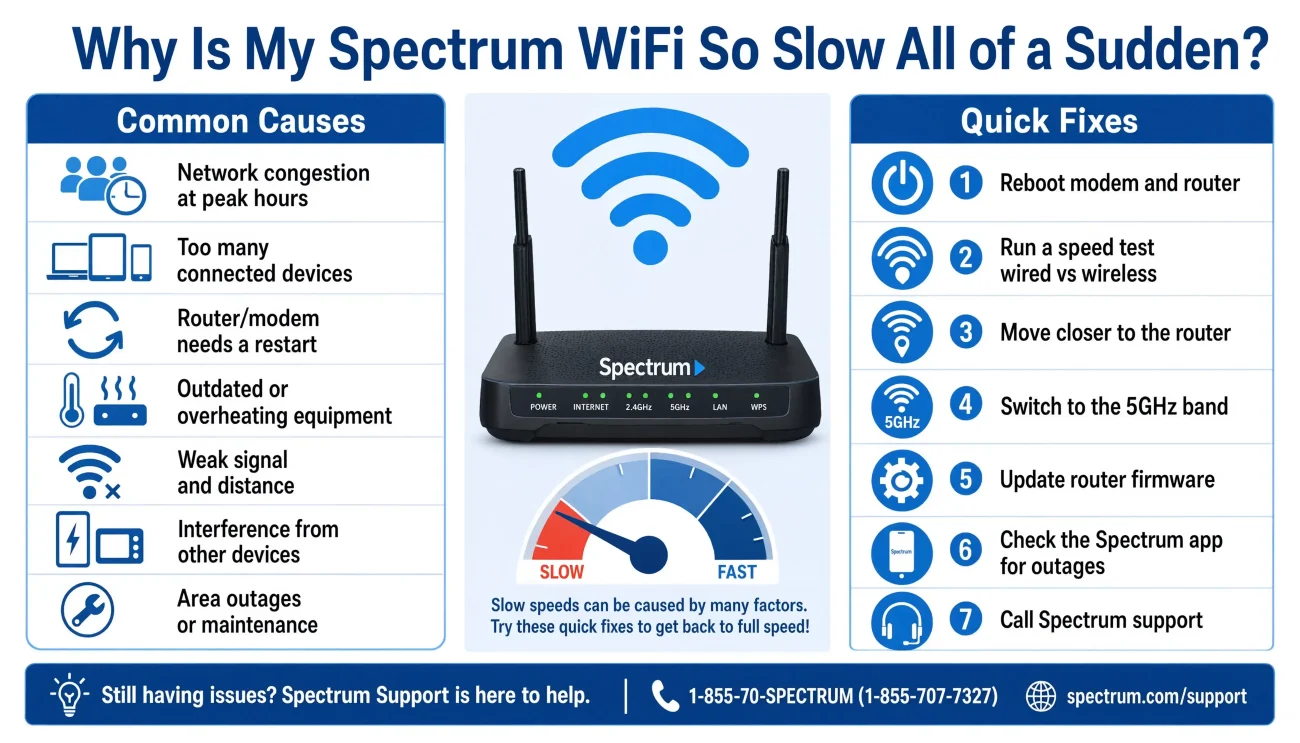
Here’s the honest answer. When Spectrum WiFi slows down out of the blue, it’s usually one of these:
- A Spectrum service issue: A temporary outage or maintenance work in your area.
- Network congestion: Too many people online at once, either in your home or in your neighborhood, usually in the evening.
- A router or modem that needs a restart: Equipment that runs for months without a break can get sluggish.
- Weak WiFi signal or interference: Thick walls, distance, and neighboring networks can all reduce your wireless speed.
- Too many connected devices: Your Wi-Fi is shared by multiple phones, TVs, game consoles, and other devices, which can slow down the connection.
- Background downloads: Updates, cloud backups, and game patches can quietly use up your bandwidth.
- A VPN: Virtual private networks add extra steps to your connection and can slow it down.
- A damaged or disconnected fiber-optic cable: A fiber-optic cable that is cut, damaged, or disconnected can cause a slow connection or a complete loss of service.
- Aging equipment or software: Old firmware, outdated drivers, or older hardware may not be able to keep up.
Here’s why this matters: every one of those problems produces the exact same symptom. A spinning wheel where your show used to be. Your TV can’t tell you whether the problem is the WiFi signal in your living room, the router in your hallway, or Spectrum’s network down the street.
That’s why the order you check things in matters more than any single fix.
What to Check First When Spectrum WiFi Suddenly Slows Down
Before you change a single setting, answer these six questions. They take two minutes, and they decide everything you do next.
- One device or every device? If your phone crawls but your laptop flies, the phone is your problem, not the internet.
- Is WiFi slow while a wired connection is fast? If plugging in with a cable works fine, your Spectrum service is healthy and the wireless side needs attention.
- Is it slow all day, or only at certain hours? Slowdowns that show up like clockwork around 8 PM usually mean congestion.
- Is it bad in one room only? That almost always means weak signal or interference, not an internet problem.
- Does a speed test actually confirm it? A connection that “feels” slow but tests fine usually has a latency, DNS, or device issue, not a bandwidth problem.
- Did it start suddenly after working normally? Something changed. A new device, an update, moved furniture, or a service issue. Find the change and you’re halfway to the fix.
Keep your answers handy. Every section below connects back to one of them.
Is the Problem Affecting One Device or Every Device?
This is the most useful question in the whole process, and you can answer it in about two minutes.
If only one device is slow, your internet connection is almost certainly fine. The suspects live on that device: a weak WiFi adapter, outdated drivers, a VPN running in the background, a browser overloaded with extensions, malware, or simply a bad signal where the device sits. Sometimes the device is just busy.
Cloud backups, photo sync, and automatic updates can quietly eat its entire connection while the rest of your house is fine, for example ”When I go out, take a lot of photos and videos, and return home, the files automatically upload to the cloud as soon as I connect to Wi-Fi. This is what causes the internet to suddenly slow down, especially since uploading files totaling several gigabytes takes quite a bit of time.”.

On Windows, open Task Manager and take a look, because a runaway background process can make the internet feel slow when the real problem is your computer itself. If you spot that, these guides on why your CPU sits at 100% when nothing is running and fixing high memory usage in Task Manager will help you pin it down.
If every device in your home is slow, stop looking at individual devices. Your problem is something they all share: the router, the modem, the WiFi environment, or Spectrum’s network. One slow device is a device problem. Ten slow devices are a network problem.
Check for a Spectrum Outage
If everything is slow at once, rule out Spectrum before you touch your own equipment. It saves a lot of pointless troubleshooting.
You can check for known issues through your Spectrum account online or in the My Spectrum app, which flags reported problems in your area. Beyond that, here are the signs that point to a service issue:
- Every device is affected: Your phones, TVs, and computers all struggle at the same time.
- A wired connection is slow too: If Ethernet and WiFi are equally bad, the problem is upstream of your router.
- It dropped without warning: Everything was normal, then it wasn’t, and you changed nothing.
- Your neighbors are complaining too: If people nearby on Spectrum are having the same night, that’s useful supporting evidence, even if it’s not proof on its own.
If the signs point to Spectrum, no amount of rebooting at home will fix it. Call support, and bring your speed test numbers with you. “It’s slow” gets a scripted response. “I’m getting 12 Mbps down on a wired connection at 9 PM versus 400 this morning” gets a real one.
Run a Proper Internet Speed Test
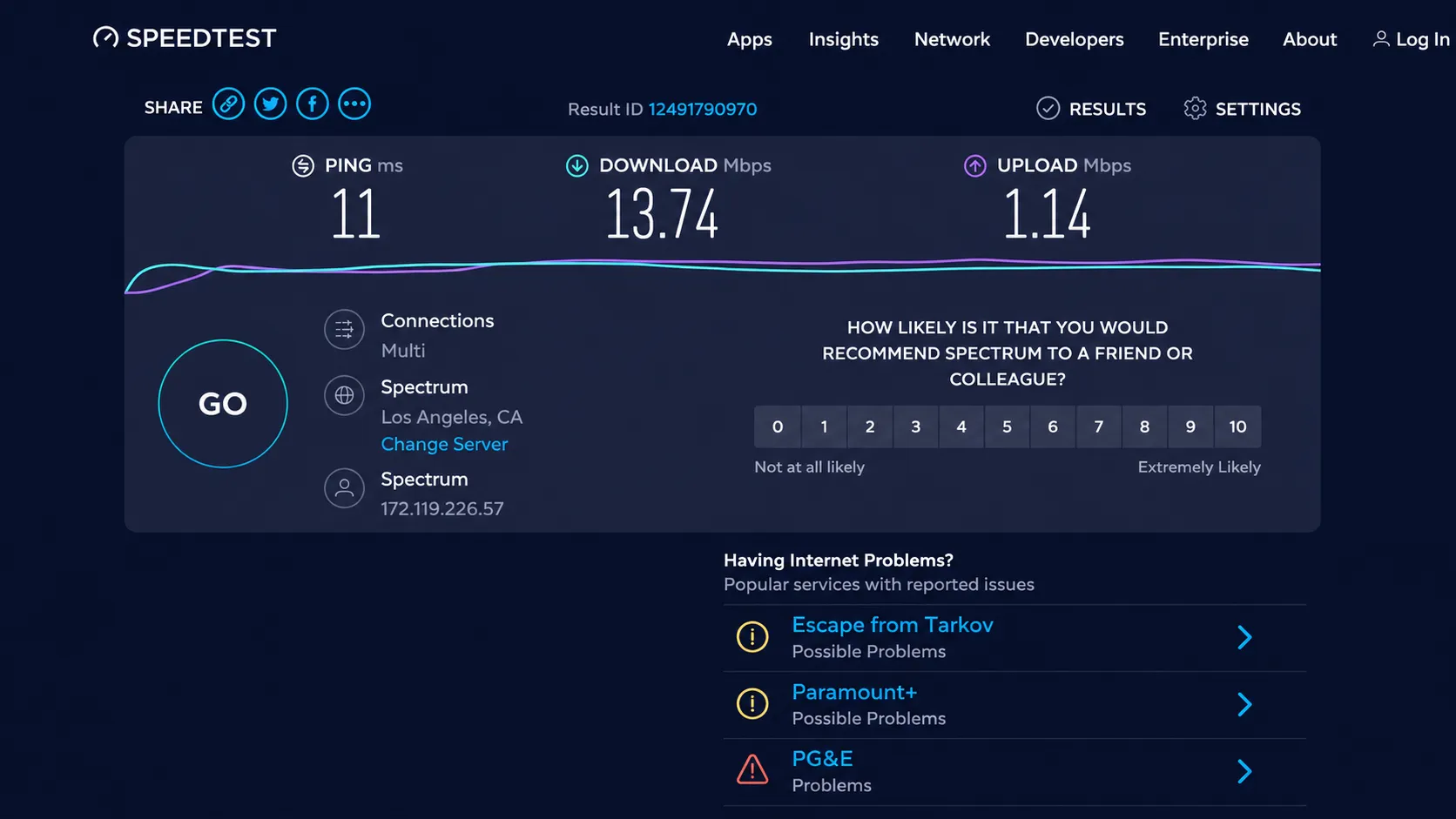
A speed test only means something if you run it the right way. One test on one phone from the couch at the far end of your house tells you almost nothing.
Here’s how to do it properly:
- Test near your router first: This shows you the best result your setup can deliver right now.
- Then test from the problem spot: The device that feels slow, in the room where it feels slow, is the result that actually matters.
- Compare WiFi with a wired connection: If you can, plug a laptop straight into your router and run the test again.
- Test more than one device: This is how you separate a device problem from a network problem.
- Test at different times: Morning versus evening results reveal congestion patterns a single test will never show.
- Read all the numbers: Download speed, upload speed, ping (that’s the delay before data starts moving), and packet loss if your test tool shows it.
Each number tells a different story. Low download speed is a bandwidth problem. High ping is a latency problem, and it will wreck gaming and video calls even when downloads look perfectly healthy. Packet loss, where pieces of your data go missing in transit, causes stutter and dropouts no matter how fast your plan is. If latency turns out to be your issue, the guides on reducing internet latency and reducing lag in online games go deeper.
One thing people get wrong all the time: there’s no single “good” speed. What’s good depends on the plan you’re paying for and what you’re doing with it. The breakdown of what internet speed you actually need sets realistic expectations, and whether 100 Mbps is fast is a helpful reference if you’re on a lighter plan. If you game, check whether 1000 Mbps is good for gaming and whether a gigabit connection is worth it for gaming before assuming speed is your bottleneck, because for games, ping matters far more than raw bandwidth.
Restart Your Spectrum Modem and Router
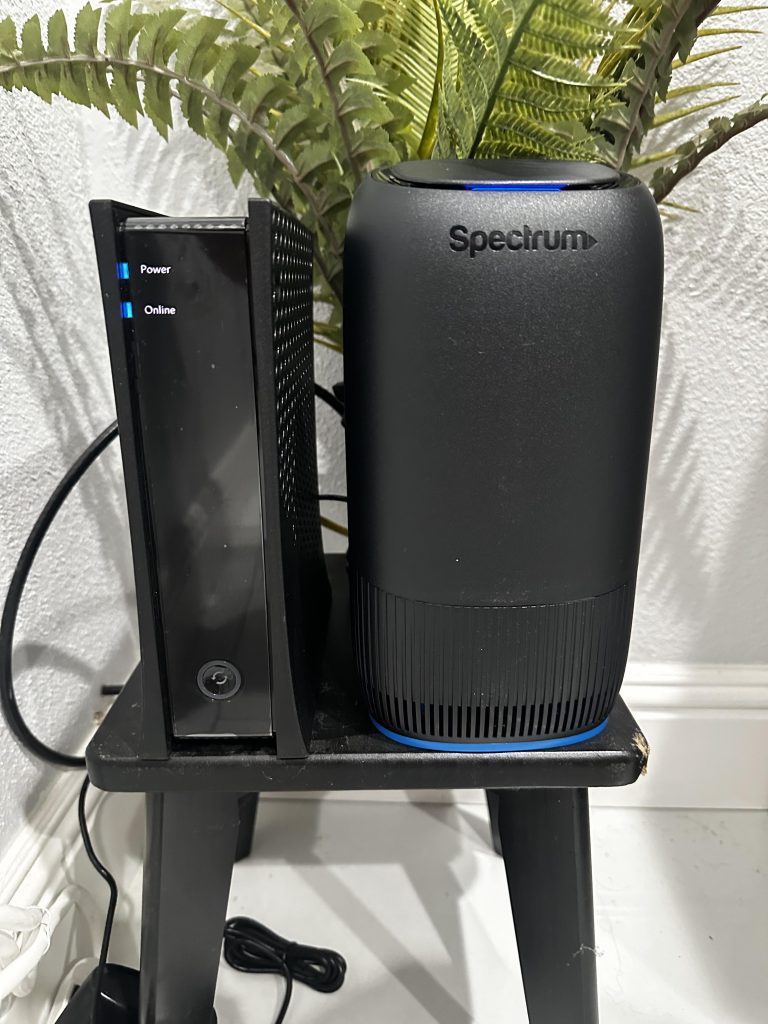
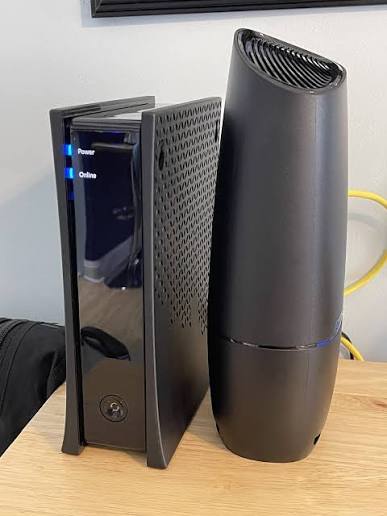
Once you’ve ruled out an outage and confirmed the slowdown with a speed test, a proper restart is your highest-value first fix. It clears stuck processes, forces your modem to re-establish its connection to Spectrum, and flushes out the junk that builds up on equipment running 24/7 for months.
The order matters more than people think:
- Unplug your modem and router (or your combined gateway) from power.
- Wait at least 60 seconds. This gives the modem time to fully drop its old session instead of resuming a bad one.
- Plug the modem in first and wait for its lights to settle. This can take two or three minutes.
- Then plug the router in and let it boot fully.
- Run your speed test again, near the router.
One honest caveat: treat the restart as a test, not a magic wand. If your speed comes back and stays back, you’re done. If it comes back for a day and then sags again, something underneath is still wrong. Heat, interference, congestion, or a modem that’s starting to fail. Rebooting every night just resets the clock on a problem you haven’t found yet.
Test WiFi With Ethernet
If you take one test from this entire article, make it this one. Plugging a computer directly into your router or gateway with an Ethernet cable is the cleanest experiment in home networking, because it removes WiFi from the equation completely.
Fast Ethernet + slow WiFi: Your internet service is fine. Your problem lives on the wireless side: signal strength, interference, channel congestion, or router placement.
Slow Ethernet + slow WiFi: Your problem is upstream of your WiFi. That means the modem, the line, Spectrum’s network, or your plan. No router tweak will fix that.
It’s not courtroom-level proof, but it’s the closest thing to a straight answer you’ll get without a technician visit. If you don’t have a laptop with an Ethernet port, a cheap USB-to-Ethernet adapter is worth keeping in a drawer for exactly this moment.
It’s also worth knowing that your modem and router do two different jobs, even if they look like similar boxes, and they fail in different ways. The explainer on the differences between modems and routers makes that split clear if you’ve ever wondered which one to blame.
Check Your WiFi Signal and Router Placement
If your Ethernet test came back fast and WiFi is the slow one, your signal and your router’s location are the next places to look.
WiFi is just radio, and radio hates obstacles. Thick walls, metal appliances, fish tanks, mirrors, and even dense furniture all weaken it. So does distance. A router shoved in a closet at one end of your house is going to struggle to reach the bedroom at the other end, no matter how good your plan is.
Here’s what helps:
- Central location: The closer your router sits to the middle of your home, the more even your coverage.
- Elevated and out in the open: WiFi spreads downward and outward, so a shelf beats the floor, and an open spot beats a cabinet.
- Away from interference: Keep some distance from microwaves, cordless phone bases, and baby monitors.
- Good ventilation: Routers generate heat, and heat hurts performance. Don’t stack things on top of it.
There’s a quick test built into this: walk toward your router with your phone while a speed test or video is running. If things improve dramatically as you get closer, you’ve found your answer. Your internet is fine; your coverage isn’t.
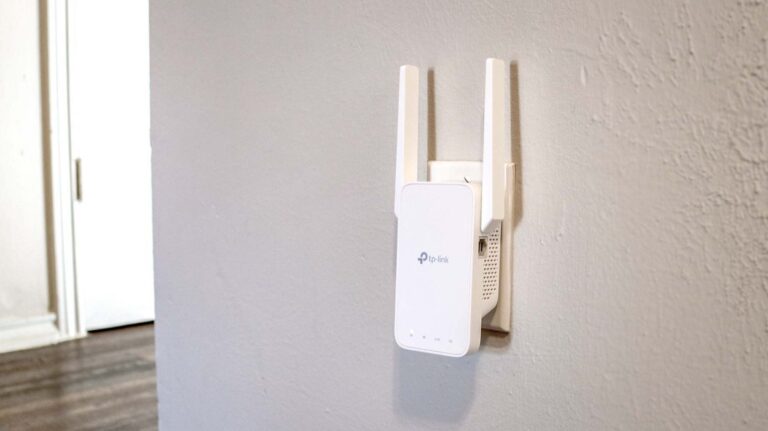
If moving the router isn’t practical, you have options. The guides on extending WiFi range to a room, the best places to put a WiFi extender in a two-story house, and the difference between a WiFi booster and a WiFi extender walk through them. One warning before you buy anything: no extender or placement trick can fix a problem on Spectrum’s side. Make sure you’ve done the Ethernet test first.
Check 2.4 GHz, 5 GHz, and 6 GHz WiFi
Your router likely broadcasts on more than one frequency band, and picking the right one can make a real difference. Here’s the plain-English version:
- 2.4 GHz: Longer range, better through walls, but slower and more crowded. Lots of household gadgets, from baby monitors to older smart devices, live on this band.
- 5 GHz: Faster with more breathing room, but shorter range. Great when you’re in the same room or one room away from the router.
- 6 GHz: The newest band, with lots of fresh, empty spectrum and very high speeds. Only newer routers and devices support it, and the range is shorter still.
There’s no universal “best” band. If you’re far from the router, 2.4 GHz may be your only workable option. If you’re close, 5 GHz or 6 GHz will usually give you noticeably better speed. If your slow device is stuck on 2.4 GHz while sitting next to the router, switching bands is a thirty-second fix worth trying.
Disconnect Devices Using Too Much Bandwidth
Here’s a cause nobody suspects because nothing is technically “broken”: your own devices.
Every connected gadget in your home shares the same internet pipe. When one or two of them get greedy, everyone else suffers. The usual suspects:
- 4K streaming: A single 4K stream can use 15 to 25 Mbps or more.
- Game downloads and updates: Modern game patches routinely run into tens of gigabytes.
- Cloud backups and photo sync: These often run silently in the background for hours.
- Security cameras: Cameras that upload continuously eat your upload speed, which video calls depend on.
- Video calls: Several simultaneous calls add up fast, especially on the upload side.
One distinction that helps: your Spectrum plan sets your internet capacity, but your WiFi has its own separate limit called airtime. Lots of devices talking at once can clog the wireless side even when your plan has speed to spare. A slow smart TV might be suffering from airtime congestion, not a slow plan.
The test is simple. Temporarily pause or disconnect the heavy hitters, then re-run your speed test. If speed jumps back, you’ve found your culprit, and the fix is scheduling big downloads for overnight rather than upgrading anything.
Check for Background Downloads and Updates
This one deserves its own section because it’s the sneakiest cause on the list. Windows updates, game launcher patches, phone OS updates, and cloud sync all default to running automatically, and none of them ask permission before eating your bandwidth.
If your slowdown started suddenly and you can’t find another explanation, check your devices for active downloads. A console mid-update or a laptop syncing a year of photos can make the whole house feel broken. This is especially common with game launchers, and if slow ping is your specific complaint, the guide on fixing high ping in Fortnite covers how background traffic plays into it.
Test Without a VPN
If you run a VPN, test your speed with it turned off. A VPN routes your traffic through an extra server, sometimes in another state or country, and encrypts everything along the way. That extra distance and processing can add delay and cut into your speed, sometimes a little, sometimes a lot, depending on the server you land on.
VPNs have real benefits, and whether they’re worth the speed trade-off depends on what you’re doing. If you’re weighing that, the guides on whether a VPN is good for gaming, the best VPNs for gaming, and whether a VPN can really improve Minecraft ping look at it from different angles. For troubleshooting purposes, though, the rule is simple: turn it off, re-test, and see what changes. If your speed comes back, the VPN was your slowdown, not Spectrum.
Check Your Device, Browser, and Network Settings
If your earlier answers pointed to a single slow device, here’s your checklist:
- Update your network drivers: On a Windows PC, an outdated WiFi driver is a classic cause of sudden slowness.
- Try a different browser: If one browser crawls and another flies, clear the slow one’s cache or trim its extensions.
- Forget and rejoin the network: This clears out stale connection settings on phones and laptops.
- Check for malware: Malicious software can quietly use your connection in the background.
- Move closer to the router: The device might just be sitting in a dead spot.
If websites load slowly but your speed test looks great, suspect DNS. Your device uses a DNS server to look up the address of every site you visit, and a slow or flaky DNS server makes the whole internet feel sluggish even on a healthy connection. Switching to a well-known public DNS is a common fix, and it’s reversible if it doesn’t help.
Look for Router or Modem Problems
Equipment wears out, and it also gets hot. If your slowdowns keep coming back after restarts, give the hardware itself a once-over:
- Feel for heat: A router or modem that’s hot to the touch may be thermal-throttling or failing. Improve its ventilation.
- Check the cables: A loose or damaged coaxial or Ethernet cable can cause intermittent slowdowns that look random.
- Check the lights: Your modem’s indicator lights can tell you whether it’s holding a stable connection to Spectrum.
- Update firmware: Firmware is the software inside your router, and updates often include performance and stability fixes.
- Consider age: A router from many years ago may simply not keep up with a modern plan and a house full of devices.
If you rent a gateway from Spectrum and suspect the hardware, that’s a support conversation worth having. Replacement equipment is often easier to get than people expect.
Could Spectrum Network Congestion Be the Cause?
Sometimes everything in your home checks out and the slowdown is still real. That’s when congestion enters the picture.
Cable internet is shared infrastructure. Your household connects to capacity that’s shared with your neighborhood, and when everyone streams at 8 PM, that capacity gets stretched. The telltale sign is a pattern: fine in the morning, sluggish every evening, better late at night. If that matches what you’re seeing, the guide on why internet is slow at night breaks down what’s happening and what you can do about it.
Congestion at your address is also worth separating from congestion on Spectrum’s side. If your speed only sags when your household is busy, that’s local, and it’s fixable with scheduling or plan changes. If it sags every evening no matter what your household does, that’s neighborhood-level, and it’s a Spectrum conversation.
For more general coverage of slowdowns that aren’t Spectrum-specific, the guides on how to fix slow internet and why your internet is slow apply the same logic to any provider. And if your connection drops entirely rather than slowing down, internet connected but no access covers that scenario.
When Should You Contact Spectrum?
Call Spectrum when your own troubleshooting points upstream. Specifically:
- Your Ethernet test is slow: Wired and wireless both underperform, near the router, with nothing heavy running.
- You’ve restarted properly and it didn’t hold: Speed returns briefly, then drops again.
- Your equipment checks out: Cables are snug, lights are normal, nothing is overheating.
- Your speed tests are consistent: You’ve tested at multiple times, on multiple devices, and the numbers are well below your plan.
Bring your numbers. Times, wired versus wireless results, and how long it’s been happening. The clearer your evidence, the faster the call goes.
When Should You Consider a New Router or Faster Plan?
Only after you’ve done the diagnosis. A faster plan fixes exactly one problem: not enough bandwidth for what your household does. It does nothing for a weak signal, interference, a dying router, or a device issue.
That said, an upgrade is legitimately on the table if your speed tests consistently match your plan’s speed near the router, and your household still runs out of capacity during normal use. That’s a genuine bandwidth ceiling. For a sense of whether gigabit-class service fits your usage, is 1 gig internet good for gaming is a useful reality check, since most homes need far less than they think.
If you’re weighing providers or wondering what fiber would change, fiber internet benefits and functionality explains the technology differences in plain terms.
FAQ
Why is my Spectrum WiFi so slow all of a sudden?
The most common causes are a temporary Spectrum service issue, evening network congestion, a router or modem that needs a restart, weak signal or interference, too many devices sharing the connection, background downloads, or a VPN. Start by checking whether one device or every device is affected, then test WiFi against a wired Ethernet connection.
Why is Spectrum internet slow today?
If it’s slow today but was fine yesterday, check Spectrum’s service status in your account or the My Spectrum app first, then restart your modem and router, then run a speed test near the router. A sudden one-day drop is often a service issue or something that changed on your network overnight.
How do I fix slow Spectrum WiFi?
In order: check whether one or all devices are affected, check for an outage, run a speed test, restart your modem and router, test near the router, test with Ethernet, check your WiFi band and signal, pause heavy downloads, test without your VPN, and only then look at equipment or plan changes.
How do I know if Spectrum is down?
Check your Spectrum account or the My Spectrum app for reported issues in your area. If every device in your home is affected, a wired connection is also slow, and neighbors on Spectrum report the same, a service problem is likely.
Why is my Spectrum WiFi slow on one device?
The problem is almost certainly the device, not your service. Check for background downloads, update its network drivers, try a different browser, turn off its VPN, and move it closer to the router to rule out a weak signal.
Why is my Spectrum WiFi slow on all devices?
When everything is slow at once, look at what they share: the router, the modem, the WiFi environment, or Spectrum’s network. Restart your equipment, test with Ethernet, and check for an outage.
Why is my Spectrum WiFi slow but Ethernet is fast?
That pattern means your internet service is fine and the problem is wireless. Focus on signal strength, router placement, interference, and which WiFi band you’re using.
Can too many devices slow down Spectrum WiFi?
Yes. Devices share both your internet bandwidth and your WiFi’s airtime. Heavy activity like 4K streaming, game downloads, and cloud backups can slow everything else down even on a fast plan.
Can a Spectrum router make WiFi slow?
Yes. An overheating, outdated, or aging router can bottleneck an otherwise healthy connection. Restart it, check its ventilation and firmware, and if problems persist, talk to Spectrum about the equipment.
Can a VPN slow Spectrum internet?
Yes. A VPN adds extra routing and encryption, which can add delay and reduce speed depending on the server. Test with the VPN off to see how much it’s costing you.
Should I switch from 2.4 GHz to 5 GHz?
If you’re close to the router, 5 GHz usually gives you faster, cleaner performance. If you’re far away or separated by walls, 2.4 GHz’s longer range may work better. Try both and test.
When should I contact Spectrum?
When your evidence points upstream: Ethernet is slow too, restarts don’t hold, equipment checks out, and multiple speed tests show results well below your plan.
Should I replace my Spectrum router?
Only after diagnosis. If your wired speeds are fine, placement and band tweaks haven’t helped, and the router is old or running hot, replacement is reasonable. If Ethernet is also slow, a new router won’t fix it.
You May Also Like
 Computers & PC Games
How to Allocate More RAM to Minecraft: Complete Guide for Better Performance
 Computers & PC Games
How Much RAM Do You Need for a Minecraft Server?
 Computers & PC Games
What Internet Speed Do I Need For Gaming and Streaming?
 Computers & PC Games
Does a VPN Really Improve Minecraft Ping and Performance?
 Internet
The Best Places to Put a WiFi Extender in a 2-Story House
 Computers & PC Games