
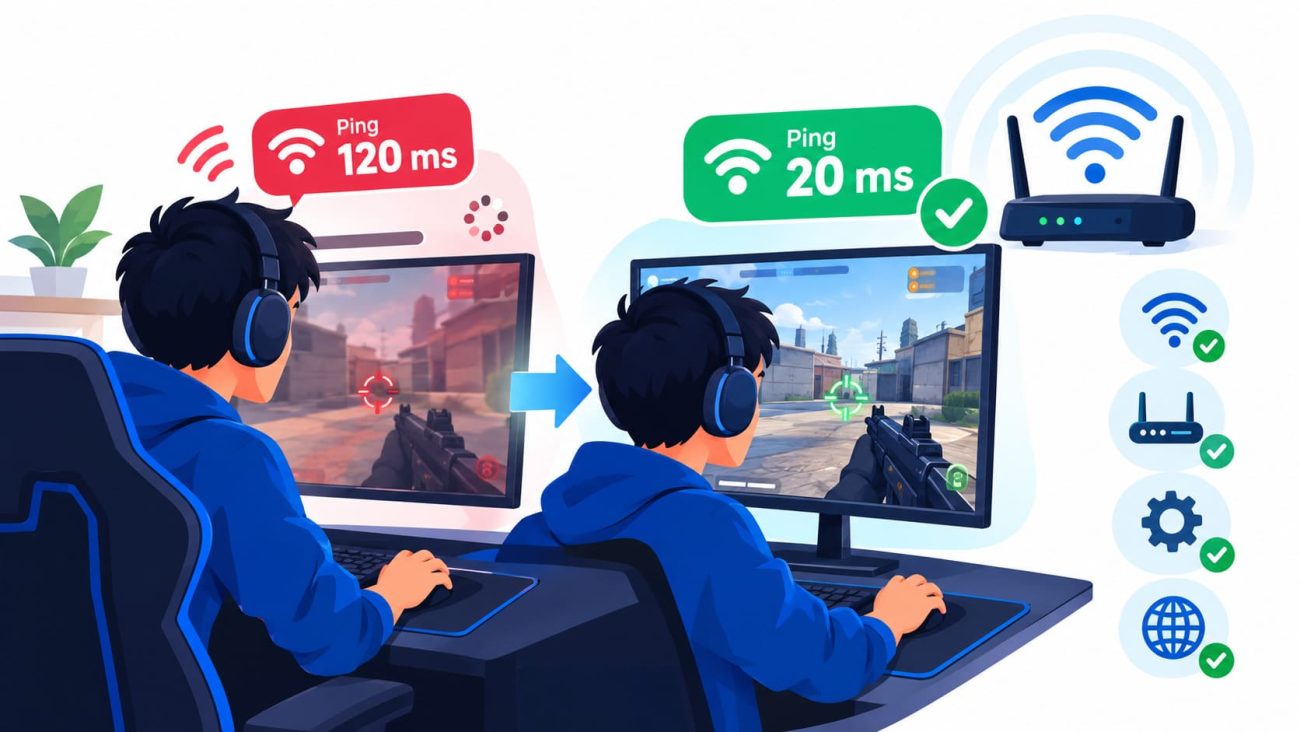
You line up the shot, press the button, and nothing happens. A second later your character jumps back three steps and the match is over. If you play online, you know that feeling well.
That delay is ping, and you can often bring it down without spending much. The short version: plug in an Ethernet cable, stop other devices from hogging your network, pick a closer game server, and check your router for a problem called bufferbloat. If none of that helps, the cause is probably your internet provider or the game’s servers, and this guide shows you how to tell the difference.
What Is Ping in Internet Speed?
Ping is how long a tiny message takes to travel from your device to a server and back. It’s measured in milliseconds (ms), and lower is better.
Every action you take in an online game goes to the game server first. The server updates the match and sends the result back to you. That round trip is your ping.
Ping isn’t the same thing as internet speed, and mixing them up is the most common mistake I see. Speed is how much data you can move per second. Ping is how long each message takes to arrive. Think of a highway: speed is the number of lanes, and ping is how long the drive takes. More lanes won’t help if the destination is far away or the on-ramp is jammed.
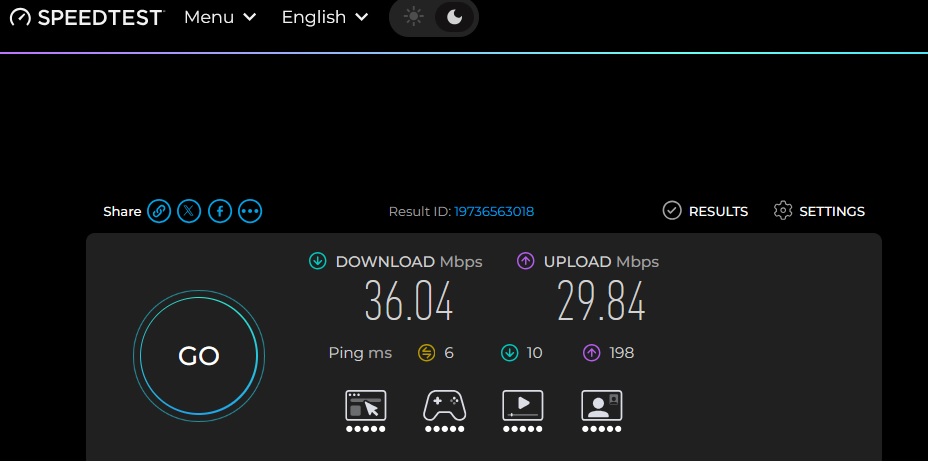
I ran into this at home. Whenever it starts raining, my internet turns shaky and my ping climbs. A few times it got so bad that I gave up on mobile games and streaming for the night. It was frustrating, mostly because I never expected the weather to matter. To see what was going on, I ran a speed test with the WiFiman app, which is free on Google Play and the App Store. Besides the test, it shows details about my home network, such as my ISP’s name and IP address, the gateway, and every device connected to it.
Weather doesn’t hit every connection the same way. It depends on the type of connection and the condition of the cables and equipment, so I can’t say rain was the only cause in my case. Still, if your ping jumps whenever the weather turns, test during and after the rain and compare the numbers.
A very fast plan can also feel laggy for reasons that have nothing to do with the weather. We dig into that in our piece on whether 1 Gig internet is good for gaming. And if you’re not sure how much bandwidth your household needs, this guide to what internet speed you need sorts it out by activity.
Ping, latency, jitter, and lag
People use these words as if they were the same. They overlap, but they aren’t identical, so here’s how I’ll use them:
- Ping is the round-trip time. It’s also the name of the test that measures it.
- Latency is the general word for delay. Some sources define it as one-way travel time, but most speed tests and game menus show round-trip numbers, so day to day it usually means the same as ping. Cloudflare’s glossary explains the wider idea well.
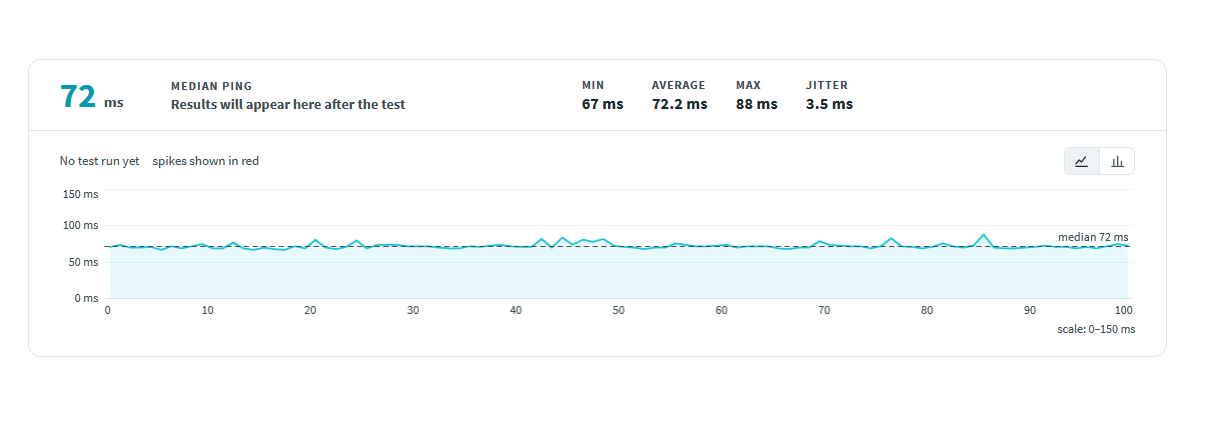
- Jitter is how much your ping wobbles from moment to moment. A steady 50 ms often feels better than a ping that bounces between 20 and 120. We cover it in our explainer on internet jitter.
- Packet loss is data that never arrives and has to be sent again.
- Lag is what you feel when any of those go wrong. It can also come from a low frame rate on your own device, which has nothing to do with your network.
That last point can save you hours. If your ping looks fine but the game still stutters, the problem may be your hardware instead of your internet.
What’s a Good Ping?
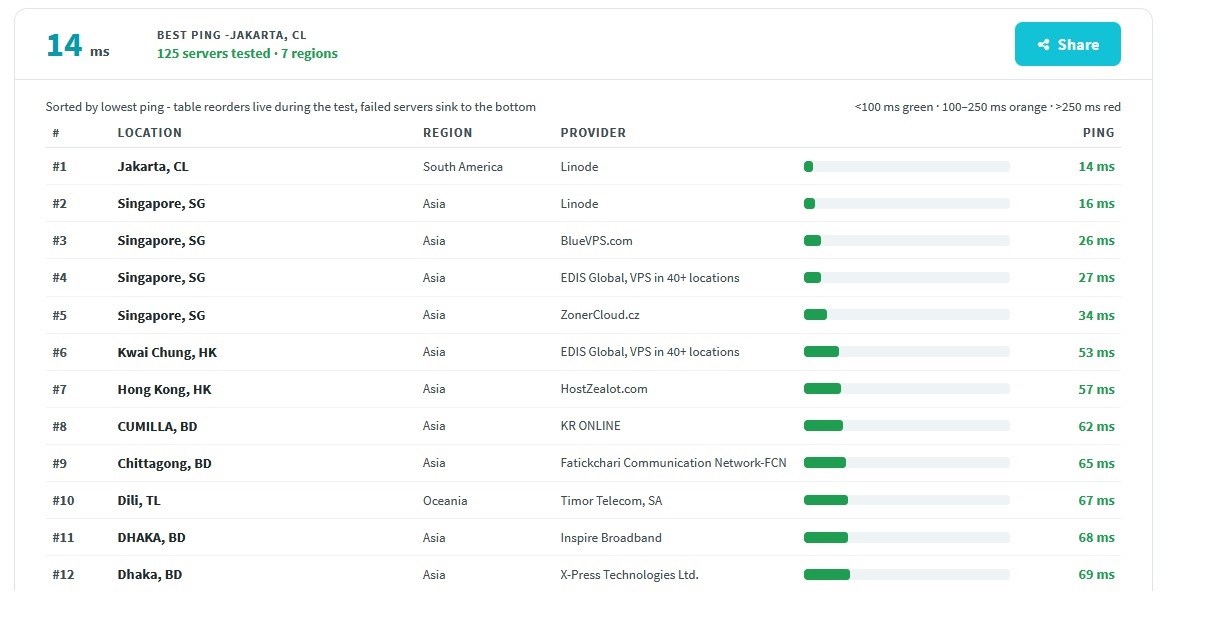
There’s no official standard, and the answer depends on what you play. As a rough guide for online gaming:
- Under 20 ms: Excellent. You won’t notice any delay.
- 20 to 50 ms: Good. Smooth for nearly everything, including competitive shooters and calls.
- 50 to 100 ms: Playable, though you may feel it in fast games.
- 100 to 150 ms: Noticeable. Shots and movement can feel off. (Too slow)
- Over 150 ms: Hard to play in real time, but fine for downloads and streaming.
Genre changes the picture a lot. A card game or a turn-based strategy title can handle 100 ms without trouble. A fighting game can feel unfair at half that. For video calls and everyday browsing, staying well under 100 ms is usually comfortable.
Two other numbers matter too. Jitter under roughly 15 to 20 ms tends to feel stable, and packet loss should be as close to 0% as you can get. Even a small amount of packet loss can cause rubber-banding, where the game yanks you back to an earlier position even though your average ping looks fine.
What Causes High Ping?
Rarely one thing alone. These are the usual suspects, roughly from most to least common in a normal home.
Wi-Fi trouble. Walls, distance, your neighbors’ networks, and even a microwave can get in the way. Wi-Fi also produces random spikes, which is why a wired connection usually feels steadier.
Traffic inside your home. Someone streams in 4K, a console downloads an update, a laptop backs up photos. Everything competes with your game. This is also where bufferbloat tends to appear, and I’ll explain it shortly.
Traffic outside your home. You share parts of your provider’s network with your neighbors. If your ping climbs in the evening, this is a likely reason. Our article on why internet is slow at night explains the pattern.
Distance to the server. Data can’t beat physics. A server on another continent adds delay no matter how good your gear is.
Older equipment. A router that struggles with many devices, or a modem that hasn’t been updated in years, can slow things down. If you’re fuzzy on which box does what, here’s a plain look at the differences between modems and routers.
Your connection type. Fiber and cable usually have lower and steadier latency than satellite or some fixed wireless services, though it varies by provider and location. For a real example, see our review of Starlink for gaming.
Weather and physical wiring. Rain and storms can affect some connection types, especially wireless, satellite, or older outdoor cables. If your problems line up with bad weather, mention it when you contact your provider.
What is bufferbloat?
This is the cause most guides skip, and it’s one you can often fix yourself.
Your router keeps a small waiting line (a buffer) for data when traffic arrives faster than the connection can send it. When that line grows too long, your game’s tiny, urgent packets get stuck behind a pile of download data. Your ping looks fine when the network is quiet, then jumps the moment someone starts a big download or upload. Wikipedia’s entry on bufferbloat gives a good technical overview.
The giveaway is simple: the game runs well until someone else in the house starts using the internet.
How to Test Your Ping After Making Changes
Measure before you change anything. Otherwise you’re guessing, and it’s easy to convince yourself that something helped when it didn’t. Change one thing at a time and write the numbers down.
Run a baseline. A tool like Speedtest by Ookla shows ping, jitter, and speed together. Run it two or three times, since single results can swing.
Check who’s on your network. A free app like WiFiman lists the devices connected to your Wi-Fi, along with details such as your gateway and ISP. If you see devices you didn’t expect, or a few that are busy while you play, that’s a clue.
Compare idle and loaded latency. Idle latency is your ping when nothing else is happening. Loaded latency is your ping while the connection is busy. Cloudflare explains in its speed test write-up that the two can differ a lot, and that the loaded number says more about real-world quality. The free Cloudflare speed test shows both. A big gap points to bufferbloat.
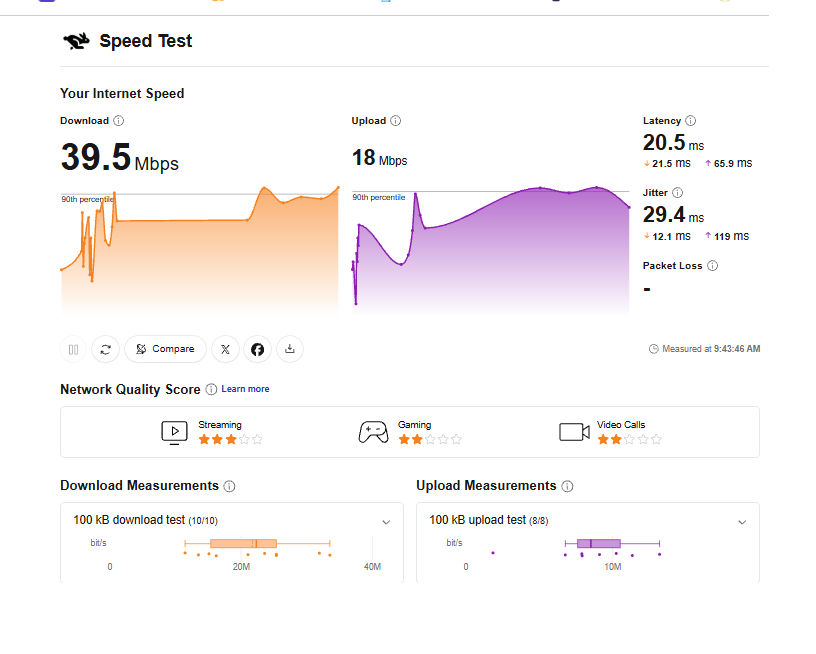
Try the command line. On Windows, open Command Prompt and type ping -n 20 8.8.8.8. On a Mac, use ping -c 20 8.8.8.8 in Terminal. Look at the average and any lost packets. One warning: this measures the path to Google’s DNS server, not your game server. It’s great for spotting problems in your own network, but it won’t tell you exactly what you’ll get in a match.
Look at the number in the game. Most games can show a network overlay. This is the figure that counts, because it reflects the server you’re really playing on.
Test at different times. Try once in the afternoon, once in the evening, and once during bad weather if you can. A big difference tells you the problem isn’t only in your house.
How to Reduce Ping for Gaming
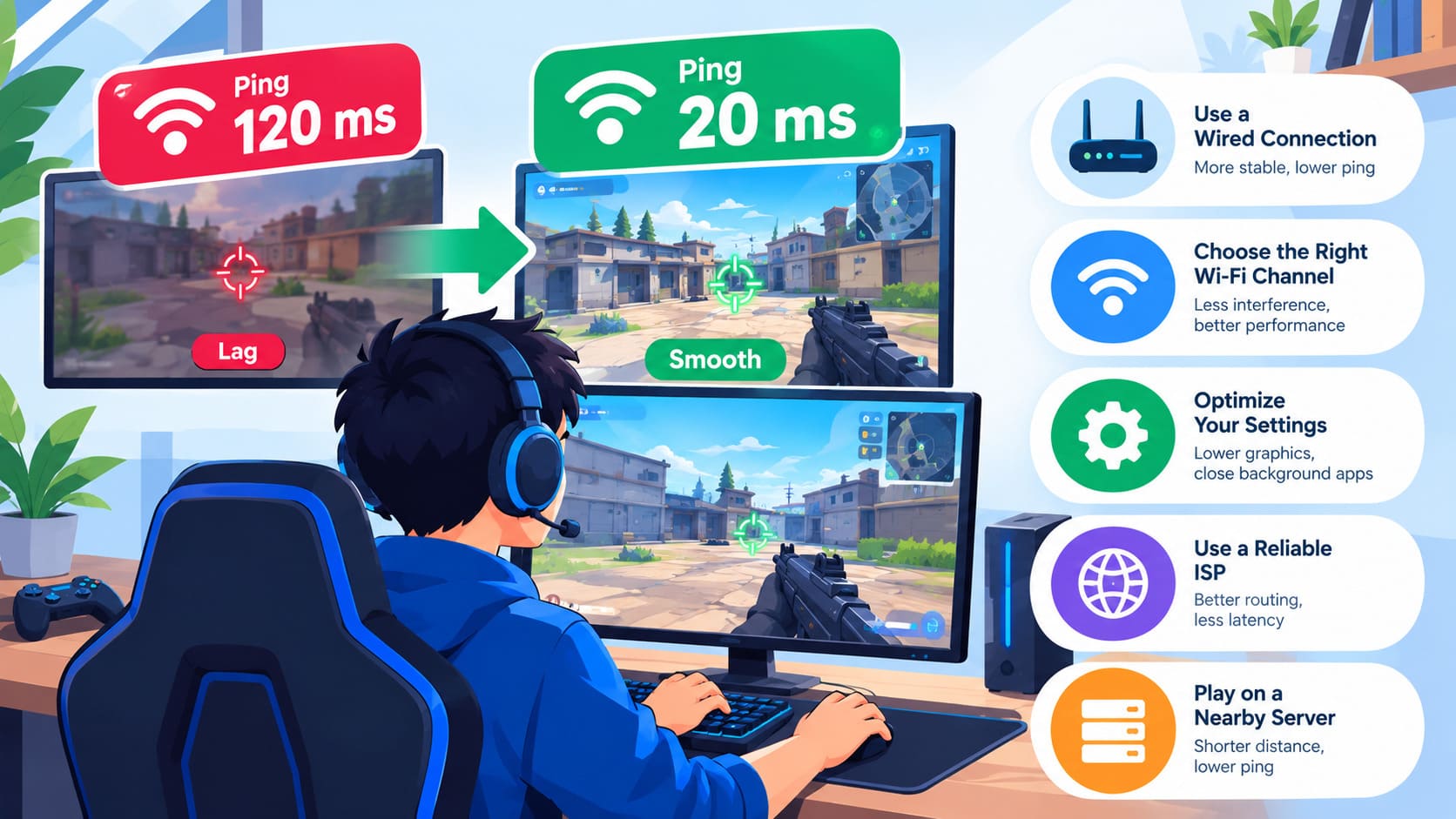
I’ve ordered these by how often they make a real difference. If you only have time for two, do the first two.
1. Use a wired connection
If I could give you only one tip, it would be this one. An Ethernet cable removes wireless interference and usually gives lower, steadier ping than Wi-Fi. If running a cable across the room isn’t realistic, powerline adapters or MoCA can work in some homes, though results depend on your wiring.
2. Make your Wi-Fi less painful
If you’re stuck on wireless, a few small changes help:
- Move closer to the router and clear the path between you.
- Use the 5 GHz band, or 6 GHz if your gear supports it. They’re less crowded than 2.4 GHz, though they don’t travel as far through walls.
- Get the router out of cabinets and away from other electronics.
- If the signal doesn’t reach, compare a WiFi booster vs WiFi extender before buying, because a badly placed extender can add its own delay.
3. Quiet down the background traffic
Pause cloud backups, console updates, and streaming on other devices before you play. Disconnect what you aren’t using. Your router only has so much attention to give, and a crowded network shows up as ping.
4. Pick the right server
Choose the nearest region in the game’s settings instead of leaving it on automatic if your ping looks off. Closest isn’t always best, though. A nearby server that’s packed at peak hours can perform worse than one a bit farther away with lighter traffic. Try two regions and compare. Our walkthrough on how to fix high ping in Fortnite shows this in action.
5. Tame bufferbloat with QoS or SQM
If your loaded latency is much higher than your idle latency, look in your router settings for one of these:
- SQM (Smart Queue Management): keeps the waiting line short using algorithms like fq_codel or CAKE. It’s usually the most effective fix.
- QoS (Quality of Service): lets you prioritize certain devices or traffic, like your console or PC.
Routers name these differently, so look for labels like “Adaptive QoS,” “Game Boost,” or “Smart Queue.” A common tip is to set the limits slightly below your real speed, around 90 to 95%, so the line forms inside your router where it’s managed. Then run the loaded latency test again. Some routers handle this badly, and a few will cut your top speed, so treat it as something to try and verify.
6. Restart and update your router
It sounds too simple, but a restart clears temporary glitches. Unplug the modem and router for about 30 seconds, then plug them back in. While you’re at it, check for firmware updates.
7. Replace very old equipment
If your router is many years old, it may struggle with a modern household full of devices. A newer router with better queue management can help more than a faster internet plan. If your provider supplies the modem, ask whether a newer one is available.
8. Look at your security software
Firewalls and antivirus programs inspect traffic, which can add a tiny delay. If you suspect them, add your game as an exception instead of turning protection off. The effect is usually small, so don’t expect miracles here.
For stutter and frame drops that aren’t about the network, our guide on how to reduce lag in online games covers the rest.
How to Reduce Ping on PC, PS5, and Xbox
The core advice is the same everywhere, but each platform has its own shortcuts.
On PC
Open Task Manager and sort by the Network column. You’ll often find a launcher, a cloud sync tool, or a browser tab quietly using bandwidth. Use Ethernet if you can, and update your network adapter drivers from the manufacturer’s site. On a laptop, check that Wi-Fi power saving isn’t throttling the adapter. Pause Windows Update and launcher downloads before a session, and use the in-game overlay to see what’s happening in real matches.
On PS5
Go to Settings > Network > Connection Status > Test Internet Connection. Use a cable if the console is near the router. If it isn’t, at least keep it in the open with a clear line to the router. Pause background downloads before you play. You’ll see advice online about changing DNS or setting a static IP, but the effect on in-game ping is usually small, so I’d treat those as minor tweaks.
On Xbox
Go to Settings > General > Network settings > Test network speed & statistics. Then try Test multiplayer connection to catch NAT or server issues. An Open NAT type generally means fewer matchmaking headaches, but NAT affects who you can connect to more than how fast the connection is. Clear the download queue before you play, and go wired if you can. If not, use 5 GHz.
On any console, a cable and a clear path to the router tend to matter more than fancy settings.
Does a VPN Reduce Ping?
Usually not. A VPN adds an extra stop between you and the game server, and it encrypts your traffic, so it typically adds a little delay.
There are exceptions. If your internet provider sends your traffic along a congested or roundabout route, a VPN can sometimes find a better path. Some players also use one to reach a certain server region. But it’s never guaranteed, and it depends on the provider, the protocol, and which server you pick.
If you want to try, choose a nearby VPN server and a lightweight protocol, then compare your in-game ping with and without it. Our comparison of WireGuard vs OpenVPN explains why one often feels faster than the other, and our article on whether a VPN is good for gaming covers the trade-offs. Check the game’s terms first, since some titles restrict VPN use. I’d also skip free VPNs for gaming, because crowded servers and speed limits tend to make ping worse.
What to Do If Your Ping Is Still High
If you’ve tried all this and the delay hasn’t budged, the cause is probably outside your home. That’s frustrating, but it’s useful to know, because it stops you from spending money on gear that won’t help.
Call your internet provider. Tell them your ping is high, mention the times of day or weather conditions when it happens, and share your test results. Ask whether there’s congestion or a line problem in your area. A technician can sometimes spot a damaged cable or a weak signal that you can’t see.
Check the game’s servers. If only one game has high ping, look at the developer’s status page or community forums. The issue may be theirs.
Think about your connection type. Satellite, mobile broadband, and some fixed wireless services tend to have higher baseline latency than wired options. If fiber is available where you live, it typically gives lower and steadier latency. Our explainer on how fiber internet works covers what to expect.
Go deeper if you like. For routing, DNS, and other advanced steps, our guide on how to reduce internet latency picks up where this article stops.
Confirm before you spend. A faster plan rarely fixes latency on its own. Let your test results point to the cause first.
Frequently Asked Questions
What is a good ping for gaming?
Under 50 ms is good for most online games, and under 20 ms is excellent. Above 100 ms, the delay becomes noticeable in fast-paced games.
Can weather affect my ping?
It can, depending on your connection type and the condition of your cables and equipment. Wireless, satellite, and older outdoor lines are more exposed. If your ping jumps during rain, compare test results from wet and dry days and share them with your provider.
Is Ethernet better than Wi-Fi for ping?
Usually, yes. Ethernet avoids wireless interference, so ping is lower and steadier. The size of the difference varies by home, so it’s worth testing yours.
Will faster internet lower my ping?
Not by itself. Speed and ping are separate. A faster plan helps if your connection is overloaded, but it can’t shorten the distance to a server.
Why is my ping high only at night?
More people are online in the evening, which can congest your provider’s network. Testing at different times can confirm it.
Does a VPN lower ping?
Rarely. Most of the time it adds a little delay. It may help in specific cases where your provider’s route is poor.
Can I fix high ping on a console?
Often, yes. Use a cable, pause background downloads, and choose a nearby server. Router settings like QoS or SQM can also calm the spikes that happen when other devices are busy.
Final Thoughts
Most ping problems come down to a shaky wireless link, a busy network, a faraway server, or a router that can’t manage traffic well. Start with a cable, measure before and after every change, and check your loaded latency to catch bufferbloat. If nothing moves the needle, take your numbers to your provider. Having real results in hand makes that conversation much easier, especially if the problem shows up in bad weather.
You May Also Like
 Internet
Is Tachus (Ezee Fiber) Internet a Good Provider? Complete Review & Plans
 Internet
Wi-Fi Connected but No Internet? Find the Cause and Fix It
 Computers & PC Games
Is RomsFun Safe and Legit? My Complete Review and Testing Experience
 Computers & PC Games
10 Best Modded Minecraft Server Hosting (2026): Pricing, Specs & Honest Picks for Every Modpack
 Computers & PC Games
8 Best Valheim Server Hosting Providers in 2026: Dedicated Hosts Compared
 Computers & PC Games