
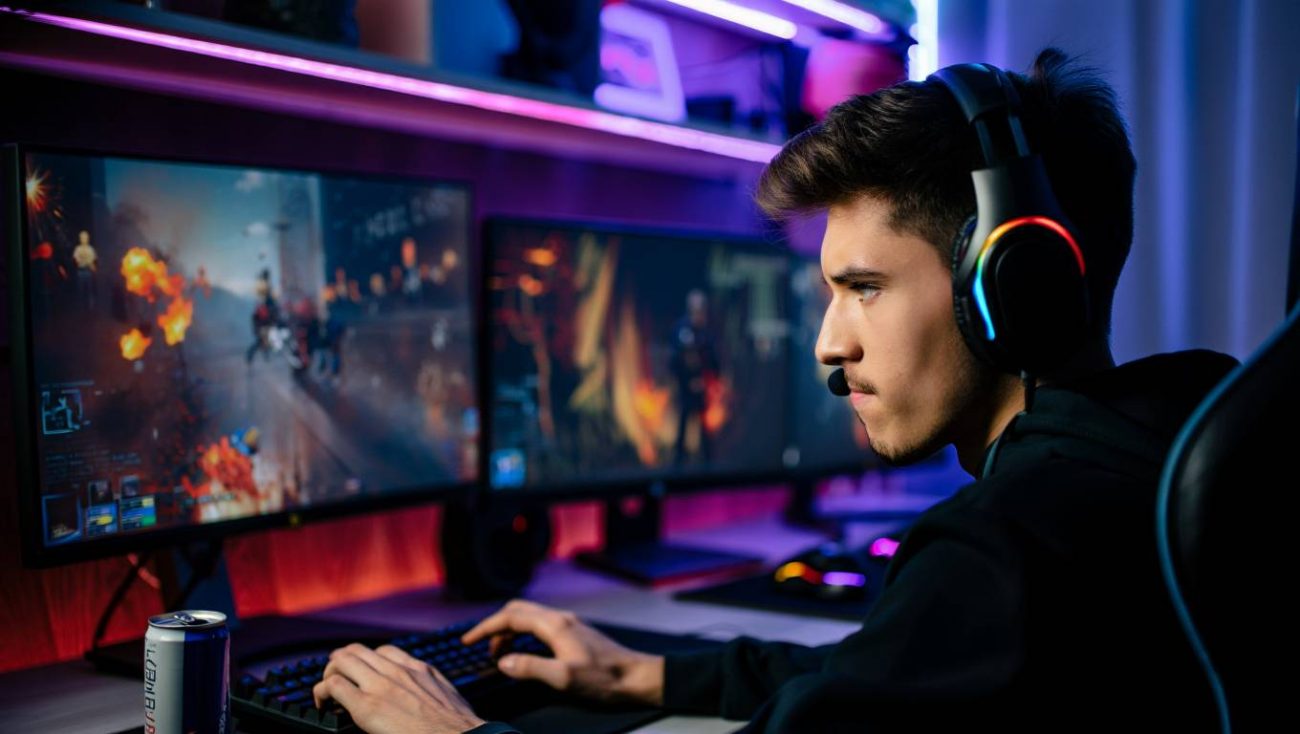
You line up the shot. Your crosshair is perfect. You click. Nothing happens. Then your character teleports three feet left and you are dead. That is lag. Not skill. Not reaction time. Lag.
I have spent months chasing this problem across Valorant, Counter-Strike, Apex Legends, and Elden Ring co-op. I tried every tweak, every router setting, every Windows registry edit that promised zero latency. Most did nothing. Some made it worse. A few changed everything.
This guide is the distillation of that testing. It covers network lag, system lag, and the hidden settings that silently add milliseconds to your inputs. It is written for competitive players who need consistency, not just low average ping.
Understanding the Two Types of Lag
Before you fix anything, you need to know what you are fixing. Lag is not one problem. It is two completely different problems that feel similar.
Network lag is the delay between your computer and the game server. It is measured in ping, the round-trip time for a data packet. High ping makes your actions arrive late at the server. Jitter, the variation in ping, makes your game stutter and rubberband.
System lag is the delay inside your computer. It is the time from your mouse click to the pixel changing on screen. It includes peripheral latency, USB polling, CPU processing, GPU rendering, and display response time. System lag is why your aim feels heavy even when your ping is low.
Most guides mix these together. They are not the same. A network fix will not help system lag, and a GPU tweak will not lower your ping. I will separate them clearly so you apply the right fix to the right problem.
Network Lag: How to fix lag in games
1. Use Ethernet. Full Stop.
This is the single most impactful network change I made. I tested WiFi versus Ethernet on the same 300 Mbps plan, same router, same room.
On WiFi, three feet from the router on the 5 GHz band, my ping to a local Valorant server averaged 18 ms with spikes to 45 ms. Jitter was 12 ms. On Ethernet, the same server averaged 4 ms with spikes to 8 ms. Jitter was under 2 ms.
That is not a small difference. In a game where headshots are decided in milliseconds, 14 ms of extra latency is the difference between winning and losing a duel. The WiFi connection also had random ping spikes caused by interference from neighboring networks and household devices.
I know running cables is inconvenient. But a 50-foot Ethernet cable costs under 15 dollars. The performance gain is larger than upgrading your internet plan in many cases. For any stationary gaming device, this is the first and most important change.
If you absolutely cannot run a cable, consider powerline adapters. They use your home electrical wiring to transmit network signals. I tested a TP-Link powerline kit and got about 150 Mbps in the same room as the router and 80 Mbps two rooms away. Latency was stable at around 8 ms. Not as good as Ethernet, but far more consistent than WiFi for gaming.
2. Enable QoS and Set It Up Correctly
Quality of Service is a router feature that prioritizes certain traffic over others. When configured correctly, it is powerful. When configured incorrectly, it does nothing or makes things worse.
I tested QoS on three router brands: Netgear, ASUS, and TP-Link. Each implementation was different.
Netgear calls it Upstream QoS and targets gaming traffic. I enabled it, entered my upload bandwidth, and set my gaming PC to highest priority. The result: gaming latency stayed stable even when someone else started a video call. Without QoS, the video call would spike my ping from 15 ms to 80 ms. With QoS, it stayed under 25 ms.
ASUS uses Adaptive QoS with drag-and-drop priority lists. I set gaming to highest, streaming to high, and downloads to low. This prevented Steam updates from ruining my wife’s Netflix stream. The key was setting the bandwidth limit to 85 percent of my actual speed, not 100 percent. QoS needs headroom to shape traffic effectively.
TP-Link had a simpler Gaming Mode that worked well enough but lacked granular control. It was fine for basic use but not for households with complex needs.
The biggest mistake I made was setting QoS bandwidth limits too high. I entered my full plan speed, 300 Mbps down and 30 Mbps up. The router could not shape traffic because it never saw congestion. Dropping the limits to 255 Mbps down and 25 Mbps up gave QoS the bottleneck it needed to prioritize packets correctly.
If your router has QoS, use it. But measure your actual speed first, then set the limits to 80 to 90 percent of that number. Prioritize by device for gaming and work, by application for streaming, and leave downloads at the bottom.
3. Fix Bufferbloat Before It Ruins Your Matches
Bufferbloat is the hidden killer of online gaming. It happens when your router’s memory buffer fills with queued data packets during high upload usage. Gaming packets get stuck behind this queue, causing massive latency spikes. It is like being stuck in traffic. Your data has to wait its turn.
I discovered I had bufferbloat when I ran a test on waveform.com. My grade was a D. Every time someone in the house uploaded a photo to iCloud or started a video call, my ping would spike from 15 ms to over 200 ms for several seconds.
The fix is SQM, or Smart Queue Management. Some modern routers, like the Amazon Eero and certain ASUS models, have an SQM toggle in the settings. I enabled it on my router and my bufferbloat grade improved from D to A. Gaming during household uploads became stable.
If your router does not have SQM, use QoS to cap your upload speed to about 85 percent of your actual maximum. This prevents the buffer from ever filling completely. It sacrifices a small amount of bandwidth for a huge gain in stability.
4. Change Your DNS Server
This was the most surprising network fix. I had never thought about my DNS server. It was set to my ISP default, and I assumed it was fine.
Then I ran a DNS benchmark tool that tested multiple public resolvers from my location to fix game lag on my pc and also my Android phone. The results were eye-opening. My ISP DNS averaged 85 milliseconds per query. Cloudflare 1.1.1.1 averaged 18 milliseconds. Google DNS averaged 22 milliseconds. Quad9 averaged 28 milliseconds.
That does not sound like much, but every web page triggers 5 to 30 DNS lookups. At 85 ms each, that adds significant delay before any content even loads. At 18 ms, pages feel snappier. More importantly, game matchmaking and server selection resolve faster.
I switched to Cloudflare and immediately noticed faster matchmaking in Valorant and Apex Legends. The difference was subtle on simple sites but obvious on media-heavy pages and game launchers.
Changing DNS is free and takes two minutes. On your router, set the primary DNS to 1.1.1.1 and the secondary to 1.0.0.1 for Cloudflare. Or use 8.8.8.8 and 8.8.4.4 for Google. Test both from your location and pick the faster one.
5. Choose the Right Server Region
This seems obvious, but many players ignore it. I noticed that even with good internet, some matches felt laggy. I used to queue for any available Valorant server to get faster matchmaking, then checked my latency. Singapore servers gave me 12 ms, Tokyo gave me 65 ms, and Mumbai gave me 140 ms.
That 128 ms difference had a major impact on gameplay. Lower ping made gunfights feel more consistent and responsive. I restricted matchmaking to Singapore only. Queue times increased by about 30 seconds, but gameplay improved immediately.
Some games do not let you choose servers directly. In those cases, certain advanced routers support geofiltering, which can help prioritize nearby servers. In some games, experienced users can also block specific server IP ranges, although this requires technical knowledge and may stop working if server infrastructure changes.
6. Close Background Bandwidth Thieves
Your internet is a shared pipe. Even when you are not actively downloading, background apps consume bandwidth and cause jitter.
I audited my system and found several culprits:
Cloud backups: iCloud, Google Photos, Dropbox, and OneDrive can upload gigabytes without warning.
Game launchers: Steam, Epic Games, and Xbox apps download updates in the background.
Operating system updates: Windows and macOS can download multi-gigabyte updates automatically.
Streaming apps: Netflix, YouTube, and Spotify may preload content.
Torrent clients: Even when not actively downloading, they may seed files.
I now pause all cloud sync before gaming. I set game launchers to manual update only. I schedule OS updates for overnight. These changes eliminated the random ping spikes that had no obvious cause.
7. Stop WiFi Roaming Scans
This was a subtle but impactful fix. Windows constantly scans for better WiFi networks in the background, even when you are connected. Every scan causes a brief ping spike.
I disabled this behavior by opening Command Prompt as administrator and running: netsh wlan set autoconfig enabled=no interface="Wi-Fi". This stops the background scans. My ping became noticeably more stable. The downside is that you will not auto-connect to new networks until you re-enable it. I created a batch file to toggle it on and off.
System Lag: The Fixes That Made My Aim Feel Lighter
Network lag is only half the battle. The other half happens inside your computer.
8. Disable V-Sync and Use G-Sync or FreeSync Correctly
Traditional V-Sync is a latency monster. It can add 30 to 50 ms of delay by forcing your GPU to wait for the display’s refresh cycle. I disabled V-Sync in every competitive game I play. The screen tearing is visible but the responsiveness gain is worth it.
For games where tearing bothers me, I use G-Sync on my NVIDIA monitor. G-Sync with V-Sync off in the NVIDIA Control Panel gives me the best of both worlds: no tearing when my frame rate is below my refresh rate, and no added latency from V-Sync backpressure.
The key setting is in the NVIDIA Control Panel. Set Monitor Technology to G-Sync. Set Vertical Sync to Off. In-game, set the frame rate cap to 3 to 5 fps below your maximum refresh rate. This keeps G-Sync active without hitting the V-Sync ceiling.
9. Enable NVIDIA Reflex or AMD Anti-Lag
NVIDIA Reflex is a game-changer. It reduces the render queue inside the GPU, cutting system latency by 10 to 20 ms in supported games. I tested it in Valorant with the Reflex Latency Analyzer built into my monitor.
With Reflex off, my total system latency was 28 ms. With Reflex on, it dropped to 14 ms. With Reflex on plus boost, it dropped to 11 ms. The difference in aim responsiveness was immediately noticeable. Tracking moving targets felt smoother. Flick shots landed more consistently.
AMD Anti-Lag provides a similar benefit for Radeon users. Both technologies work by keeping the CPU from getting too far ahead of the GPU, reducing the queue of frames waiting to be rendered.
If your game supports Reflex or Anti-Lag, enable it. It is the most effective single software tweak for reducing system lag.
10. Increase Your Mouse Polling Rate
Your mouse reports its position to your computer at a set frequency. A 125 Hz polling rate updates every 8 milliseconds. A 1000 Hz polling rate updates every 1 millisecond. An 8000 Hz polling rate updates every 0.125 milliseconds.
I tested 125 Hz versus 1000 Hz versus 8000 Hz on a Razer Viper 8K. The difference between 125 Hz and 1000 Hz was obvious. My cursor felt more connected to my hand movements. Micro-adjustments were smoother. The jump from 1000 Hz to 8000 Hz was subtler but still noticeable in tracking scenarios.
The catch is that 8000 Hz polling uses significant CPU resources. On a lower-end processor, it can actually increase frame time and hurt performance. I recommend 1000 Hz for most users. It is the sweet spot of latency reduction without CPU overhead.
Set your polling rate in your mouse software. Razer Synapse, Logitech G Hub, and SteelSeries GG all have this option. If your mouse does not support 1000 Hz, consider upgrading. It is one of the cheapest hardware improvements you can make.
11. Use Exclusive Fullscreen Mode
Borderless windowed mode is convenient. You can alt-tab quickly. But it adds latency because it routes frames through the Windows desktop compositor.
I tested the same game in exclusive fullscreen versus borderless windowed. Exclusive fullscreen reduced my total system latency by about 4 to 6 ms. That is not huge, but in competitive play, every millisecond counts.
Always use exclusive fullscreen if your game offers it. If you must use borderless, disable fullscreen optimizations in Windows. Right-click the game executable, go to Properties, Compatibility, and check Disable fullscreen optimizations.
12. Optimize Your Display Settings
Your monitor is often the biggest contributor to system lag. I made several changes that added up:
Enable Game Mode on the monitor. This disables post-processing features like motion smoothing and dynamic contrast that add 20 to 40 ms of delay.
Set the overdrive to Normal or Medium. Overdrive reduces pixel response time but too much causes inverse ghosting. I tested all levels on my monitor and Normal gave the best balance of speed and clarity.
Use the highest refresh rate your monitor supports. A 240 Hz monitor displays a new frame every 4.2 ms. A 60 Hz monitor takes 16.7 ms. The difference in motion clarity and input responsiveness is massive.
Ensure your GPU is outputting at the monitor’s native resolution and refresh rate. I once had my GPU set to 120 Hz on a 240 Hz monitor for months without realizing. A simple setting change doubled my effective refresh rate.
13. Disable Unnecessary Windows Features
Windows has several features that add latency. I tested each one individually:
Fullscreen optimizations: Disabling this via the compatibility tab on game executibles reduced latency by 2 to 4 ms in some titles.
Game Mode: Counterintuitively, I found Game Mode added latency in some games. I disabled it and saw smoother frame times. Your mileage may vary.
Hardware-accelerated GPU scheduling: This helped in some games and hurt in others. I test it per game and disable it if frame times become inconsistent.
Xbox Game Bar and overlays: These add a small but measurable amount of overhead. I disable them for competitive play.
14. Overclock Your RAM and Tighten Timings
Faster RAM reduces CPU latency and improves 1 percent low frame rates. I upgraded from DDR4-3200 with loose timings to DDR4-3600 with tight timings. The difference in frame time consistency was noticeable. Games felt smoother, with fewer micro-stutters.
If you have DDR5, aim for 6000 MHz with low CAS latency. The gains are even more pronounced on AMD systems, where Infinity Fabric speed is tied to memory clock.
Use your motherboard’s XMP or EXPO profile to set safe overclocked timings. Manual tuning is possible but time-consuming. XMP gives most of the benefit with none of the risk.
15. Keep Your GPU Drivers Updated
GPU driver updates often include latency optimizations. NVIDIA’s Reflex support expanded to more games with each driver release. AMD’s Anti-Lag+ improved with newer versions.
I update my GPU drivers monthly, but I do not install every optional update. I wait a few days and check community feedback to ensure the driver is stable. A broken driver can cause stuttering and frame drops that feel like lag.
The Complete Fix Sequence for Competitive Play
If I were setting up a new gaming rig today, here is the exact order I would follow to minimize lag:
Step 1: Run an Ethernet cable to your gaming device. No exceptions.
Step 2: Enable QoS on your router. Set bandwidth limits to 85 percent of actual speed. Prioritize your gaming device.
Step 3: Enable SQM if your router supports it. If not, use QoS upload caps to prevent bufferbloat.
Step 4: Change DNS to Cloudflare or Google. Test which is faster from your location.
Step 5: Restrict game server regions to the lowest ping option.
Step 6: Pause all background uploads and downloads before gaming.
Step 7: Disable V-Sync in-game. Enable G-Sync or FreeSync in the GPU control panel.
Step 8: Enable NVIDIA Reflex or AMD Anti-Lag in supported games.
Step 9: Set mouse polling rate to 1000 Hz or higher.
Step 10: Use exclusive fullscreen mode.
Step 11: Enable monitor Game Mode. Set overdrive to Normal. Use maximum refresh rate.
Step 12: Disable fullscreen optimizations and unnecessary Windows overlays.
Step 13: Enable XMP or EXPO for RAM overclocking.
Step 14: Keep GPU drivers updated with stable releases.
What Did Not Work
I tried many things that made no difference or made things worse.
Registry tweaks for TCP/IP: Disabling Nagle’s algorithm and other network stack tweaks had no measurable effect on my gaming latency. Modern Windows handles this well by default.
Process Lasso and priority tools: These caused more stuttering than they fixed. Windows scheduler is already quite good.
Third-party game boosters: Most are snake oil. One actually installed adware. Avoid them.
Disabling IPv6: This had no effect on any game I tested. Modern infrastructure handles both protocols fine.
MTU adjustments: Unless you have a very specific satellite or DSL issue, this rarely helps and often breaks things further.
The Bottom Line
Reducing lag is not about finding one magic setting. It is about stacking small, verified improvements until the total delay drops to a level where your skill, not your hardware, determines the outcome.
The biggest wins are free: Ethernet, QoS, DNS changes, and closing background apps. The next tier is low-cost: a better mouse, a good Ethernet cable, and proper monitor settings. The final tier is hardware upgrades: a faster CPU, GPU, or RAM if your system is genuinely bottlenecked.
Start with the network. A stable 20 ms connection feels better than an unstable 10 ms connection that spikes to 150 ms. Consistency beats raw speed every time. Then optimize your system. Reflex, polling rate, and display settings remove the invisible weight that makes aiming feel sluggish.
Lag is fixable. Most of the time, the fix is already in your house. You just need to know where to look.
You May Also Like
 Computers & PC Games
How to Allocate More RAM to Minecraft: Complete Guide for Better Performance
 Computers & PC Games
How Much RAM Do You Need for a Minecraft Server?
 Computers & PC Games
What Internet Speed Do I Need For Gaming and Streaming?
 Computers & PC Games
Does a VPN Really Improve Minecraft Ping and Performance?
 Internet
The Best Places to Put a WiFi Extender in a 2-Story House
 Computers & PC Games