
Want to know how smoothly Minecraft runs on your device? Checking your FPS is the quickest way to find out.
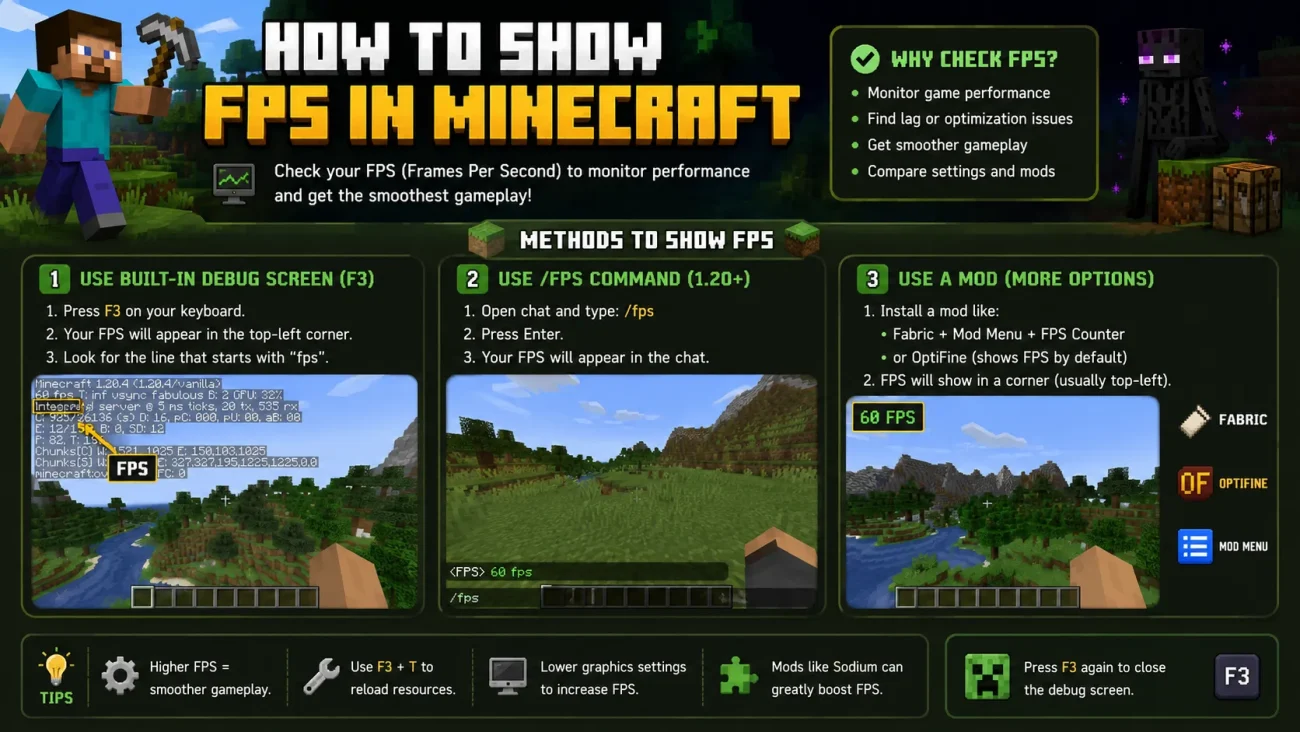
In Java Edition, you can see your FPS by pressing F3 to open the debug screen. In Bedrock Edition, there is no built-in FPS counter, so you’ll need to use a tool like the Xbox Game Bar on Windows, or a trusted add-on.
Let’s break down exactly how this works for both editions, plus what to do if your FPS is low.
What Is FPS in Minecraft?
FPS means frames per second. It tells you how many images, or frames, the game shows you every second.
Basically, more frames per second means smoother movement. Fewer frames per second means the game can look choppy or laggy.
Here’s the important part: FPS is not the same thing as ping.
- FPS measures how fast your device is rendering the game.
- Ping measures the delay between your device and a server.
You can have high FPS with high ping. You can also have low FPS with low ping. They measure two completely different things, and mixing them up can lead you to fix the wrong problem. If you’re dealing with delays or rubberbanding on a server, that’s a ping issue, not an FPS one, and it’s worth reading about common causes of high ping and rubberbanding on VPNs if that sounds familiar.
How to Show FPS in Minecraft Java Edition
Java Edition has a built-in debug screen that shows your FPS. This is the easiest way to check it, and you don’t need any mods.
- Open Minecraft: Java Edition.
- Load a world or join a server.
- Press F3 on your keyboard.
- Look in the top left corner. Your FPS number appears near the top of the debug overlay.
- Press F3 again to close the debug screen.
One thing to keep in mind is that keyboard layouts are not all the same. On some laptops, especially ones with function-key shortcuts, you may need to press Fn + F3 instead of just F3.
The debug screen also shows other useful details, like your coordinates, the direction you’re facing, and how many chunks are loaded. You don’t need to understand all of it. Just focus on the FPS number for now.
If F3 does not seem to do anything, check your key bindings under Options > Controls. Some custom keyboards or software can override function keys.
How to Show FPS in Minecraft Bedrock Edition
Here’s the part that surprises a lot of players: Bedrock Edition does not have a standard built-in FPS counter in its settings menu. In other words, there’s no single toggle inside the game that turns on an FPS display for everyone.
Instead, the method depends on your platform.
On Windows:
- Open Minecraft: Bedrock Edition.
- Press Windows key + G to open the Xbox Game Bar.
- Find the Performance panel.
- Pin the panel so it stays visible while you play.
- Your FPS will show inside that overlay.
On mobile devices:
- Open your device’s Settings app.
- Turn on Developer Options if they aren’t already enabled.
- Look for an option like Show refresh rate or FPS counter.
- Turn it on, then open Minecraft to see it overlaid on screen.
On consoles:
Consoles don’t offer a direct way to display FPS inside Minecraft. Some newer TVs show frame rate info through their own HDMI display settings, but this isn’t something Minecraft itself controls.
You can also use a trusted Bedrock add-on that displays FPS as part of the game’s HUD. If you go this route, only download add-ons from reputable sources, and check that they’re compatible with your current game version before installing.
Java vs. Bedrock FPS Display
Let’s say you’re trying to figure out which method applies to you. This table breaks down the difference.
| Edition | FPS Method | Where to Find It | Notes |
|---|---|---|---|
| Java Edition | Built-in debug screen | Press F3, check top left | Works on all current Java versions |
| Bedrock (Windows) | Xbox Game Bar | Win + G, Performance panel | Overlay, not part of Minecraft itself |
| Bedrock (mobile) | Developer options | Device settings | Varies by phone brand |
| Bedrock (console) | Not available | N/A | No built-in or overlay method |
How to Hide the FPS Counter
In Java Edition, hiding the FPS display is simple. Just press F3 again to close the debug screen.
In Bedrock Edition, the process depends on how you turned it on:
- Xbox Game Bar: Press Windows key + G again to close the overlay.
- Developer options: Go back into your device settings and turn the FPS or refresh rate toggle off.
- Add-ons: Disable the resource pack from your world’s settings, or remove it from Global Resources.
What Is a Good FPS for Minecraft?
There isn’t one perfect number that works for everyone. What feels smooth depends on your monitor’s refresh rate, your hardware, and honestly, your own preference.
That said, here are some general ideas:
- Around 30 FPS can feel playable, but it’s noticeably less smooth.
- Around 60 FPS is a common target for most players and works well on standard monitors.
- Higher FPS, like 100 or more, can be worth it if you have a high-refresh-rate display.
The easiest way to test it for yourself is to compare. Try 30 FPS, then try 60 FPS, and notice the difference in how movement feels.
What to Do if Your FPS Is Low
If your FPS is lower than you’d like, there are several things worth trying before you assume your hardware is the problem.
- Lower your render distance: This is often the single biggest FPS booster, since it controls how many chunks load around you.
- Reduce simulation distance: Fewer active chunks means less work for your system.
- Lower graphics quality: Switching from Fancy to Fast graphics can free up resources.
- Turn off particles: Heavy particle effects, like from explosions or weather, can drag FPS down.
- Avoid demanding shaders: Shader packs look great but can be very hard on your GPU.
- Check your resolution: Playing at a lower resolution can noticeably raise your FPS.
- Close background apps: Browsers, streaming software, and other games competing for resources can quietly eat into your FPS.
- Update your graphics drivers: Outdated drivers are a common, overlooked cause of poor performance.
- Watch your system temperatures: Overheating hardware can throttle itself, which lowers FPS.
For most players, reducing background CPU usage makes a bigger difference than they expect, especially if something is quietly maxing out the CPU in the background. It’s also worth checking how much memory Minecraft and other apps are using, since having enough RAM matters a lot for how smoothly the game runs, and allocating more RAM to Minecraft directly can help on larger worlds or heavily modded setups.
If you play on multiplayer servers, don’t confuse FPS drops with connection problems. Stutter caused by server-side lag in Bedrock worlds is a different issue than low local FPS, and it needs a different fix.
FPS and Hardware
FPS depends on more than just one part of your computer. It’s shaped by your GPU, CPU, RAM, resolution, and even the complexity of the world you’re in.
Mods, shaders, and texture packs all add extra work for your system. So does a busy world with lots of entities, like a huge farm or a crowded village. If you’re curious what those villagers are actually doing while your FPS takes a hit, it’s a fun rabbit hole to check out all the villager jobs in Minecraft.
Players running their own multiplayer worlds should also know that server hardware affects the experience separately from local FPS. A modded server hosting guide can help if you’re setting one up.
Common Mistakes When Checking Minecraft FPS
- Confusing FPS with ping: These measure two different things. FPS is local performance. Ping is network delay.
- Assuming more FPS is always better: Past a certain point, especially without a high-refresh monitor, extra FPS may not be noticeable.
- Changing too many settings at once: If you adjust five settings together, you won’t know which one actually helped.
- Using outdated instructions: Minecraft’s menus can change between updates, so double-check current menus if a method doesn’t match what you see.
- Assuming every Bedrock platform is identical: Windows, mobile, and console all handle FPS display differently.
- Blaming the internet for low FPS: Slow internet affects ping, not FPS. If your gameplay feels choppy but your connection is fine, the problem is usually local.
- Ignoring shaders or heavy resource packs: These can quietly tank your FPS even when every other setting looks fine.
FAQ
How do I show FPS in Minecraft Java? Press F3 while in a world. Your FPS appears in the top left corner of the debug screen.
How do I show FPS in Minecraft Bedrock? Bedrock doesn’t have a built-in FPS counter. On Windows, use the Xbox Game Bar (Windows key + G). On mobile, enable developer options and turn on the FPS or refresh rate display.
Does Minecraft Bedrock have an FPS counter? Not natively. You’ll need a platform tool, like Xbox Game Bar, or a trusted add-on.
What key shows FPS in Minecraft Java? F3 is the key. Some laptops require Fn + F3.
Can I see FPS without mods? Yes. Java’s F3 debug screen works without any mods. Bedrock players can use the Xbox Game Bar without installing anything extra.
How do I hide FPS in Minecraft? In Java, press F3 again. In Bedrock, close the Game Bar overlay, turn off the developer option, or disable the add-on you used.
What is a good FPS for Minecraft? Around 60 FPS feels smooth for most players. Lower numbers, like 30, are playable but less fluid.
Why is my Minecraft FPS so low? It’s usually caused by high render distance, demanding graphics settings, shaders, background apps, or outdated drivers.
Does FPS affect ping? No. They’re separate. FPS is about local rendering performance. Ping is about network latency.
How can I improve Minecraft FPS? Lower render distance, reduce graphics quality, close background apps, update your drivers, and check that you have enough RAM allocated.
Conclusion
Checking your FPS is a simple way to understand how well Minecraft is running on your setup. In Java Edition, F3 gets you there instantly. In Bedrock Edition, you’ll need a platform tool like the Xbox Game Bar or a trusted add-on, since there’s no built-in counter.
Once you know your FPS, you can experiment with settings and actually see what helps. That’s the real value of checking it in the first place.
You May Also Like
 Computers & PC Games
How to Allocate More RAM to Minecraft: Complete Guide for Better Performance
 Computers & PC Games
How Much RAM Do You Need for a Minecraft Server?
 Computers & PC Games
What Internet Speed Do I Need For Gaming and Streaming?
 Computers & PC Games
Does a VPN Really Improve Minecraft Ping and Performance?
 Computers & PC Games
What Is 4K Resolution on a Monitor?
 Computers & PC Games