
Minecraft can run well with a surprisingly small amount of RAM, especially if you’re playing the vanilla version without heavy mods or shaders.
Things change when you start using large modpacks, demanding shaders, or more complex worlds. You may notice stuttering while loading chunks, longer loading times, or even an Out of Memory error.
That’s when increasing Minecraft’s RAM allocation can make sense.
I wanted to see how simple the process was, so I changed the memory setting in the official Minecraft Java Launcher and then checked the result inside the game. The setting worked as expected, and the F3 debug screen showed the new memory limit.
The important part, however, isn’t giving Minecraft as much RAM as possible.
You want to give Minecraft enough memory for its workload while leaving enough RAM for Windows and your other applications.
This guide explains how to allocate more RAM to Minecraft Java Edition, how much memory to use for different setups, how to change the setting in popular launchers, and what to do when adding more RAM doesn’t fix the problem.
How Much RAM Should You Allocate to Minecraft?
There isn’t one number that works for every Minecraft player.
A basic vanilla installation needs much less memory than a large modpack, and a shader-heavy setup can have different requirements from both.
These are useful starting points:
| Minecraft Setup | Suggested Starting Point |
|---|---|
| Vanilla Minecraft | 2GB to 4GB |
| Light mods | Around 4GB |
| Medium modpacks | Around 6GB |
| Heavy modpacks | 8GB or more |
| Large or demanding setups | Adjust based on actual usage and requirements |
These aren’t strict requirements.
A small modpack may run perfectly at 4GB, while another pack with a similar number of mods could need more. The best starting point depends on what Minecraft is actually doing on your PC.
How Much RAM Does Your PC Have?
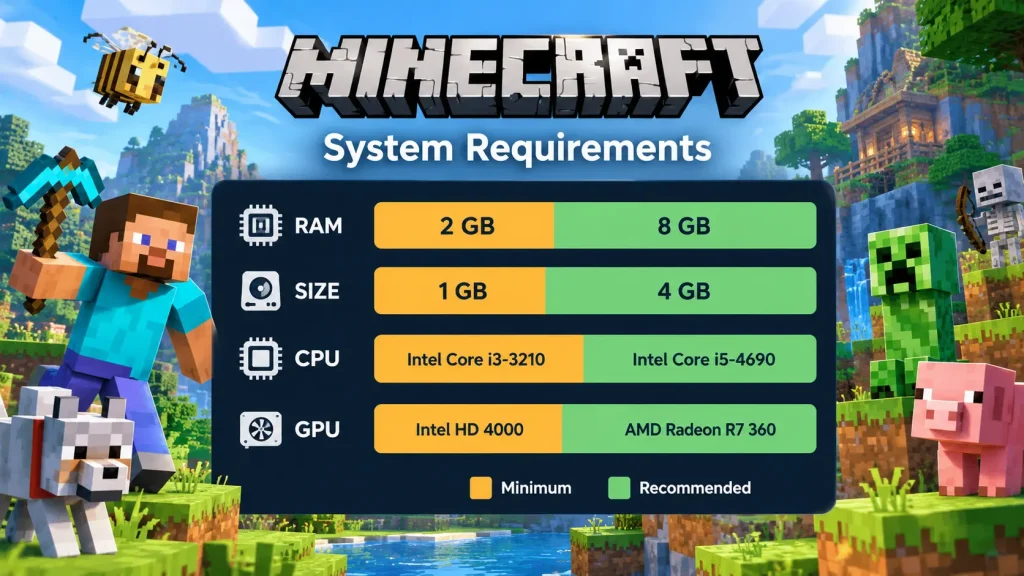
Before changing Minecraft’s settings, check your computer’s total physical RAM.
On Windows, right-click the Start button and open Task Manager. Then select Performance and click Memory.
You’ll see the total amount of RAM installed in the system.
For example, your PC might have 8GB, 16GB, 32GB, or 64GB.
Remember that Minecraft isn’t the only program using that memory.
Windows needs RAM to run. Your browser may have several tabs open. Discord, music apps, launchers, security software, and other background programs can also consume memory.
That is why you shouldn’t allocate your entire RAM capacity to Minecraft.
How Much RAM Can You Safely Give Minecraft?
A useful rule from the testing guidance behind this article is to keep Minecraft’s allocation at roughly half of your total physical RAM or less.
For example:
| Total System RAM | Example Maximum Starting Point |
|---|---|
| 8GB | Up to around 4GB |
| 16GB | Up to around 8GB |
| 32GB | Up to around 16GB |
| 64GB | Up to around 32GB |
This is a conservative guideline, not a requirement that you must follow exactly.
You may need far less than half your RAM for vanilla Minecraft. The point is to avoid starving Windows and everything else running on the computer.
In my own test, the PC had 64GB of RAM, so allocating 10GB to Minecraft left plenty of memory available for the rest of the system.
How to Allocate More RAM to Minecraft Java Edition
The official Minecraft Java Launcher lets you change the memory allocation through an installation’s JVM arguments.
The process only takes a few steps.
If you’re wondering how to assign more memory to Minecraft, change the -Xmx value in the JVM arguments for the installation you want to use.
If you’re wondering how to give Minecraft more RAM, open the official Minecraft Java Launcher and adjust the memory allocation in your installation’s JVM arguments.
Step 1: Open Minecraft Launcher
Start the official Minecraft Launcher on your computer.
Make sure you’re working with Java Edition, because the JVM method in this guide applies to Java.
Step 2: Open Installations
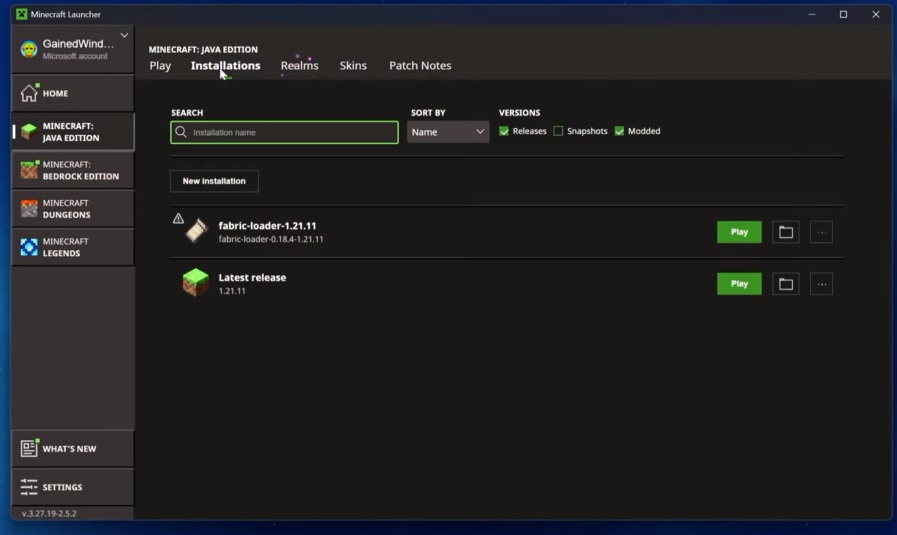
At the top of the launcher, click:
Installations
You’ll see the Minecraft versions and profiles available on your computer.
You may have the standard latest release, older versions, or separate profiles for mods and shaders.
Step 3: Choose the Installation You Use
Find the Minecraft installation you want to change.
This step is important if you have more than one profile.
For example, your normal Minecraft installation may use a smaller memory allocation while a modded profile requires more.
Choose the profile you actually launch.
Step 4: Click the Three Dots
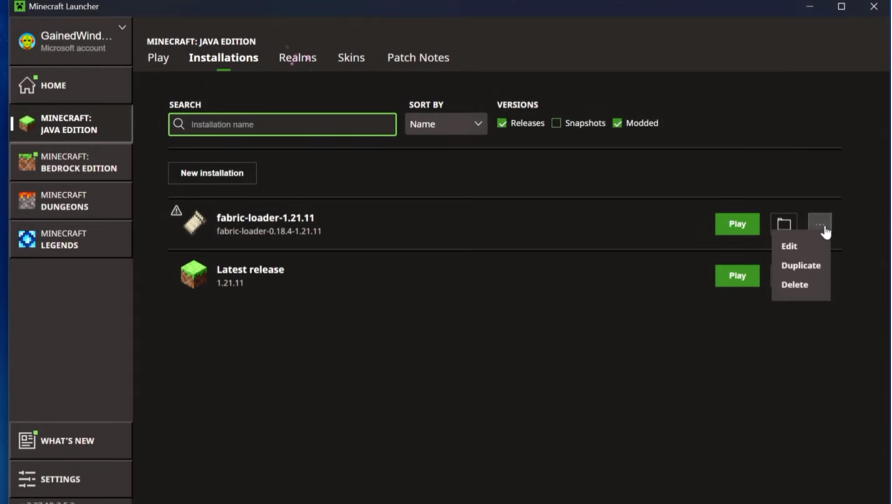
Hover over the installation.
Click the three dots next to it and select:
Edit
This opens the installation settings.
Step 5: Open More Options
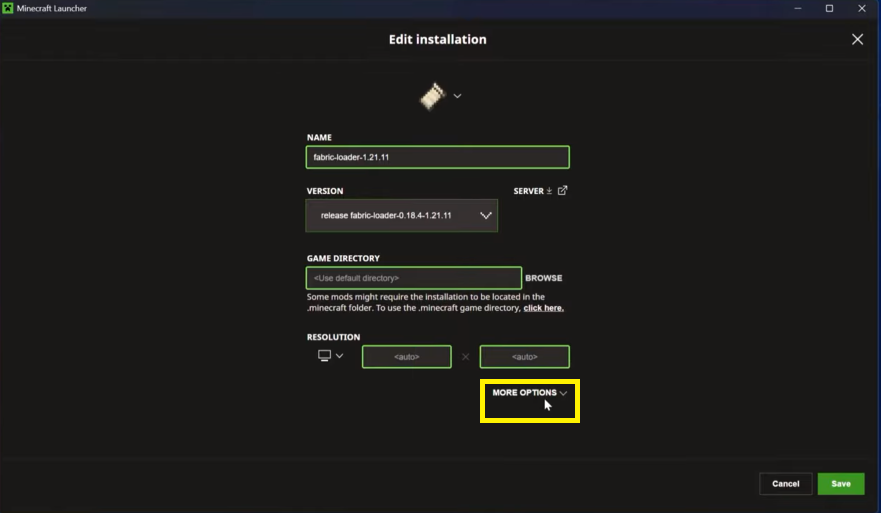
Scroll through the settings until you find:
More Options
Open it to reveal additional Java configuration settings.
Step 6: Find JVM Arguments
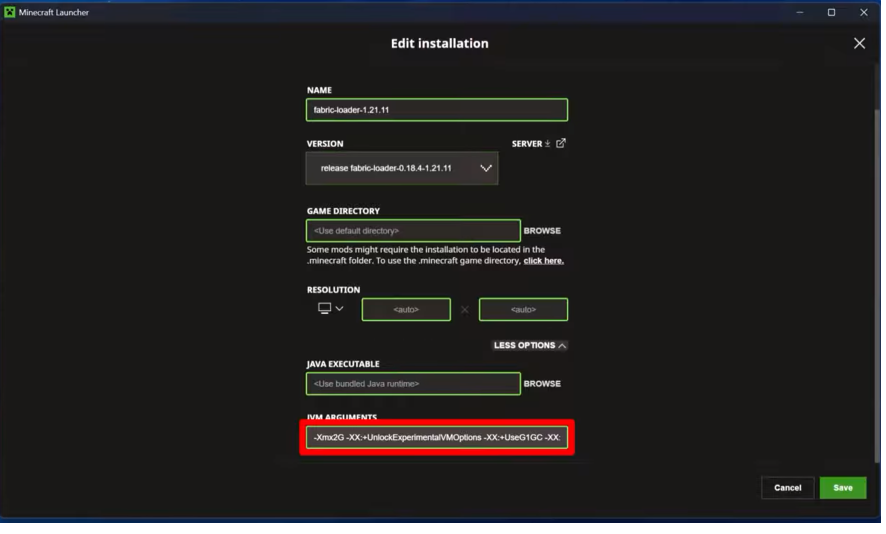
Look for the field labeled:
JVM Arguments
You may see an argument similar to:
-Xmx2G
The -Xmx value controls the maximum Java heap size available to Minecraft.
So:
-Xmx2G
sets the maximum heap size to 2GB.
Step 7: Change the Memory Value
Replace the existing number with the amount you want.
For example:
-Xmx4G
sets a 4GB maximum heap.
You could also use:
-Xmx6G
or:
-Xmx8G
depending on your setup.
You don’t need to remove the other JVM arguments.
Change the memory value you need and leave the rest of the existing arguments in place.
Step 8: Save the Installation
Click:
Save
The new setting will now be associated with that Minecraft installation.
Step 9: Launch Minecraft
Start Minecraft using the profile you just changed.
The next step is checking whether the new configuration was actually applied.
How to Check How Much RAM Minecraft Has
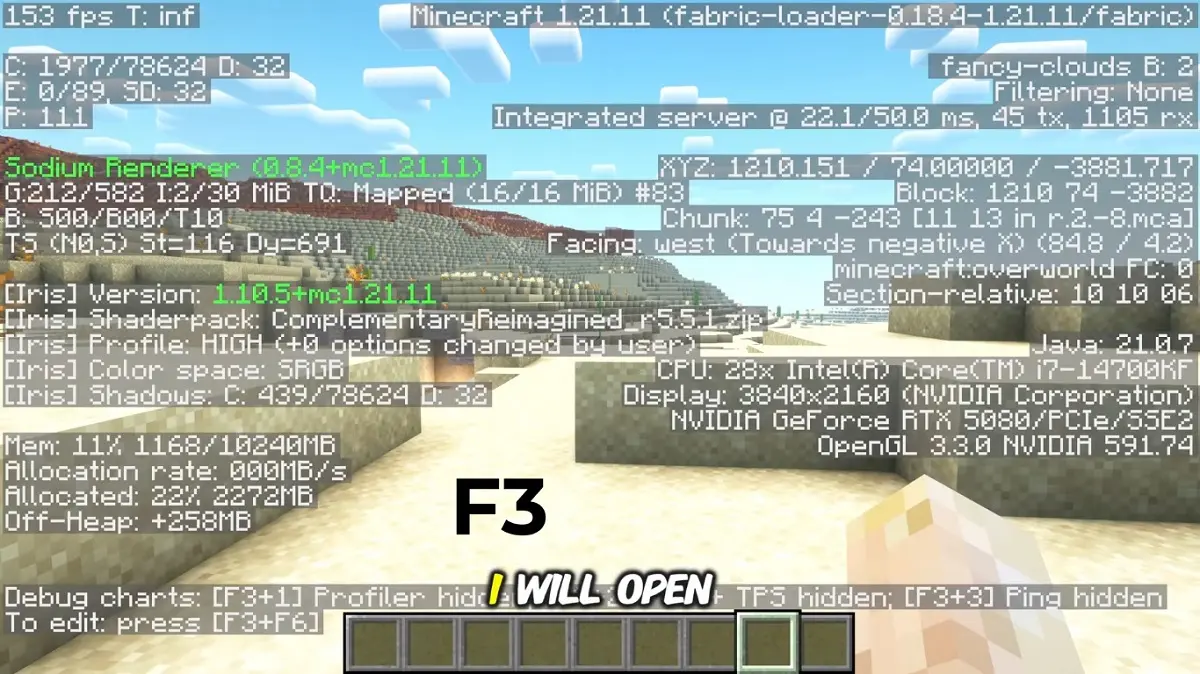
I recommend verifying the change instead of simply assuming it worked.
Once you’re inside Minecraft Java Edition, press:
F3
This opens the debug screen.
The memory information shown there can help you see how Java is using memory.
In my own test, I changed the allocation to 10GB.
After launching a fresh world and opening the F3 screen, the memory information showed approximately:
10,240 MB
That corresponds to 10GB and confirmed that the new setting had been recognized.
So if you change:
-Xmx2G
to:
-Xmx8G
launch the game and check the debug information to make sure the configuration is behaving as expected.
Does Allocating More RAM Increase Minecraft FPS?
Not necessarily. This is probably the most common misunderstanding about Minecraft RAM.
Increasing the Java heap gives Minecraft more room to work with memory. It doesn’t automatically make your GPU render frames faster or your CPU process the game faster.
If your current memory allocation is already sufficient, increasing it may produce little or no FPS improvement.
You may see more benefit when Minecraft is actually running into memory limitations, particularly with heavy modpacks or demanding setups.
If you want to determine whether low frame rate is part of your problem, see our guide on how to show FPS in Minecraft.
RAM Allocation vs. RAM Usage
These two terms are easy to confuse.
- RAM allocation is the maximum memory limit available to Minecraft’s Java process.
- RAM usage is how much memory Minecraft is actually using at a given moment.
For example, you could set:
-Xmx8G
without Minecraft constantly consuming the full 8GB.
The setting provides room for the Java process to use more memory when necessary.
That means giving Minecraft a larger limit isn’t automatically evidence that the game will perform better.
How Much RAM Does Vanilla Minecraft Need?
Vanilla Minecraft usually doesn’t need a huge memory allocation.
For many standard installations, 2GB to 4GB is a sensible starting range.
If your game is already stable and you’re not getting memory-related problems, there’s little reason to keep increasing the number.
Additional RAM may not help with low FPS, shader performance, CPU bottlenecks, or network latency.
The simplest approach is to change the setting only when your workload gives you a reason to do so.
How Much RAM Does Modded Minecraft Need?
Mods can increase memory requirements significantly. A lighter setup may work well around 4GB. A medium-sized modpack can be more comfortable around 6GB.
Heavier modpacks may need 8GB or more, depending on the specific mods and workload.
Don’t assume that a certain number of mods automatically equals a specific RAM requirement.
Two modpacks containing a similar number of mods can behave very differently.
The modpack’s own documentation is worth checking when the creator provides recommended memory settings.
For larger modded projects, our guide on modded Minecraft server hosting provides additional context.
How Much RAM Does Minecraft Need With Shaders?
Shaders can make Minecraft more demanding, but RAM isn’t the only factor.
A heavy shader can put substantial pressure on your GPU and affect frame rate.
In my own demonstration, I used a Minecraft installation with shaders when showing how to change the memory setting. Allocating 10GB worked correctly on the 64GB system I was using.
That doesn’t mean every shader setup needs 10GB.
You should still look at the actual problem.
If the shader causes low FPS while memory usage remains reasonable, adding more RAM won’t necessarily solve it.
How Much RAM Should You Allocate With 8GB RAM?
An 8GB computer has limited room because Windows and your other programs need memory too.
Using the half-RAM guideline, around 4GB is a reasonable upper starting point.
Vanilla Minecraft may need less.
A heavy modpack could want more, but increasing Minecraft’s allocation also leaves less memory for the rest of your computer.
On a system with only 8GB total, avoiding unnecessary background applications can also make a difference.
How Much RAM Should You Allocate With 16GB RAM?
A 16GB system gives you more flexibility. For vanilla Minecraft or a lighter modded setup, around 4GB can be a good starting point.
Larger modpacks may benefit from 6GB or 8GB, depending on what you’re running.
You don’t have to use 8GB simply because your computer has enough RAM for it.
If 4GB runs your Minecraft setup without memory problems, there’s little reason to increase the allocation.
For general gaming memory questions, see our guide on whether 16GB RAM is enough for gaming.
How Much RAM Should You Allocate With 32GB or 64GB RAM?
A high-memory system gives you more flexibility, but the same principle still applies.
You don’t need to allocate huge amounts to Minecraft unless your workload benefits from them.
For example, a 32GB PC could comfortably run Minecraft with a moderate allocation while leaving plenty of memory for other programs.
In my case, I used a 64GB system and allocated 10GB to Minecraft during the test.
That was more than enough for the setup I was demonstrating.
How to Allocate More RAM in CurseForge
If you launch Minecraft through CurseForge, you don’t necessarily need to edit JVM arguments manually.
A typical path is:
Settings → Minecraft → Java Settings → Allocated Memory
From there, you can adjust the memory slider.
This can be easier than editing the Java argument manually, particularly if you use separate modpack profiles.
Launcher interfaces can change over time, so the exact wording may look slightly different on your installation.
How to Allocate More RAM in Prism Launcher
Prism Launcher provides memory controls at the instance level.
A typical path is:
Right-click the instance → Edit Instance → Settings → Memory
Enable the relevant memory setting and adjust the maximum limit.
This is useful when you have several Minecraft instances that need different amounts of memory.
For example, a lightweight vanilla profile doesn’t need to share the same memory limit as a large modpack.
How to Allocate More RAM in Modrinth
Modrinth also lets you control memory for individual profiles.
Open the Minecraft profile and go to:
Options
Then enable:
Override global memory settings
From there, you can adjust the memory allocation for that profile.
This can be useful if you use several profiles with different mod requirements.
What If Minecraft Still Stutters After Adding More RAM?
More RAM isn’t a universal Minecraft performance fix.
Stuttering can come from your CPU, GPU, graphics settings, shaders, Java configuration, mods, storage, or network connection.
Start by figuring out whether the problem is actually memory-related.
- Check Minecraft’s debug information.
- Look at your FPS.
- Watch your memory usage.
- Pay attention to CPU usage.
If memory isn’t close to becoming a limitation, adding more RAM may not change anything.
For general Minecraft and gaming performance, our guide on how to reduce CPU usage while gaming can help when the processor is the bottleneck.
What If Minecraft Crashes With an Out of Memory Error?
An Out of Memory error is a stronger reason to investigate your allocation.
If Minecraft reaches its configured Java heap limit, giving it more memory may allow the game to continue with a larger workload.
This can be particularly relevant when running large modpacks.
However, increasing the number isn’t always enough.
A faulty mod, incompatible configuration, or other Java-related issue can also cause crashes.
If the error continues, check the modpack’s requirements and the available Java configuration before simply increasing the RAM again.
Can Too Little RAM Cause Minecraft Stuttering?
It can. When the configured memory limit is too low for the workload, Minecraft may struggle with the available heap and show symptoms such as stuttering or crashes.
Chunk-heavy situations can make the problem more noticeable.
Still, stuttering has many possible causes.
That’s why I wouldn’t increase RAM repeatedly without checking what Minecraft is actually using.
The F3 screen can give you useful clues about current memory behavior.
Why Giving Minecraft All Your RAM Is a Bad Idea
It may seem logical to give Minecraft as much RAM as possible.
After all, more memory sounds like better performance.
The problem is that Minecraft isn’t the only thing running.
Windows, your browser, Discord, security software, game launchers, and other programs all need memory.
Giving Minecraft nearly all your available RAM can leave the rest of the system struggling.
That’s why leaving a reasonable amount of memory available for Windows is important.
The goal isn’t maximum allocation. The goal is sufficient allocation.
What If Minecraft Uses a Lot of RAM?
Seeing Minecraft use a significant amount of memory isn’t automatically a problem.
Java can use the memory available to it as part of normal operation.
The more important questions are whether Minecraft is hitting its limit, whether you’re seeing memory-related crashes, and whether the game actually performs poorly.
A larger memory number in Task Manager doesn’t automatically mean Minecraft needs even more RAM.
Look at the symptoms before changing the setting again.
How to Know if More RAM Actually Helped
The best way to judge a RAM change is to compare the game before and after.
Load the same world or modpack that was giving you trouble.
Use the same shaders and settings when relevant.
Then ask:
- Did the Out of Memory error stop?
- Did chunk loading become smoother?
- Did stuttering related to memory pressure improve?
- Did nothing change?
That last result is useful too.
If nothing improves, the original problem may not have been related to RAM.
My Minecraft RAM Test
I wanted to make sure the setting worked rather than simply changing a number and assuming the result.
I opened the official Minecraft Java Launcher and selected the installation I wanted to modify.
After opening Edit and then More Options, I found the JVM Arguments field.
The setting contained the memory argument:
-Xmx2G
I changed it to allocate 10GB:
-Xmx10G
After saving the installation, I launched Minecraft and loaded a fresh world.
I then pressed F3 to open the debug screen.
The memory information showed approximately 10,240 MB, which confirmed that the new setting had been recognized.
The important thing for me wasn’t simply seeing a bigger number.
I wanted to verify that the launcher change had actually reached the Java process running Minecraft.
I’ve also recorded a visual walkthrough of the process:
Common Minecraft RAM Allocation Mistakes
Giving Minecraft all available RAM
Your operating system and other applications still need memory, so don’t treat your total RAM as Minecraft-only memory.
Assuming more RAM means more FPS
RAM allocation can help with memory limitations, but it doesn’t directly increase graphics performance.
Editing the wrong installation
The launcher may contain multiple profiles. Make sure you’re changing the one you actually use.
Deleting the existing JVM arguments
Don’t replace the entire JVM field unnecessarily. Change the memory argument and leave the other required settings intact.
Never verify the result
Launch Minecraft and check the F3 debug information after making the change.
Increasing RAM without identifying the problem
CPU usage, GPU performance, shaders, storage, and networking can all cause Minecraft problems that additional RAM won’t fix.
What About RAM and Minecraft Server Performance?
This guide focuses on RAM allocated to Minecraft running on your own computer.
That’s different from RAM assigned to a Minecraft server.
A server has its own memory requirements based on player count, world size, mods, plugins, and other factors.
If you’re running your own Minecraft server, see our guide on how much RAM you need for a Minecraft server.
Client RAM and server RAM are two separate things.
Quick Minecraft RAM Recommendations
For a simple starting point, here’s how I’d approach it:
| Setup | Starting RAM |
|---|---|
| Vanilla | 2GB to 4GB |
| Light mods | Around 4GB |
| Medium modpack | Around 6GB |
| Heavy modpack | 8GB or more |
Treat these numbers as starting points rather than hard requirements.
The Minecraft installation, modpack, shaders, Java setup, and available system memory all matter.
FAQ
How do I allocate more RAM to Minecraft?
In the official Java Launcher, open Installations, select your Minecraft profile, click the three dots, choose Edit, open More Options, and find JVM Arguments. Change the -Xmx value, such as from -Xmx2G to -Xmx4G or -Xmx8G.
How much RAM should I allocate to Minecraft?
Vanilla Minecraft can start around 2GB to 4GB. Light modded setups can start around 4GB, medium modpacks around 6GB, and heavy modpacks may need 8GB or more.
Is 4GB enough for Minecraft?
It can be enough for vanilla Minecraft and many lighter modded setups. Larger modpacks may require more.
Is 8GB enough for Minecraft?
It can be. Around 8GB may be useful for heavier modpacks, although not every Minecraft installation needs that much memory.
How much RAM should I allocate with 16GB of system RAM?
Around 4GB is a sensible starting point for many vanilla and lighter setups. Larger modpacks may justify 6GB or 8GB.
Can I allocate 10GB to Minecraft?
Yes, provided your PC has enough total RAM to leave sufficient memory for Windows and your other programs. In my test, I used a 64GB system and allocated 10GB to Minecraft.
Does allocating more RAM increase Minecraft FPS?
Not automatically. More RAM can help when Minecraft is running into memory limitations, but FPS is also affected by CPU, GPU, shaders, graphics settings, and other factors.
What does -Xmx mean in Minecraft?
The -Xmx JVM argument sets the maximum Java heap size available to Minecraft. For example, -Xmx8G sets a maximum heap size of 8GB.
How do I check Minecraft RAM usage?
In Minecraft Java Edition, press F3 to open the debug screen. The memory information can help you see how Java is using memory.
Can more RAM fix Minecraft stuttering?
It can when memory is part of the problem. Stuttering can also come from CPU usage, GPU limitations, shaders, mods, storage, or networking.
How much RAM does modded Minecraft need?
It depends on the specific modpack. Light setups may run around 4GB, medium packs around 6GB, and heavy packs can require 8GB or more.
Can I allocate more RAM to Minecraft Bedrock?
The JVM method described in this guide applies to Minecraft Java Edition. Bedrock Edition does not use the Java Launcher memory setting described here.
How do I allocate more RAM in CurseForge?
A typical path is Settings → Minecraft → Java Settings → Allocated Memory, where you can adjust the memory slider.
How do I allocate more RAM in Prism Launcher?
Right-click your Minecraft instance, choose Edit Instance, open Settings, and adjust the Memory setting.
How do I allocate more RAM in Modrinth?
Open your Minecraft profile, go to Options, enable Override global memory settings, and adjust the memory value.
Final Thoughts
Allocating more RAM to Minecraft is a simple change once you know where to find the setting.
With the official Java Launcher, the key option is the -Xmx value inside the JVM Arguments field.
For example:
-Xmx2G
can become:
-Xmx4G
or:
-Xmx8G
depending on your workload.
Vanilla Minecraft usually doesn’t need a huge amount of memory, while large modpacks and demanding setups can benefit from more.
My own test used a 64GB PC with a 10GB Minecraft allocation. After launching the game, I checked the F3 debug screen and confirmed that approximately 10,240MB was available to the Java process.
That verification was important, but the larger lesson is even more useful.
Don’t allocate more RAM simply because you can.
Give Minecraft enough memory for the workload you’re actually running, then leave enough RAM for Windows and everything else on your computer.
If Minecraft is crashing with an Out of Memory error or struggling with a large modpack, increasing the allocation may help.
When the real problem is low FPS, high CPU usage, GPU limitations, shaders, or network lag, more RAM won’t necessarily solve it.
The goal isn’t to give Minecraft the most RAM possible. The goal is to give it enough RAM to run your setup comfortably.
You May Also Like
 Computers & PC Games
How Much RAM Do You Need for a Minecraft Server?
 Computers & PC Games
What Internet Speed Do I Need For Gaming and Streaming?
 Computers & PC Games
Does a VPN Really Improve Minecraft Ping and Performance?
 Computers & PC Games
What Is 4K Resolution on a Monitor?
 Computers & PC Games
Is 16GB RAM Enough for Gaming?
 Computers & PC Games