

You know the scene. Your laptop shows full Wi-Fi bars. Your phone says it’s connected. But when you open a browser or YouTube, nothing loads. There’s no error page, just a spinning wheel. That’s what makes “Wi-Fi connected but no internet” one of the most frustrating network problems: the connection looks healthy, but traffic isn’t getting out.
I’ve chased this error across three homes, two offices, and one coffee shop I won’t name. Sometimes it hit a single device. Sometimes it took down the whole house. The causes ranged from a five-second fix to a three-day hunt.
This guide covers the causes I ran into, plus a few common ones I didn’t, and the fixes that worked.
Wi-Fi Connected but No Internet?
Wi-Fi connected but no internet means your device is linked to your router, but its traffic isn’t reaching the internet. You may also see it described as “connected without internet” or “connected, no internet.” Common causes include a modem or router glitch, an ISP outage, a failed IP address assignment (DHCP), a DNS problem, a public Wi-Fi sign-in page, or VPN and proxy settings.
To find the cause fast, first check whether other devices are affected, then run the three-ping test below. If every device is down, restart the modem and router properly. If only one is down, renew its IP address and flush its DNS cache.
What “Connected, No Internet” Looks Like on Your Device

The wording changes by device and software version, but these messages all describe the same situation: you’ve joined the network, but no traffic is getting through.
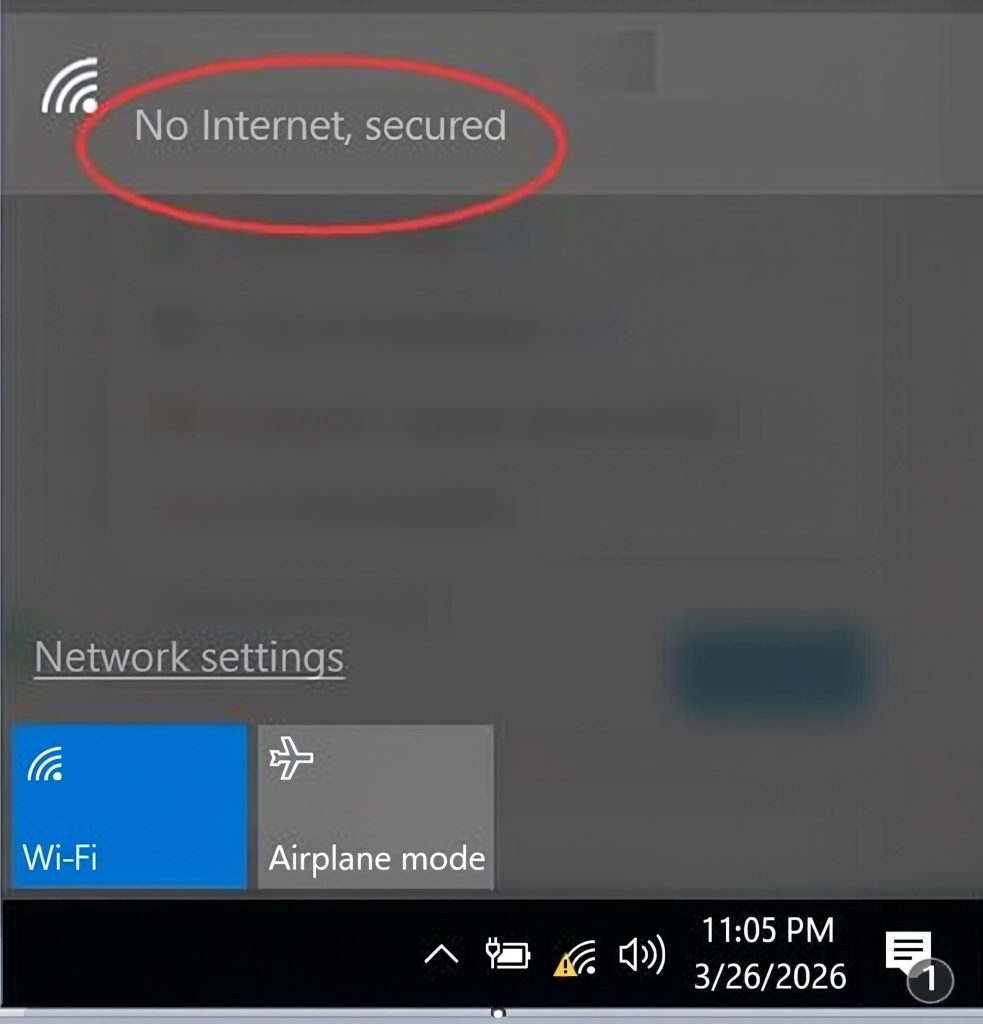
- Windows: “No internet, secured” or “No Internet” under the Wi-Fi name, often with a globe icon in the taskbar.
- Android: “Connected, no internet” or a similar “no internet access” note under the network name.
- iPhone and iPad: “No Internet Connection” under the network name in Settings, Wi-Fi.
- Mac: a “No Internet Connection” note in the Wi-Fi menu or a warning in Network settings.
- In the browser: pages that spin forever, or errors such as DNS_PROBE_FINISHED_NO_INTERNET or ERR_NAME_NOT_RESOLVED, which usually point to a connection or DNS problem.
First Step: One Device or Every Device?
Before you touch any settings, answer one question: is it just this device, or is everything affected? I learned this the hard way. I once spent two hours resetting adapters, flushing DNS, and reinstalling drivers on my laptop.
The real problem was an ISP outage affecting the whole neighborhood. Every other device in the house was down too. I just hadn’t checked. Check your phone, a tablet, or a smart TV. If they all say “connected” but can’t load anything, the problem is upstream: your router, your modem, or your ISP. If only one device is affected, the problem is most likely on that device or how the router treats it.
The Three-Ping Test
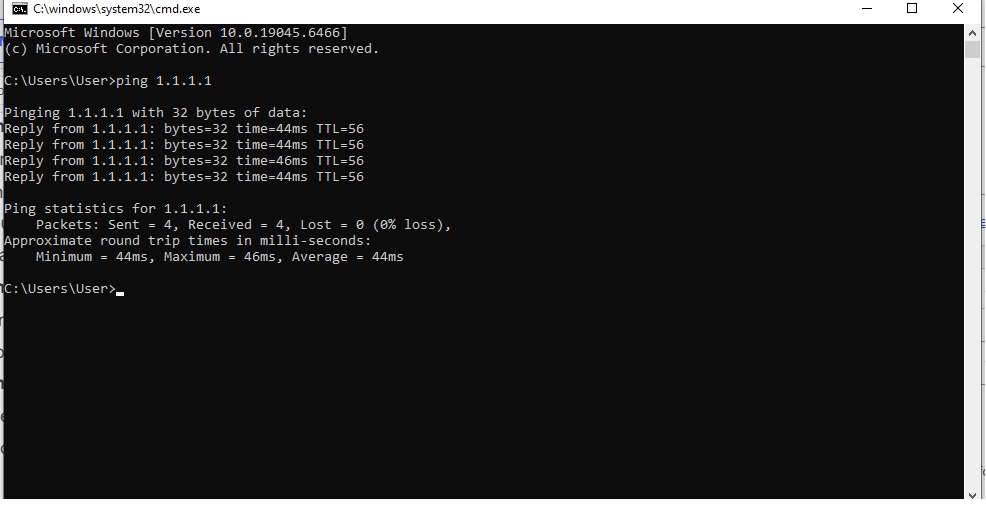
Once you know which side of the fork you’re on, this test pins down where the connection breaks. It takes about a minute and needs no special tools. On Windows, open Command Prompt. On Mac, open Terminal (use ping -c 4 instead of ping). Then run these in order:
- Ping your router. Run
ipconfig, find the Default Gateway address under your active connection (often something like 192.168.1.1), then runpingfollowed by that address. On Mac, you can find it under System Settings, Network, Wi-Fi, Details, TCP/IP, listed as Router. If this fails, the problem is between your device and the router: Wi-Fi signal, the adapter, or the router itself. - Ping a public IP address. Run
ping 1.1.1.1. If step 1 worked but this fails, your device can reach the router, but traffic isn’t getting from the router to the internet. Suspect the modem, the router’s WAN connection, or your ISP. - Ping a domain name. Run
ping google.com. If step 2 worked but this fails, the internet is reachable and the problem is DNS, the system that turns names like google.com into IP addresses.
One caveat: some networks and firewalls block ping requests, so a failed ping is a strong clue, not proof. If all three succeed but your browser still can’t load pages, look at VPN, proxy, browser, or firewall settings.
Symptom-to-Fix Cheat Sheet
| What you see | Likely cause | Fastest fix |
|---|---|---|
| All devices connected, none load pages | Modem/router glitch, ISP outage, or ISP DNS | Full modem and router power cycle, then check your ISP’s status |
| Only one device affected; IP starts with 169.254 | Device didn’t get an IP address from the router | Renew the IP lease, or forget and rejoin the network |
| Ping to 1.1.1.1 works, ping to google.com fails | DNS problem | Flush DNS cache and switch to a public DNS server |
| Public Wi-Fi at a cafe, hotel, or airport | Sign-in (captive portal) page not shown | Open a plain HTTP site and complete the sign-in |
| Broke right after closing a VPN | Leftover proxy or VPN adapter settings | Turn off the proxy and reconnect |
| Broke right after a Windows update | Network driver or firewall rule | Update, roll back, or reinstall the network driver |
| New device joins Wi-Fi but gets nothing | MAC filtering or access control on the router | Add the device to the router’s allow list |
Causes of Wi-Fi Connected but No Internet on Every Device
 When nothing can get online despite showing a connection, the cause usually sits outside your devices.
Cause 1: The Modem or Router Needs a Proper Power Cycle
Everyone knows to restart the router. Many people do it too quickly. Unplugging a router for a couple of seconds often isn’t enough. A short blip may not fully reset the modem’s connection to your ISP, and some ISP equipment takes a little while to drop the old session.
In my own experience, a full 60-second unplug fixed the problem more often than a quick restart. Manufacturers commonly suggest waiting 30 seconds or more, so 60 seconds is a safe habit. Here’s the process I use:
- Unplug the modem and the router. Both, not just the router. If you’re not sure how the two differ, our guide to the differences between modems and routers explains it. (If your ISP gave you a single combined gateway, unplug that one box.)
- Wait a full 60 seconds.
- Plug in the modem first and wait until its lights settle, usually a couple of minutes.
- Plug in the router and wait another couple of minutes.
- Test again on a device.
The order matters. The modem needs to establish its link with the ISP before the router asks for an IP address. If the router boots first, it can end up waiting on a connection that isn’t ready.
Cause 2: ISP Outage or Maintenance
Your ISP won’t always tell you when the network is down. I’ve had outages last hours with no notification, so the only way to know is to check. Turn off Wi-Fi on your phone so it uses mobile data. Then check your ISP’s status page or an outage-tracking site like Downdetector, and search for your provider and area.
A spike in reports is a good sign to stop troubleshooting, because the problem isn’t in your house. Modem lights are a useful clue too, but labels vary by model, so check your manual.
On many modems, a solid “online” or globe light means the modem sees the ISP network, while a blinking or red light suggests the link is down.
If the modem has power but can’t get an online signal after a proper power cycle, contact your ISP. If the connection keeps dropping every few minutes instead of staying down, and you’re an Xfinity customer, our guide on Xfinity internet disconnecting every few minutes goes deeper on that pattern.
Cause 3: The Router Has No Valid WAN IP Address
The WAN is the internet-facing side of your router. Your ISP assigns the router an IP address there. If that assignment fails or expires without renewing, your devices can still talk to the router, but the router has nowhere to send their traffic.
I ran into this after a power outage. The router booted faster than the modem and never got a valid WAN IP. The full power cycle above fixed it. In stubborn cases, I logged into the router’s admin page, found the WAN or Internet status page, and used the release and renew option (the label varies by brand) to request a new address.
You can open the router’s admin page even when the internet is down, because it’s hosted on the router itself. Type the Default Gateway address from the ping test into your browser.
If the WAN IP shows 0.0.0.0 or starts with 169.254, the router never received a proper address from your ISP. A renew often fixes it. If it keeps happening, it’s worth contacting your ISP, since the problem may be on their side.
Cause 4: A DNS Problem at the Router or ISP Level
DNS (Domain Name System) translates website names into IP addresses. If your router hands out an ISP DNS server that’s slow or down, every device on the network can show “connected, no internet” even though the line itself is fine.
The giveaway is the three-ping test: pinging 1.1.1.1 works, but pinging google.com fails, on every device. You can fix it on one device first by setting a public DNS server (see Cause 9), or change the DNS setting on the router so every device benefits.
Cloudflare (1.1.1.1 and 1.0.0.1) and Google (8.8.8.8 and 8.8.4.4) both offer free public DNS. If you’d like a plain-language refresher, Cloudflare has a good explainer on what DNS is.
Cause 5: A Public Wi-Fi Sign-In Page (Captive Portal)
This is one of the most common causes on cafe, hotel, airport, and campus networks, and it’s easy to miss. The network makes you accept terms or enter a code before it lets traffic through.
Your device connects to Wi-Fi fine, but nothing loads until you finish that step, and the sign-in page doesn’t always pop up on its own.
Open a browser and visit a plain HTTP site, such as neverssl.com. Because it doesn’t use HTTPS, the network can redirect you to its sign-in page. If you’re running a VPN, turn it off first, since a VPN can block the sign-in page from appearing.
Cause 6: Router Firmware Problems
Router firmware is software, and software has bugs. I once had a router that worked fine for two years, then started dropping its internet connection every few hours after an automatic firmware update. Wi-Fi stayed up and the local network worked, but the WAN connection would freeze until I rebooted.
Other users on the manufacturer’s forum were reporting the same thing on that firmware version. Rolling back to the previous version made the problem go away. If your router started misbehaving right after an update, check the manufacturer’s release notes and support forum for known issues. If a rollback is available for your model, it can work as a temporary fix, but older firmware may carry known security holes, so update again once a patch is released.
Causes of Wi-Fi Connected but No Internet on One Device
Here the network is fine and the router is fine, but one laptop, phone, or desktop can’t get through.
Cause 7: The Device Didn’t Get a Valid IP Address (or Has an IP Conflict)
Every device on your network needs a unique IP address, and the router normally hands them out automatically using DHCP (Dynamic Host Configuration Protocol). If the device can’t get one, Windows gives itself a fallback address starting with 169.254. That’s called an APIPA address.
It only works for talking to other devices on the same local link, so you’ll have no internet. I diagnosed this by typing ipconfig in Command Prompt and seeing an IPv4 address that started with 169.254. That told me the device never got a proper address from the router.
A true IP conflict, where two devices claim the same address, is less common. Windows usually shows an “IP address conflict” warning when it happens, and the fix below usually clears it. To get a fresh address on Windows, run these two commands in Command Prompt:
ipconfig /releaseipconfig /renew
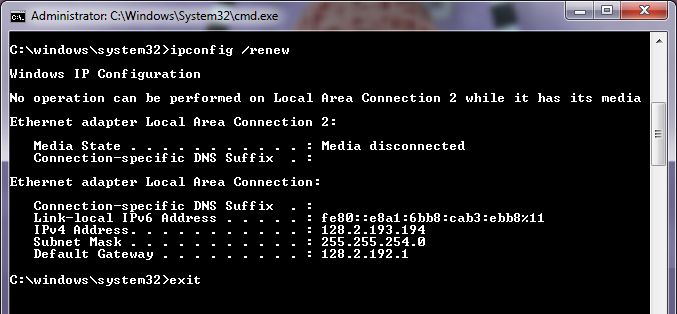
On a Mac, go to System Settings, Network, Wi-Fi, Details, TCP/IP, and click Renew DHCP Lease. On an iPhone, go to Settings, Wi-Fi, tap the (i) next to your network, and tap Renew Lease. On Android, forgetting the network and reconnecting does the same job. If it keeps happening, log into the router and check the DHCP range, which is the pool of addresses it hands out.
Make sure it’s large enough for all your devices. If you’ve assigned any static IPs manually, keep them outside that range so the router doesn’t give the same address to another device.
Cause 8: The Router Is Blocking That Device
This one cost me an entire afternoon. I’d turned on MAC address filtering on my router months earlier as a security experiment and forgot about it. Then I got a new laptop. It joined Wi-Fi without any trouble but had no internet.
A MAC address is a hardware identifier for your device’s network adapter. With filtering on, the router only lets listed devices through. Depending on the router brand, an unlisted device might be refused outright or allowed to join Wi-Fi but blocked from passing traffic.
I logged into the router, found the MAC filtering or access control section, and added the new laptop to the allow list. That fixed it right away. Two more things to check:
- Private Wi-Fi addresses. Modern iPhones, Androids, and recent versions of Windows can use a randomized MAC address for each network. To a MAC filter, your phone can look like a brand-new device. Either add the randomized address to the allow list or turn off private addressing for that network.
- Parental controls and schedules. If you’ve ever set up access schedules, parental controls, or device blocking, check them. A blocked device often looks connected but gets no access.
MAC filtering isn’t strong security on its own, because addresses can be spoofed. If you don’t need it, a strong Wi-Fi password and WPA2 or WPA3 encryption are the better protection.
Cause 9: Corrupted DNS Cache or a Bad DNS Server on the Device
This was the most common single-device cause I ran into. The device was connected and had a valid IP address, but it couldn’t turn website names into IP addresses. You can confirm it with the three-ping test: ping 1.1.1.1 works, but ping google.com fails. Either the device cached a bad DNS entry or the DNS server it was using was down.
On Windows, open Command Prompt as administrator and run ipconfig /flushdns. Then switch to a public DNS server: open Settings, Network and Internet, Wi-Fi, select your network, find DNS server assignment, choose Edit, set it to Manual, and enter 1.1.1.1 and 1.0.0.1.
In my case, pages loaded immediately. On a Mac, the flush command is sudo dscacheutil -flushcache; sudo killall -HUP mDNSResponder. Then change DNS under System Settings, Network, Wi-Fi, Details, DNS. On phones, an easy first move is to forget the network and reconnect, which makes the phone request fresh IP and DNS settings from the router. Toggling Airplane mode on and off is another quick reset.
Cause 10: VPN or Proxy Interference
I run a VPN for work. One day I closed the VPN client, but a proxy setting stayed active. The device kept trying to route traffic through a server it was no longer connected to. The result was full Wi-Fi bars and zero internet. If you’re not sure how a VPN, DNS, and a proxy differ, our VPN vs. DNS vs. proxy comparison is a quick primer. Then check your proxy settings. On Windows, go to Settings, Network and Internet, Proxy, and make sure manual proxy setup is off unless you actually need it.
On a Mac, check System Settings, Network, Wi-Fi, Details, Proxies. On phones, look at VPN settings and remove any stale profiles. Some VPN clients also install virtual network adapters that can conflict with your real one.
I’ve seen cases where disabling the virtual adapter restored access right away. If you’re not sure which adapter is which, uninstall or repair the VPN client rather than disabling things at random. Also, if your VPN has a kill switch, it’s designed to block all traffic when the VPN connection drops. That protects your privacy, but it can look exactly like “connected, no internet.” Reconnect the VPN, or turn the kill switch off temporarily to test.
Cause 11: Outdated or Corrupted Network Adapter Driver
My desktop lost internet after a Windows update. Wi-Fi showed as connected, but no traffic passed. In Device Manager, the network adapter had a yellow warning icon, and the update had partially overwritten its driver. Here’s what I’d try, in this order:
- Right-click the adapter under Network adapters, choose Update driver, and let Windows search automatically. Restart afterward.
- If the problem started after a driver update, choose Properties, then the Driver tab, then Roll Back Driver, if the option isn’t grayed out.
- Uninstall and reinstall. Right-click the adapter, choose Uninstall device, then restart. Windows will normally reinstall the driver on startup. Before you do this, download the latest network driver from your PC or adapter manufacturer’s website on another device and save it to a USB drive, in case Windows doesn’t find one.
I’d stick with Windows Update and the manufacturer’s website for drivers. Third-party driver updaters can install the wrong driver or bundle extras, and you don’t want that on the one component that keeps you online.
You can also run the built-in troubleshooter: right-click the Wi-Fi icon in the taskbar and choose Diagnose network problems. It won’t fix everything, but it’s quick and sometimes catches simple issues.
Cause 12: Firewall or Antivirus Blocking Traffic
Security software can be overzealous. I once had an antivirus suite update its rules and start blocking all outbound web traffic. The network connection was fine, but the browser couldn’t reach anything.
To test this, temporarily disable the third-party firewall or antivirus web protection and see whether access returns. Do this only for a few minutes, never on a public network, and turn protection back on right away. If access returns, you’ve found the cause. Restore the firewall to its default settings, or add an allow rule for your browser and apps.
Microsoft Defender Firewall can occasionally cause similar trouble after a major Windows update. Open Windows Security, then Firewall and network protection, and look for blocked apps or an overly strict profile.
Cause 13: DHCP Lease Renewal Failing (Less Common)
A DHCP lease is the amount of time your device is allowed to keep an IP address before it has to renew it. This one caused predictable, repeating drops for me.
My laptop would lose internet for about 30 seconds every hour or two, then recover. Wi-Fi never dropped. It was the address renewal failing at the wrong moment. ipconfig /all showed a lease of only 2 hours. Devices typically try to renew about halfway through the lease, so a short lease means frequent renewals, and mine was failing intermittently.
I logged into the router, found the DHCP settings, and raised the lease time from 2 hours to 24 hours. The problem stopped. If you see drops at regular intervals, check your lease time. Short leases are fine when renewal works. If renewal is flaky, extend the lease or set a DHCP reservation, which tells the router to always give the same address to that device.
Suggested Order: Fastest and Least Disruptive First
If I saw “connected, no internet” again tomorrow, this is the order I’d work through:
- Check other devices. If everything is down, go to step 4. If only one device is down, continue.
- Toggle Wi-Fi off and on, or forget the network and rejoin. It takes ten seconds and works more often than it should, especially on phones and tablets.
- Run the three-ping test. It tells you which of the steps below to focus on.
- Power cycle the modem and router with a full 60-second wait.
- Renew the IP address. On Windows, run
ipconfig /release, thenipconfig /renew. On Mac or iPhone, renew the lease in network settings. - Flush DNS and try a public DNS server. Run
ipconfig /flushdns, then set DNS to 1.1.1.1 and 1.0.0.1. - Check for VPN or proxy interference. Disconnect the VPN and turn off any manual proxy.
- Check the router for MAC filtering, access control, or parental blocking. This is a likely cause when one device is blocked and others work fine.
- Test with an Ethernet cable. If Ethernet works while Wi-Fi doesn’t, that points to a Wi-Fi adapter, driver, or wireless signal issue. Try the other Wi-Fi band (2.4 GHz or 5 GHz) too.
- Update, roll back, or reinstall the network adapter driver. Especially if the problem started after an OS update.
- Briefly test with the firewall or antivirus off. Turn it back on immediately after.
- Reset the Windows network stack. In an administrator Command Prompt, run
netsh winsock resetandnetsh int ip reset, then restart. This is a step Microsoft’s own Wi-Fi troubleshooting guide includes. - Reset network settings as a last resort. On Windows 11, go to Settings, Network and Internet, Advanced network settings, Network reset. On an iPhone, go to Settings, General, Transfer or Reset iPhone, Reset, Reset Network Settings. This wipes saved Wi-Fi networks and other network configuration, so you’ll need to re-enter your Wi-Fi passwords.
For official step-by-step guidance, Microsoft has a helpful page on fixing Wi-Fi connection issues in Windows.
What Didn’t Work
I tried plenty of things that wasted my time. Your results may differ, but here’s what I’d skip:
- Changing MTU values. Unless you have a specific DSL, satellite, or VPN issue, this rarely helps and can make things worse.
- Disabling IPv6. Some guides suggest it as a cure-all. In my testing it made no difference. It can matter in unusual ISP setups, so I’d only try it late in the process.
- Third-party “network optimizer” apps. Many add little value, and one I tried bundled software I never wanted. Built-in tools were enough.
- Buying a new router before diagnosing. I was tempted twice. Both times the router was fine, and the real cause was DNS or a driver.
Preventing It From Happening Again
A few habits have kept this error away for me:
- A scheduled full reboot. I unplug my router for 60 seconds every Sunday night. Not everyone needs this. I started doing it because my older router degraded over time, and a newer router may not need it.
- DHCP reservations for key devices. My work laptop, desktop, and NAS always get the same IP address, which avoids conflicts and lease trouble.
- A note when I change security settings. MAC filtering, access schedules, and guest network isolation are useful, but if you forget you turned them on, they become traps.
- A quick DNS check when pages load slowly. ISP DNS servers can be the weakest link, so I test a public DNS server before assuming something bigger is wrong. If pages load but everything feels sluggish, our guide on how to fix slow internet is the better next stop.
Frequently Asked Questions
Why is my internet not working when Wi-Fi says it’s connected?
The most common reasons are a modem or router glitch, an ISP outage, a DNS problem, or a failed IP address assignment. Check whether other devices are also offline. If they are, restart the modem and router and check your ISP’s status page on mobile data. If only one device is affected, renew its IP address, flush DNS, and check for VPN or proxy settings.
Why is my Wi-Fi not connecting to the internet?
It depends on what “not connecting” means. If your device can’t join the Wi-Fi network at all, look at the Wi-Fi password, the router’s wireless settings, and signal strength. If it joins the network but nothing loads, that’s the “connected, no internet” problem this guide covers, so start with the three-ping test.
Why does my phone say “connected” but there’s no internet when my laptop works?
It’s usually a phone-specific issue. Common causes are a stale IP or DNS assignment, a private Wi-Fi address that a MAC filter doesn’t recognize, or a VPN profile still active. Try forgetting the network and rejoining first, then check the router’s access control list.
Is it my router or my ISP?
Run the three-ping test. If you can ping the router but not 1.1.1.1, the break is between the router and the internet, which points to the modem, the router’s WAN connection, or the ISP. Checking your ISP’s status page on mobile data and looking at the modem’s online light will help confirm it.
What does “No internet, secured” mean on Windows?
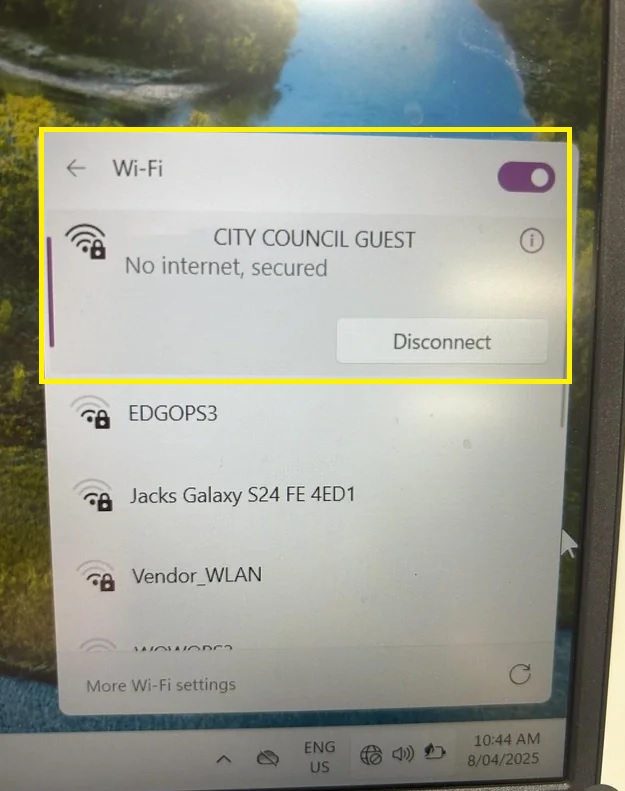
No internet, secured means Windows is connected to the Wi-Fi network and the connection is encrypted, but Windows can’t confirm internet access. The fixes are the same as in this guide, starting with checking other devices and then renewing your IP address and flushing DNS.
Should I reset my router to factory settings?
Only as a last resort. A factory reset erases your Wi-Fi name, password, and custom settings, and it won’t fix an ISP outage or a DNS problem. Try a full power cycle and check the WAN status first.
The Bottom Line
“Wi-Fi connected but no internet” isn’t one problem. It’s a symptom of many different issues, and the right fix depends on which one you have. The most reliable approach is to diagnose in a set order: check whether it’s one device or all of them, run the three-ping test to find where the connection breaks, and check your router settings before you blame your ISP.
Often the fix is free and quick. The hard part is knowing which quick fix to try, and hopefully this guide saves you that guesswork.
You May Also Like
 Computers & PC Games
What Internet Speed Do I Need For Gaming and Streaming?
 Internet
The Best Places to Put a WiFi Extender in a 2-Story House
 Internet
How to Fix Slow Internet: 15+ Things That Actually Work
 Internet
Why Is My Xfinity Internet So Slow All of a Sudden
 Internet
3 Cheap Satellite Internet Providers: Plans, Pros and Cons, Ratings, and Rural Coverage
 Internet