
Minecraft Bedrock can run smoothly in single-player but becomes frustratingly laggy in an online world. You may see rubberbanding, delayed blocks, or choppy movement the moment you join a friend. The good news is that most multiplayer lag has a clear cause, and you can usually narrow it down with a few simple checks. This guide walks you through how to fix lag in Minecraft Bedrock Edition online multiplayer worlds, one step at a time.
How to Fix Lag in Minecraft Bedrock Edition Online Multiplayer Worlds: A Complete Step-by-Step Guide
Playing Minecraft Bedrock with friends should feel smooth. When it does not, it helps to know what “lag” actually means and where it comes from. If you want a broader overview of network delays, this general guide on how to reduce lag in online games pairs well with the Minecraft-specific steps below.
Why Does Minecraft Bedrock Lag in Online Multiplayer?
Multiplayer lag can come from many places. Sometimes it is your connection. Sometimes it is the host. Sometimes the world itself is doing too much work.
Here are the most common causes:
- Network issues: Slow or unstable internet on your side or the host’s side.
- Host device load: The host’s device is busy or has a weak upload speed.
- World activity: Too many mobs, items, or redstone machines running at once.
- Wi-Fi problems: Weak signal, interference, or too many devices sharing the connection.
- Local performance: Low FPS on your own device due to graphics settings.
- Realms or server issues: The service itself may be slow at that moment.
The simple answer is this: you fix Minecraft Bedrock multiplayer lag by first figuring out what kind of lag you have, then testing one change at a time.
Quick Answer: How to Fix Lag in Minecraft Bedrock Edition Multiplayer
- Find out if it is network lag, FPS lag, or world simulation lag.
- Check whether the host or only one player is affected.
- Restart Minecraft and your router.
- Improve your Wi-Fi, or switch to Ethernet where possible.
- Lower render distance for FPS issues.
- Lower simulation distance to ease world load.
- Reduce heavy entities and redstone activity.
- Close background apps and downloads.
- Check Realms or server status if everyone lags.
- Test the world again after each change.
Now let’s go through each step in more detail.
Step 1: Identify What Kind of Lag You Have
Players use the word “lag” for very different problems. Knowing the type helps you pick the right fix.
Network lag looks like:
- Rubberbanding: You move, then snap back.
- Delayed blocks: Breaking or placing takes a moment to register.
- High ping: Actions feel delayed for everyone or just for you.
FPS lag looks like:
- Choppy visuals: The screen feels jumpy.
- Stuttering: Movement is not smooth.
- Slow rendering: Chunks load slowly around you.
World simulation lag looks like:
- Slow mobs: Villagers or animals react late.
- Delayed redstone: Machines fire out of order.
- Sluggish farms: Items pile up or systems slow down.
Basically, high ping and low FPS are not the same. You can have high FPS and still lag online, and you can have great internet and still see choppy visuals. If you want a deeper explanation of latency itself, this guide on how to reduce internet latency is a helpful next read.
Step 2: Check Whether Everyone Has the Problem
This step saves a lot of time.
Ask the group a quick question: is everyone lagging, or just one person?
- Only one player lags: The issue is likely that player’s connection, Wi-Fi, or device.
- Everyone lags: The problem is more likely the host, the world, or the server.
- Lag happens near one area: The world may be busy with mobs or redstone there.
Let’s say three players are in the same world, but only one is rubberbanding. That points to that player’s connection, not the whole world.
Do not blame the host until you test this. In practice, this simple check narrows the problem fast.
Step 3: Restart Minecraft and Your Network
A restart is boring, but it often works.
- Close Minecraft fully: Not just the world, close the app.
- Restart your device: Give it a clean start.
- Restart your router: Unplug it, wait about 30 seconds, then plug it back in.
- Rejoin the world: Test how it feels now.
Restarting clears background problems and reconnects your device to the network. It is a good first move before changing settings.
Step 4: Improve Your Wi-Fi or Use Ethernet
Wi-Fi is convenient, but it can be one of the biggest causes of Minecraft Bedrock multiplayer lag.
Things that can hurt Wi-Fi:
- Distance: The farther from the router, the weaker the signal.
- Walls: Thick walls and floors block signals.
- Interference: Other electronics and neighbors’ Wi-Fi can add noise.
- Congestion: Too many devices sharing the same connection.
Try these fixes:
- Move closer to the router: Even one room closer can help.
- Reduce interference: Move away from microwaves or big metal objects.
- Use Ethernet when available: A wired connection is often more stable.
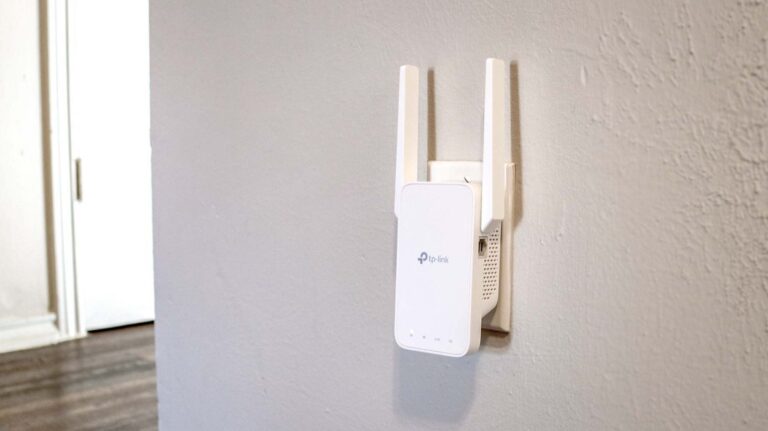
- Use a Wi-Fi extender: If your room is far away, an extender may help. This guide on the best places to put a Wi-Fi extender in a 2-story house explains where to place one.
Ethernet does not automatically eliminate lag, but it usually gives a steadier connection where the device supports it. If your internet feels slow overall, this article on how to fix slow internet can help you rule out bigger issues.
Step 5: Reduce Render Distance
Render distance controls how many chunks you can see around you.
Lowering it can help when:
- Your FPS is low.
- The game stutters as you move.
- Your device feels warm or works hard.
Here’s the important part: render distance is a local setting. Lowering it may improve your FPS, but it will not fix high ping by itself. Do not expect it to solve network lag.
Step 6: Reduce Simulation Distance
Simulation distance controls how far around you the game actively runs mobs, redstone, and other systems.
Lowering it can help when:
- The world feels busy.
- Mobs and machines lag near you.
- The host device is working hard.
Simulation distance is different from render distance. Render distance is about what you see. Simulation distance is about what the game runs. Both matter, but they solve different problems.
Step 7: Reduce Heavy World Activity
A busy world means more work for the host’s device. That can create world simulation lag for everyone.
Common heavy activity includes:
- Large mob farms: Many mobs spawning at once.
- Villager trading halls: Lots of villagers in one place.
- Item farms: Big piles of dropped items.
- Complex redstone: Constant clocks and moving parts.
- Automatic machines: Systems that never turn off.
Try these ideas:
- Turn off farms when not using them.
- Kill or remove stuck mobs.
- Pick up loose items on the ground.
- Break long redstone clocks when you leave the area.
The catch is that not every farm causes lag. It depends on how big it is and how strong the host’s device is. If you play modded servers, this guide to modded Minecraft server hosting covers how server-side load affects gameplay.
Step 8: Close Background Apps and Downloads
Other apps can eat up your internet or your device’s power.
Check for:
- Big downloads: Game updates or movies downloading in the background.
- Streaming services: Video calls, music, or shows on the same network.
- Cloud backups: Photo or file uploads running quietly.
- Extra apps: Browsers or chat apps using CPU and RAM.
If your CPU seems overloaded, this guide on how to reduce CPU usage while gaming is useful. You may also want to check how to fix high memory usage in Task Manager on Windows Bedrock.
Step 9: Check Realms or Server Issues
Sometimes the problem is not on your side at all.
Signs of a Realms or server problem:
- Everyone lags at the same time.
- Lag started suddenly without any changes.
- The Realm or server has been slow for hours.
- Other Minecraft services also feel slow.
If you host a Realm, remember that Realms run on Mojang’s side. Local settings will not fix a server-wide slowdown. In that case, wait and try again later, or check official Minecraft status updates.
For friend-hosted worlds, the host’s upload speed matters. If the host has slow internet, this piece on what internet speed do I need can help them find the right plan. Players wondering about their existing plan may find is 100mbps fast useful too.
Step 10: Test the World Again
After each change, test the world.
- Rejoin the world.
- Move around and break some blocks.
- Watch how mobs and items behave.
- Ask friends if it feels smoother.
Change one thing at a time. This way you know what actually helped.
Host vs Player: Who Is Causing the Lag?
The host is the person whose world everyone else joins. Their device and internet do most of the heavy work.
The host’s:
- Internet connection
- Upload speed
- Device performance
- World complexity
- Connection stability
can all affect how the world feels for everyone. If the host has slow upload speed, other players may see delays even with fast internet themselves.
Still, do not assume the host is always to blame. A single player with bad Wi-Fi can lag alone in an otherwise smooth world.
Ping vs FPS: A Quick Comparison
High ping usually causes:
- Delayed actions
- Rubberbanding
- Delayed block updates
- Snappy or jumpy movement
Low FPS usually causes:
- Choppy visuals
- Stuttering
- Slow chunk loading
- Less responsive-feeling gameplay
Think of it this way: ping is how fast your device talks to the game. FPS is how smoothly your screen draws the game. They are different problems with different fixes.
Platform Notes
Menus and options can differ across platforms:
- Windows Bedrock: Usually has the most detailed video and network options.
- Xbox and PlayStation: Fewer graphics settings, but render and simulation distance sliders are usually available.
- Nintendo Switch: Often has stricter limits on render and simulation distance.
- Mobile: Performance depends heavily on the device.
Do not assume every platform has the same menu. Check the current in-game settings for your device.
Quick Troubleshooting Table
| Problem | Likely Cause | What to Try |
|---|---|---|
| Rubberbanding | Network latency | Check your connection and Wi-Fi |
| Delayed block updates | High ping | Check host and network |
| Choppy visuals | Low FPS | Lower graphics and render distance |
| Lag near farms | Heavy world activity | Reduce entities or active systems |
| Everyone lags at once | Host or world issue | Check host connection and world load |
| Only one player lags | That player’s connection | Check their Wi-Fi or device |
Common Mistakes to Avoid
- Blaming the internet first: Not all lag is from your connection.
- Confusing ping with FPS: They look different and need different fixes.
- Changing many settings at once: You won’t know what actually helped.
- Blaming the host too fast: Test first, then decide.
- Ignoring world activity: Big farms and mob piles can slow things down.
- Sticking with weak Wi-Fi: Try Ethernet if it is available.
- Forgetting background downloads: They quietly steal bandwidth.
- Assuming render distance fixes ping: It does not.
- Mixing up platforms: Xbox, PC, and Switch behave differently.
- Using outdated Bedrock tips: Menus and settings change over time.
FAQ
Why is Minecraft Bedrock lagging in multiplayer? It could be your connection, the host’s connection, heavy world activity, or a server issue. Start by checking who is affected.
Why does Minecraft Bedrock lag with friends? Player-hosted worlds depend on the host’s internet and device. If those are weak, everyone can feel the lag.
How do I fix high ping in Minecraft Bedrock? Try Ethernet, restart your router, and close background downloads. If it does not help, the host or server may be the cause.
How do I fix rubberbanding in Minecraft Bedrock? Rubberbanding is usually a network problem. Check your Wi-Fi, move closer to the router, or try a wired connection.
Does render distance cause multiplayer lag? Render distance mainly affects your FPS, not the network. Lower it if the game looks choppy.
Does simulation distance cause lag? A high simulation distance means more mobs and systems running at once, which can add world lag. Lowering it may help.
Can Wi-Fi cause Minecraft Bedrock lag? Yes. Weak or crowded Wi-Fi can create delays, rubberbanding, and disconnects.
Why does Minecraft lag near mob farms? Farms create lots of entities. The game has to track them all, which can slow the world down in that area.
Why does everyone lag in the same world? That usually points to the host, the world’s activity, or a Realm or server issue.
Why does only one player lag? It is usually that player’s connection or device, not the world.
How do I fix Minecraft Bedrock Realm lag? Check for updates, wait it out, and confirm your own connection is fine. Realm-side issues cannot be fixed with local settings.
Conclusion
Fixing Minecraft Bedrock multiplayer lag is about smart testing, not wild guessing. Start by naming the problem: network, FPS, or world lag. Then check who is affected, restart Minecraft and your router, and try one change at a time. Improve your Wi-Fi, adjust render and simulation distance, and reduce heavy world activity when needed. If everyone lags on a Realm or server, the issue may be out of your hands. With a calm, step-by-step approach, you can usually bring your online world back to a smooth, fun place to play. For more Minecraft tips, this related guide on how to fix lag in Minecraft Bedrock online worlds is a good next stop.
You May Also Like
 Computers & PC Games
How to Allocate More RAM to Minecraft: Complete Guide for Better Performance
 Computers & PC Games
How Much RAM Do You Need for a Minecraft Server?
 Computers & PC Games
What Internet Speed Do I Need For Gaming and Streaming?
 Computers & PC Games
Does a VPN Really Improve Minecraft Ping and Performance?
 Internet
The Best Places to Put a WiFi Extender in a 2-Story House
 Computers & PC Games