
I have been an Xfinity customer for three years. Most of that time, the connection has been rock solid. I stream 4K video, work from home on video calls, and my teenager games online for hours without a hiccup. But every now and then, out of nowhere, the internet crawls. Pages take forever to load. Netflix buffers. My video call freezes mid-sentence. If you are sitting there wondering why your Xfinity broadband speed dropped overnight, you are not alone. I have been through this enough times to know the difference between a temporary glitch and a real problem that needs fixing.
This guide covers everything I have learned from personal experience, why my Xfinity internet is so slow, and how I fix it.
Start With the Basics: Is It Actually Xfinity or Is It Your Setup?
Before you blame Comcast, do a quick sanity check. I have wasted hours chasing “network issues” that turned out to be a single device acting up.
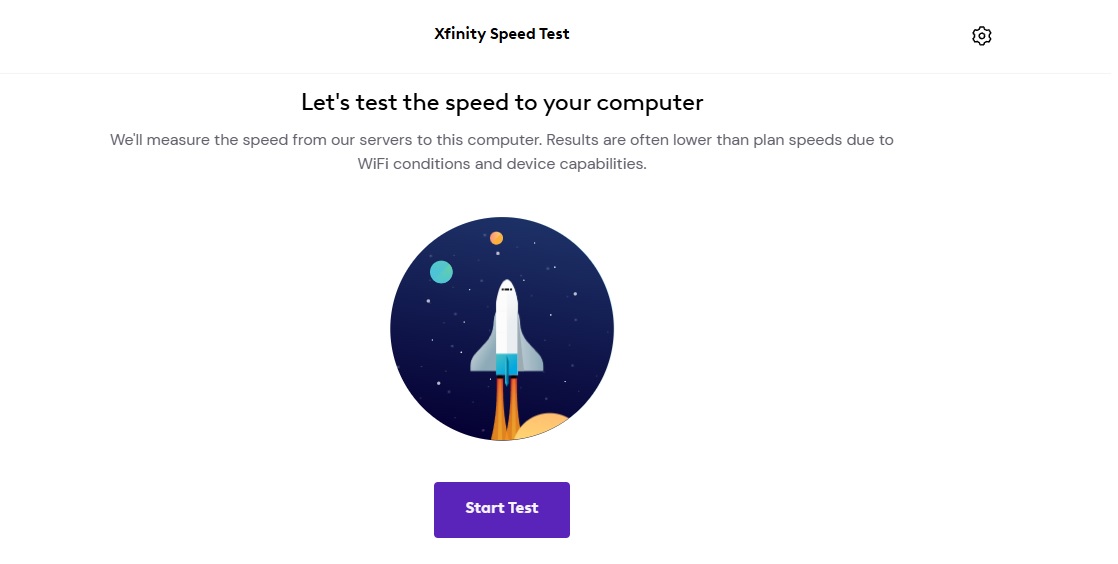
Run a proper speed test. Do not rely on the WiFi icon on your phone. Open a browser, go to speedtest.xfinity.com or speedtest.net, and test from a device connected directly to your gateway with an Ethernet cable. Xfinity guarantees speeds over a wired connection, not over wireless. If your wired speed is close to what you are paying for, the problem is your WiFi setup, not the ISP.
Check multiple devices. If your laptop is slow but your phone works fine, the issue is likely with the laptop. Maybe it is running a background Windows update, or an app is hogging bandwidth. I once had my upload speed tank because pCloud was syncing 50GB of photos in the background. I had no idea until I checked the task manager.
Try a different website or app. If only YouTube is buffering, but everything else loads fine, the problem might be on YouTube’s end, not yours. This sounds obvious, but in the moment of frustration, it is easy to miss.
The Restart: Boring but Effective
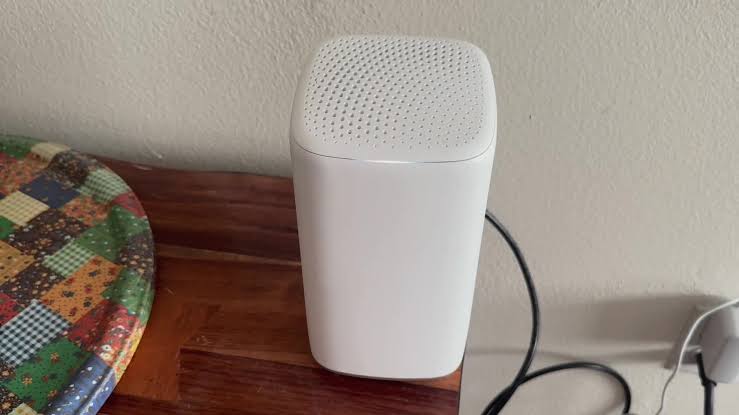
If you feel comcast very slow internet and you wanna find solutions. I know, I know. Every support article says, “turn it off and on again.” But here is the thing: it actually works more often than you would think. Your Xfinity gateway is basically a small computer. It caches data, manages connections, and runs firmware. Over time, memory leaks and connection table bloat can slow things down. A restart clears all that out.
How to restart properly:
- Unplug the power cord from the back of the gateway.
- Wait a full 60 seconds. Not 10. Not 30. A full minute. This lets the capacitors discharge completely.
- Plug it back in and wait for all the lights to stabilize. This usually takes 3 to 5 minutes.
- Test your speed again.
You can also restart remotely through the Xfinity app under WiFi > Troubleshoot > Restart Gateway. I have done this from work when my wife texted me that the internet was down. It is convenient, but unplugging physically sometimes works better because it forces a full hardware reset.
One caveat: if your speeds recover for a few minutes after a restart and then drop again, you are dealing with something deeper than a simple glitch. That pattern points to signal issues, overheating, or network congestion on Xfinity’s end.
Signal Problems: The Hidden Culprit Behind Sudden Speed Drops
This is where most people get stuck. The app says “everything looks good.” The lights on the gateway are solid. But your speed test shows 50 Mbps when you pay for 1,200. I have been there.
The most common cause of sudden, persistent slowdowns is a degraded signal between your home and the Xfinity node. This is not something you can see from the app. You need to check the actual signal levels.
How to check your signal levels:
- Connect a device to your gateway.
- Open a browser and go to
10.0.0.1(for Xfinity gateways) or192.168.100.1(for some third-party modems). - Log in. The default username is usually
adminand the password is on the sticker on the bottom of your gateway. - Look for a page called “Connection” or “Cable Modem” or “Status.”
- Find the downstream and upstream power levels.
Here is what the numbers should look like:
| Parameter | Ideal Range | What It Means |
|---|---|---|
| Downstream Power | -7 dBmV to +7 dBmV | Signal strength from Xfinity to you. Too high or too low causes errors. |
| Downstream SNR | 33 dB or higher | Signal-to-noise ratio. Lower means more interference. |
| Upstream Power | 35 dBmV to 51 dBmV | Signal strength from you to Xfinity. Higher numbers mean your modem is shouting to be heard. |
| Correctable Errors | Low and stable | Occasional errors are normal. Rapidly increasing numbers indicate line problems. |
| Uncorrectable Errors | Ideally zero | These are packets that could not be fixed. Any significant number here is bad. |
I checked mine once during a slowdown and saw my upstream power at 54 dBmV. That is above the safe range. It meant my modem was struggling to talk back to the network. A technician came out, found a corroded connector outside my building, and replaced it. Speeds went back to normal immediately.
Common causes of bad signal:
- Loose or damaged coaxial cable connections
- Too many splitters in the line
- A faulty amplifier or surge protector in the cable path
- Water damage to outdoor connections
- Old or degraded coax cable inside walls
If you see bad numbers, tighten every connection you can reach. If that does not help, call Xfinity and ask for a technician. Do not let them talk you into another modem restart if you have already done it three times.
Network Congestion: When Everyone in Your Neighborhood Goes Online at Once
This one is frustrating because there is not much you can do about it. Cable internet is a shared medium. Everyone in your neighborhood connects to the same node. When too many people are streaming, gaming, and downloading at the same time, the node gets overloaded. Your speeds drop.
I noticed this pattern in my own service during the first few months. Every evening between 7 PM and 10 PM, my speeds would drop by 30 to 40 percent. It was like clockwork. I started logging it in a spreadsheet. Same times, same drop, every single day.
How to tell if congestion is your problem:
- Speeds are fine in the morning and afternoon but slow down in the evening.
- The slowdown happens at roughly the same time every day.
- Your signal levels look normal.
- A wired speed test still shows reduced speeds during peak hours.
What you can do about it:
- Schedule large downloads and updates for late night or early morning.
- If you work from home, try to do bandwidth-heavy tasks outside peak hours.
- Consider upgrading to a higher tier plan. More bandwidth gives you more headroom before congestion bites.
- Unfortunately, the only real fix is Xfinity upgrading the node capacity in your area. You can report it, but there is no timeline guarantee.
One forum user I read about had it even worse. Their upload speed dropped to nearly zero three times a day at exact times: 7:45 AM, 12 PM, and 5 PM. They logged it for six days straight and proved the pattern to Xfinity. The support team still claimed they saw no issues. Eventually, a senior technician found a faulty node amplifier. It took months of persistence.
Equipment Issues: When Your Gateway Is the Bottleneck
Xfinity recommends upgrading your gateway every two to three years. I ignored this advice until my XB7 started randomly rebooting every few days. After I swapped it for an XB8, not only did the reboots stop, but my WiFi speeds improved noticeably, especially on the 5 GHz band.
Signs your equipment might be the problem:
- Frequent disconnections or need to restart
- Speeds that never reach your plan’s advertised rate, even on a wired connection
- Overheating (the gateway feels hot to the touch)
- Firmware update failures or error lights
Current Xfinity gateway models:
| Model | WiFi Standard | Best For |
|---|---|---|
| XB6 | WiFi 6 | Basic plans up to 600 Mbps |
| XB7 | WiFi 6 | Plans up to 1,200 Mbps |
| XB8 | WiFi 6E | Plans up to 2,000 Mbps, heavy multi-device households |
| XB10 | WiFi 7 | Future-proofing, gigabit+ plans |
If you are renting, call Xfinity and ask for a free upgrade if your gateway is more than three years old. If you own your modem, make sure it supports DOCSIS 3.1. Older DOCSIS 3.0 modems cannot handle gigabit speeds.
WiFi Interference: The Invisible Enemy
Even if your internet connection to the house is perfect, your WiFi can still be slow. Wireless signals compete with everything around them.
Common sources of WiFi interference:
- Microwaves (especially on the 2.4 GHz band)
- Baby monitors and garage door openers
- Neighboring WiFi networks on the same channel
- Metal objects, fish tanks, and thick concrete walls
- Bluetooth devices
I once had a client whose internet slowed down every time they used the microwave. It took us an hour to figure out the kitchen was directly between the gateway and the living room TV. Moving the gateway three feet to the left fixed it.
Tips to reduce interference:
- Place your gateway in a central, elevated location, not in a closet or behind the TV.
- Use the 5 GHz band for devices that support it. It is faster and less congested, though it has shorter range.
- For the 2.4 GHz band, set your channel to 1, 6, or 11. These are the only non-overlapping channels. Auto-channel selection on routers often picks poorly.
- If you have a large home or thick walls, consider Xfinity WiFi Boost Pods or a mesh system.
Background Apps and Devices Hogging Your Bandwidth
This one bit me hard. I could not figure out why my internet felt slow even though speed tests showed good numbers. Turns out, my smart TV was downloading a 15GB firmware update in the background while my security camera was uploading continuous 4K footage to the cloud. Neither showed up as “slow internet” on a speed test, but both were eating my available bandwidth.
How to find bandwidth hogs:
- Open the Xfinity app.
- Go to WiFi > Devices.
- Look at the data usage for each device over the last 24 hours.
- If one device is using an unreasonable amount of data, that is your culprit.
Common bandwidth hogs:
- Cloud backup services (iCloud, Google Photos, pCloud, Dropbox)
- Streaming devices left on standby
- Smart security cameras with cloud recording
- Gaming consoles downloading updates
- Torrent clients running in the background
- Windows or macOS system updates
I now schedule all my backups for 2 AM. It made a noticeable difference during the day.
The Xfinity App: Useful but Not Perfect
The xFi app is great for basic management. You can restart your gateway, run speed tests, see connected devices, and set parental controls. But it has limitations.
What the app does well:
- Shows you which devices are connected and how much data they use
- Lets you pause individual devices or profiles
- Runs basic troubleshooting and schedules technician visits
- Displays outage information for your area
What the app cannot tell you:
- Detailed signal levels or error counts
- Whether the problem is on Xfinity’s network or your home wiring
- Real-time bandwidth usage per device (only historical data)
- Advanced router settings like channel selection or QoS
For deeper diagnostics, you still need the gateway admin tool at 10.0.0.1 or a call to support.
Firmware Updates: The Double-Edged Sword
Xfinity pushes firmware updates to gateways automatically. Most of the time, this is good. Updates fix bugs, patch security holes, and improve stability. But occasionally, an update can cause problems.
I remember one update in late 2024 that broke the 5 GHz band on some XB7 gateways. Users reported speeds dropping to a crawl on WiFi while wired connections stayed fine. Xfinity rolled out a fix a week later, but for those seven days, the only workaround was to disable the 5 GHz band and force everything onto 2.4 GHz or use a wired connection.
If you suspect a firmware issue:
- Check Xfinity forums and Reddit for other users reporting the same problem.
- Note the date your issues started and compare it to any recent update notifications.
- Sometimes a factory reset can help, though you will lose all custom settings.
- If the problem is widespread, Xfinity usually acknowledges it eventually. If it is just you, it is probably something else.
When to Call Xfinity Support (and How to Get Results)
I have called Xfinity support more times than I care to admit. Here is what I have learned about getting actual help instead of running in circles.
Before you call, gather this information:
- Your account number and service address
- The model of your gateway
- Your signal levels from the admin tool (downstream power, upstream power, SNR)
- A log of when the slowdowns happen and for how long
- Speed test results from both wired and wireless connections
What to say:
- Do not start with “my internet is slow.” That gets you the script.
- Say: “I have documented signal level issues and speed drops at specific times. I need a technician to check the line from the pole to my modem.”
- If they insist on restarting your modem, say you have already done it three times and the problem returns within hours.
- Ask for a ticket number every time. This creates a paper trail.
When to escalate:
- If the first-tier agent cannot help, ask to speak to a supervisor or the technical operations center.
- If you have had multiple technician visits with no resolution, file a complaint with the FCC. This gets executive attention fast.
- Document everything. Screenshot your speed tests. Save chat transcripts. Record call times and representative names.
One forum user logged their speed drops for six straight days, with exact times and test results. When they finally got a senior technician on the line, that log was the difference between “we see no issues” and “we need to replace the node amplifier.”
Real User Stories: You Are Not Crazy
Sometimes it helps to know other people are dealing with the same nonsense. Here are a few stories from actual Xfinity users that mirror my own experiences.
The upload speed mystery: A user on the Xfinity forums pays for gigabit service. Their download speed is fine, but upload randomly drops to 0.01 Mbps during certain hours. They have replaced cables, modems, and even ethernet cards. Xfinity claims everything looks good on their end. The user suspects throttling but cannot prove it. This kind of intermittent issue is the hardest to resolve because it is gone by the time a technician arrives.
The sudden drop that never recovered: Another user had 1 Gbps service and was getting 900+ Mbps wired. Then one day in mid-2024, speeds dropped to 75-95 Mbps and never recovered. No equipment changes. No new devices. Support ran the usual troubleshooting script. The user is still fighting for a resolution months later.
The “everything is fine” response: A user with constant sub-1 MB/s speeds gets told by the Xfinity app and virtual assistant that the connection is good. They cannot reach a human. This is a common frustration. The automated systems are designed to handle the most basic issues. When something is genuinely wrong with the infrastructure, you need a person.
Quick Reference: Troubleshooting Checklist
Use this checklist the next time your Xfinity internet slows down unexpectedly:
- ✅ Run a wired speed test from a device connected directly to the gateway
- ✅ Check if the slowdown affects all devices or just one
- ✅ Try a different website or app to rule out server-side issues
- ✅ Restart the gateway and wait for full reconnection
- ✅ Check signal levels in the gateway admin tool
- ✅ Inspect all coaxial cable connections for tightness and damage
- ✅ Look for bandwidth-heavy background apps or updates
- ✅ Check the Xfinity app for reported outages in your area
- ✅ Log the times of slowdowns to identify patterns
- ✅ Contact Xfinity support with documented evidence if problems persist
Bottom Line
So, why is my Xfinity internet so slow all of a sudden? Sudden Xfinity speed drops are one of the most annoying problems a home internet user can face. The connection was fine yesterday. It should be fine today. But something changed, and now you are stuck buffering through a video call while your kid complains that Fortnite is unplayable.
After three years of dealing with this, my advice is simple: start with the easy fixes, but do not stop there if they do not work. Restart your equipment, check your signal levels, rule out WiFi interference, and look for bandwidth hogs. If the problem persists, document everything and push for a technician visit. The automated tools and first-tier support scripts are designed to handle the most common issues. When something is actually wrong with the cable infrastructure, you need a human with a truck and a signal meter to find it.
Most importantly, trust your own experience. If the internet feels slow, it is slow. Do not let a support agent gaslight you into thinking 50 Mbps on a gigabit plan is “within acceptable range.” Know your numbers, know your rights, and keep pushing until it gets fixed.
You May Also Like
 Internet
DISH vs Optimum vs Hughesnet: Which Is Better for Internet, TV, and Gaming?
 Computers & PC Games
How to Reduce Ping: 8 Fixes That Actually Help (PC, PS5, and Xbox)
 Internet
Is Tachus (Ezee Fiber) Internet a Good Provider? Complete Review & Plans
 Internet
Wi-Fi Connected but No Internet? Find the Cause and Fix It
 Internet
Is 1000 Mbps Good for Gaming? What 1000 Mbps Internet Speed Really Means
 Internet