
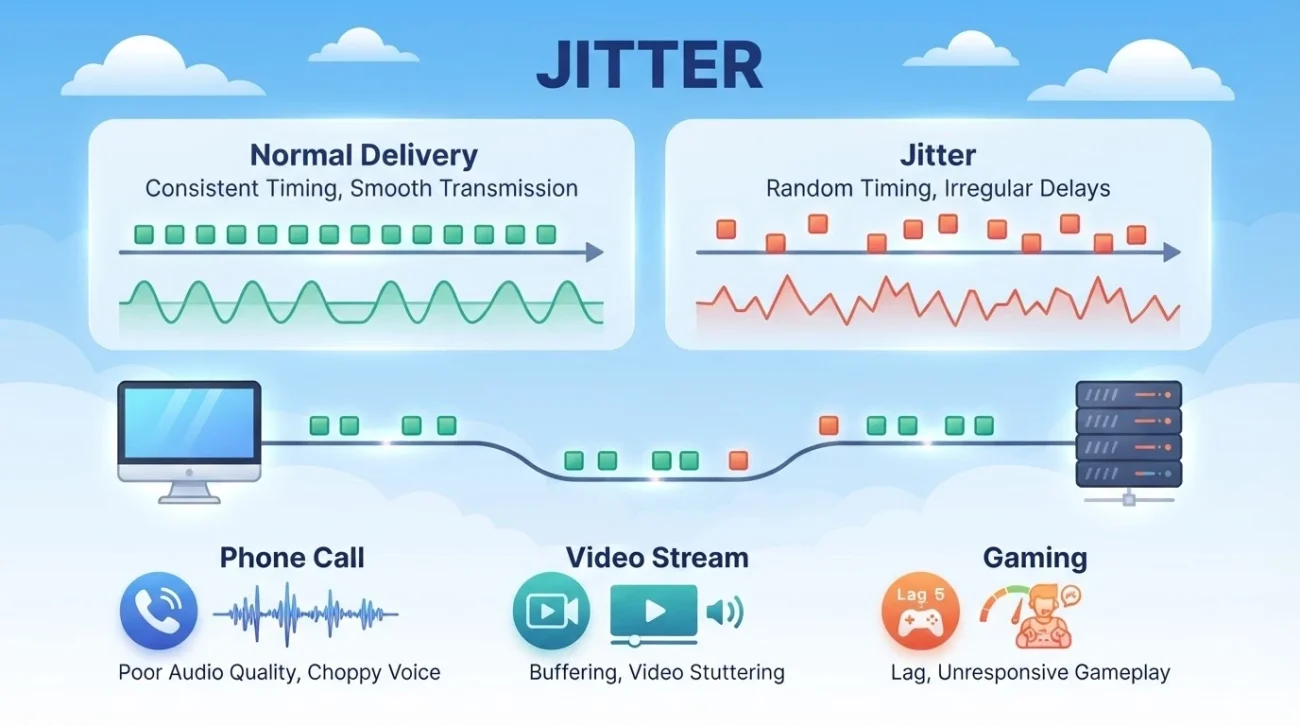
A fast internet connection can still feel frustratingly unstable. You may have plenty of download speed but hear choppy audio on a video call, watch your character suddenly jump in an online game, or see interruptions during a live stream even though your speed test looks fine.
One possible reason is internet jitter. So, what exactly is jitter?
Jitter is a variation in the timing or delay of data packets as they travel across a network. In real-time applications, inconsistent packet timing can make it harder for the receiving system to deliver audio, video, or game-state updates smoothly.
Jitter is closely related to latency and packet loss, but they are not the same thing. Understanding the difference can help you figure out what’s actually causing connection problems instead of assuming that every type of lag means you need a faster internet plan.
What Is Jitter? Jitter Meaning Explained
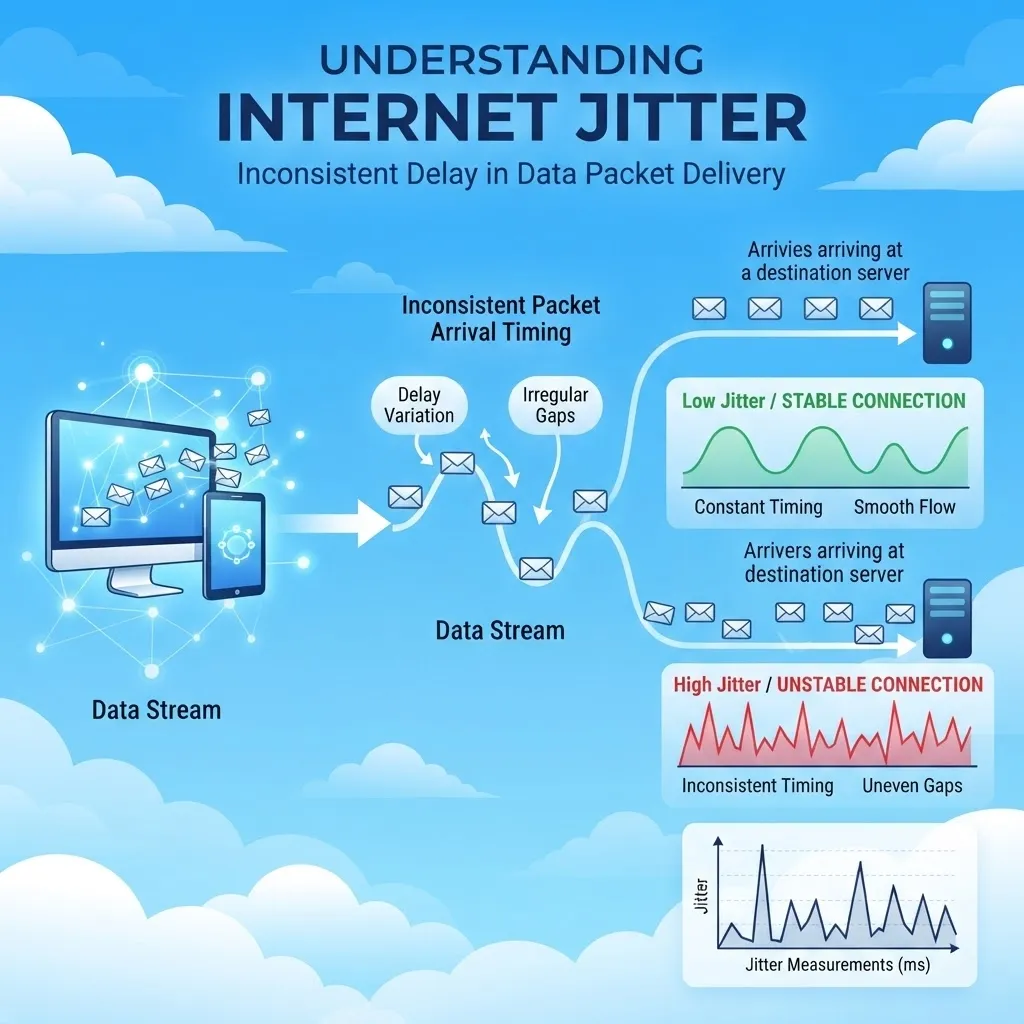
Put simply, jitter is variation in packet timing. When you use the internet, information is broken into small units called data packets. Those packets travel between your device and a server or another endpoint, where they are processed and reassembled. Ideally, packets in a real-time stream arrive with reasonably consistent timing.
For example, imagine four packets with measured delays of:
- 20 milliseconds
- 22 milliseconds
- 21 milliseconds
- 70 milliseconds
The connection did not necessarily become slower for the entire session. Instead, one packet experienced much more delay than the others. That inconsistency is what people commonly refer to as jitter or packet delay variation.
The exact way jitter is calculated can vary. Different standards and tools use different delay-variation measurements, so two tests can sometimes report different jitter values for the same connection. The IETF has documented multiple approaches, including inter-packet delay variation and packet delay variation, while RTP defines its own interarrival-jitter calculation for real-time media.
For everyday troubleshooting, the key idea is simple:
Jitter tells you how consistent packet timing is over a period of time.
That matters most for applications that need information to arrive continuously and predictably.
A webpage can often tolerate a delayed packet because the browser can wait. A conversation or interactive game has much less flexibility.
What Is Network Jitter?
Network jitter is packet-timing variation that occurs somewhere along the path between your device and the service you’re using.
That path can include your local Wi-Fi network, router, ISP, and several other networks before traffic reaches its destination. Because of that, jitter does not automatically mean there is a problem with your internet provider.
Common places to investigate include:
- Wi-Fi: Interference, weak signal conditions, or competing wireless traffic can cause inconsistent packet timing.
- Your local network: Router performance, queueing, or other local traffic can affect timing.
- Congestion: When a bottleneck becomes busy, packets may spend different amounts of time waiting in queues.
- Your ISP or upstream networks: Delays can vary beyond your home network, especially when traffic is routed through congested links.
- Routing or the destination: A problem may affect only a particular route, server, or service rather than your entire internet connection.
This is why the pattern of the jitter matters. If the problem appears only on Wi-Fi, switching to Ethernet can help isolate the wireless connection. If jitter rises when someone starts a large download or upload, congestion or bufferbloat becomes more likely. If the same issue appears across multiple devices and over Ethernet, the source may be farther upstream.
In other words, don’t look only at the number. Look at where the jitter appears, when it gets worse, and whether it affects one service or your whole connection.
Jitter vs. Latency vs. Packet Loss
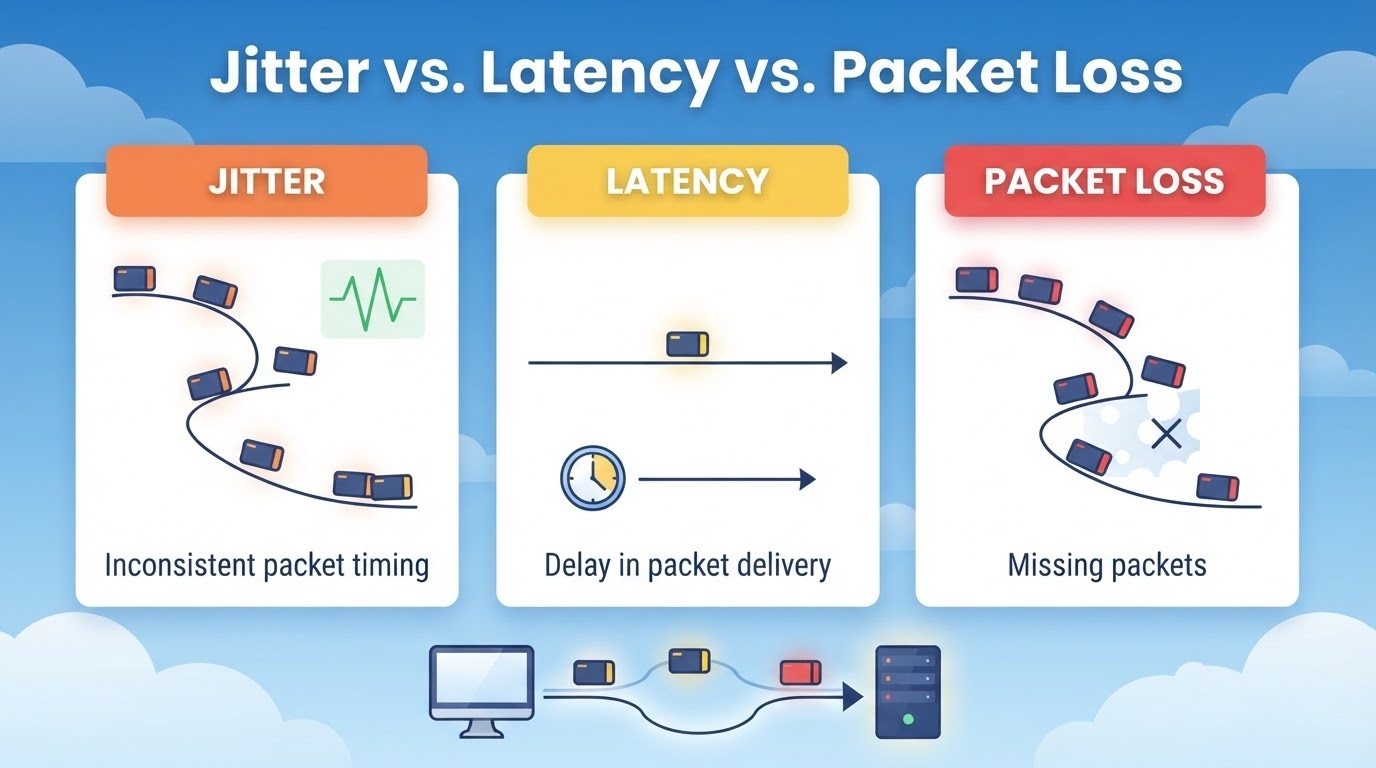
Jitter is often confused with latency, ping, or packet loss. These measurements are related, but they describe different network behaviors.
| Metric | What it measures | Possible symptoms |
|---|---|---|
| Latency | How long data takes to travel between endpoints | Delay or slow response |
| Jitter | How packet timing or delay varies | Choppy audio, inconsistent gameplay, timing problems |
| Packet loss | Packets that fail to reach the destination | Missing audio, freezes, retransmissions, disconnects |
Think of them this way:
Latency = how much delay there is.
Jitter = how much that delay varies.
Packet loss = whether some packets never arrive.
A connection can have one problem without having the others.
Jitter vs. Latency
Latency is delay. Jitter is variation in delay or packet timing.
Suppose packets consistently take about 100 ms to reach their destination:
- Packet 1: 99 ms
- Packet 2: 101 ms
- Packet 3: 100 ms
- Packet 4: 100 ms
The latency is relatively high, but the timing is consistent.
Now consider:
- Packet 1: 20 ms
- Packet 2: 75 ms
- Packet 3: 30 ms
- Packet 4: 90 ms
The connection may have a lower average delay, but its packet timing is much less predictable.
That distinction matters in real-time applications because inconsistent arrival timing can be harder to compensate for than a stable amount of delay.
Can You Have High Latency but Low Jitter?
Yes. A long-distance connection may have relatively high latency but deliver packets at fairly consistent intervals.
You would still notice the delay, but the behavior may remain predictable.
Can You Have Low Latency but High Jitter?
Yes. A connection might normally respond in about 20 ms but occasionally take 80 or 100 ms.
The result can feel less stable even though the usual latency looks good.
That is why average latency alone does not tell you how consistent a real-time connection is.
Jitter vs. Ping
“Ping” usually refers to a latency measurement, often obtained by sending a test packet and measuring the round-trip time.
Ping can be useful, but a single ping value does not show the full picture. Repeated measurements can reveal variation, while packet-loss testing can show whether packets are disappearing altogether.
For real-time troubleshooting, it is better to consider latency, jitter, and packet loss together.
Jitter vs. Packet Loss
Packet loss and jitter are different problems, although they can occur together.
Packet loss happens when packets fail to reach their destination. Jitter describes variation in packet timing or delay.
For example, during a video call:
- Jitter: packets arrive at uneven intervals.
- Packet loss: some packets never arrive.
- High latency: packets consistently take longer to travel.
The user-facing symptoms can overlap, which is one reason simply blaming “slow internet” can lead to the wrong fix.
A network can also experience congestion that produces both delay variation and packet loss. RTP documentation notes that interarrival jitter can provide a short-term indication of congestion, while packet loss reflects packets that were not received.
What Is a Good Jitter Level?
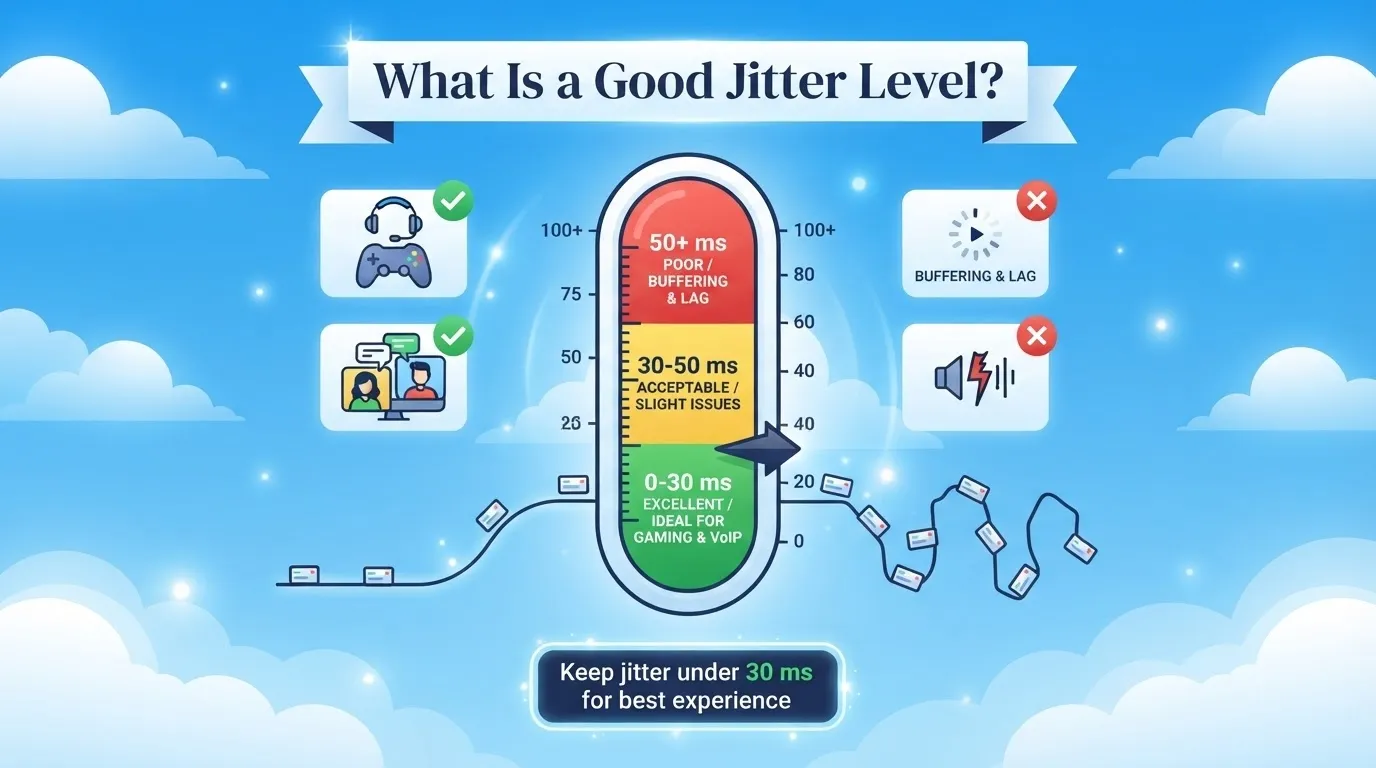
There is no single jitter number that is considered “good” for every situation. Different applications can handle delay variation differently, and different testing tools may calculate jitter in different ways.
For most real-time activities, around 10 ms of jitter or lower is generally a very good result. Lower and more consistent jitter is usually better for video calls, voice calls, online gaming, and other activities that need a steady connection.
As jitter moves into the tens of milliseconds, the connection can still be perfectly usable. What matters is whether the higher jitter is persistent and whether it comes with problems such as choppy audio, lag, or dropped connections.
The number alone does not tell the whole story. You should also consider:
- The application you are using
- Your overall latency
- Packet loss
- Whether the jitter is occasional or persistent
- How the test measures jitter
- Whether the problem appears only when your connection is under load
- What you actually experience while using the connection
Is 30 ms Jitter Bad?
Not necessarily.
Around 30 ms can still be perfectly usable for many real-time applications, especially when latency and packet loss are also under control.
There is no universal rule that says a connection suddenly becomes “bad” at exactly 30 ms.
A better question is whether the jitter is persistent and whether you can actually notice its effects. If your calls sound clear and your games remain responsive, a 30 ms reading by itself may not be a problem.
Is 50 ms Jitter Bad?
50 ms is relatively high for many real-time applications, but it is not an automatic failure point.
Some applications can handle a certain amount of variation by using buffering and other techniques. What matters is whether the jitter is consistent and whether it is causing noticeable problems.
If you repeatedly see around 50 ms or more while also experiencing choppy calls, unstable gameplay, or other connection issues, it is worth investigating further.
What About 100 ms Jitter?
Persistent jitter around 100 ms or higher is a much stronger reason to investigate, especially for interactive applications.
At that level, check your latency, packet loss, network congestion, Wi-Fi conditions, and whether the jitter occurs only when your connection is busy.
A high jitter reading tells you that packet timing is varying significantly, but it does not tell you what is causing the problem by itself.
What Causes Internet Jitter?
Jitter can come from different parts of your connection. The problem might be inside your home network, at your router or another bottleneck, somewhere along your ISP’s network, or farther along the route to the server you’re trying to reach.
Network Congestion
Congestion is a common cause of unstable network performance.
When more traffic reaches a bottleneck than the network can handle at that moment, packets may spend different amounts of time waiting in line. That changing delay can show up as higher jitter.
You may notice it when several devices are doing bandwidth-heavy tasks at the same time, such as:
- Downloading large files
- Uploading videos
- Running cloud backups
- Streaming high-resolution video
- Installing large game updates
A fast internet plan can still have poor real-time performance when the connection is heavily loaded.
Wi-Fi Interference and Wireless Conditions
Wi-Fi has more variables than a wired Ethernet connection. Other nearby networks, radio interference, distance from the router, walls, and the number of devices using the wireless network can all affect performance.
A useful troubleshooting step is to test the same device and the same destination over Wi-Fi and Ethernet.
If jitter consistently improves over Ethernet, your wireless network is a good place to start looking for the problem.
Router and Network Equipment
Your router or other network equipment can contribute to jitter when it is overloaded, incorrectly configured, outdated, or not working properly.
Restarting the equipment can clear temporary problems, while firmware updates may fix known bugs or compatibility issues.
However, replacing a router without testing is not always the answer. If the problem is happening somewhere beyond your local network, new hardware at home may not make much difference.
Routing Changes
Your internet traffic can pass through several networks before it reaches the website, game server, or other service you’re using.
Different destinations can take different routes, and conditions along those routes can change over time.
If one website, game, or application consistently has worse jitter than others, the problem may be related to that route or destination rather than your entire home connection.
Bufferbloat
Bufferbloat happens when network queues become too large, causing extra delay when the connection is busy.
When a bottleneck is heavily loaded, packets can sit in a queue instead of being sent immediately. That extra queueing delay can increase latency and may also contribute to jitter, especially while large downloads or uploads are running.
A common clue is simple:
Your connection feels fine when the network is quiet, but calls, games, or other real-time apps become sluggish as soon as someone starts a large download or upload.
That pattern points toward congestion or queueing problems rather than raw bandwidth alone.
How Does Jitter Affect Your Internet Connection?
Jitter does not necessarily make your entire internet connection slower.
Its impact depends on what you’re doing. Real-time activities are usually more sensitive because they need data to arrive on time and in a steady pattern. Buffered activities can often handle some variation without you noticing it.
Jitter and Voice Calls
During a voice call, your speech is turned into digital data and sent as packets over the internet.
If those packets arrive at uneven times, the receiving system has to smooth out the timing differences.
Many voice services use a jitter buffer to help keep the audio smooth. The trade-off is that adding some buffering can also add a little delay.
When the variation becomes harder to handle, you may notice:
- Choppy speech
- Short gaps in audio
- Robotic-sounding voices
- Delayed conversations
- Audio cutting in and out
Jitter is not the only possible cause. Packet loss, high latency, congestion, device problems, microphone issues, and problems with the calling service can cause similar symptoms.
Jitter and Video Calls
Video calls face the same packet-timing problem as voice calls, but they also have a continuous video stream to deliver.
Jitter can contribute to:
- Uneven playback
- Frozen or delayed video
- Audio and video getting out of sync
- Temporary interruptions
- Changes in video quality
The exact effect depends on the app and how it handles network variation. Interactive video is generally more sensitive to delay and jitter than video that can buffer ahead.
Jitter and Online Gaming
Online games constantly exchange data between your device and the game server.
Jitter can contribute to:
- Delayed inputs
- Sudden position changes
- Rubberbanding
- Other players appearing to jump around
- Actions showing up later than expected
But not every gaming problem is caused by jitter.
High latency, packet loss, server performance, routing issues, Wi-Fi problems, and the game’s own network design can cause similar symptoms.
Jitter and Streaming
Streaming is a little different because many services can buffer some content before you watch it.
On-demand video can usually handle some variation in packet timing because the app can load content ahead of playback.
Live streaming has less room for buffering because the viewer is expected to stay closer to the live broadcast.
That does not mean jitter is harmless. Persistent jitter, especially when combined with congestion or packet loss, can still contribute to buffering, interruptions, or changes in video quality.
How to Perform a Network Jitter Test
A useful network jitter test should look at more than jitter alone.
Check for:
- Jitter
- Latency
- Packet loss
The testing method also matters. Different tools can calculate or report jitter in different ways, so two tests may not produce exactly the same number.
For troubleshooting, looking for a pattern is usually more useful than relying on one isolated result.
1. Test Your Connection When It’s Quiet
Start when most devices on your network are not doing anything demanding.
This gives you a baseline for jitter, latency, and packet loss without intentionally adding extra traffic.
Write down the result so you can compare it later.
2. Test While the Network Is Busy
Run the test again while another device is downloading, uploading, streaming, backing up files, or doing another bandwidth-heavy task.
If latency rises sharply under load and jitter increases at the same time, congestion or bufferbloat becomes more likely.
3. Compare Wi-Fi and Ethernet
If possible, repeat the test over Ethernet.
Keep the same device, destination, and general test conditions.
If the Ethernet result is consistently better, your Wi-Fi network is a good place to start troubleshooting.
4. Test More Than Once
Internet conditions can change from one test to the next.
A single measurement may catch an unusually quiet or busy moment. Testing at different times helps you see whether the problem is persistent or only appears under certain conditions.
5. Test Multiple Destinations
Testing more than one destination can help you figure out whether the problem is local or somewhere farther along the network path.
For example, if several destinations look normal but one game or service consistently shows much worse jitter, investigate that destination and its route before replacing equipment at home.
What Your Jitter Test Result Can Tell You
The pattern of your jitter result often tells you more than the number by itself.
| Test pattern | What it may point to |
|---|---|
| High jitter on Wi-Fi, much lower on Ethernet | Wi-Fi interference, signal conditions, or wireless congestion |
| Jitter rises during downloads or uploads | Congestion or bufferbloat |
| High jitter across multiple devices, including Ethernet | Router, access connection, ISP, or upstream network |
| Only one service or destination is affected | Routing or destination-side conditions |
| High jitter plus packet loss | A broader network-quality problem |
| High latency but consistently low jitter | Delay may be the main issue rather than variation |
For example, if jitter is high over Wi-Fi but drops substantially on Ethernet, the wireless connection becomes a more likely place to investigate. If the result gets worse whenever someone is downloading or uploading, congestion or bufferbloat deserves closer attention.
This is why a single jitter number should not be treated as a diagnosis on its own.
How to Reduce Internet Jitter
The right fix depends on what is causing the variation. Start with changes that are easy to test, then move toward more targeted troubleshooting.
1. Use Ethernet
A wired Ethernet connection removes many of the variables associated with Wi-Fi.
For a desktop computer, gaming system, work-from-home setup, or other stationary device, Ethernet can provide more consistent local connectivity.
It does not fix jitter created by your ISP, a congested upstream link, or routing conditions. However, it is one of the simplest ways to find out whether Wi-Fi is part of the problem.
2. Reduce Network Congestion
Pause or schedule large uploads, downloads, cloud backups, and system updates when you need reliable real-time performance.
This is especially useful when latency and jitter increase only while the connection is busy.
A faster internet plan can help when your connection is genuinely running out of capacity. It is not a universal fix for Wi-Fi interference, queueing, packet loss, routing problems, or faulty equipment.
3. Use QoS Carefully
Some routers support Quality of Service (QoS) features that prioritize certain classes of traffic.
Properly configured QoS or traffic-management features can help latency-sensitive traffic during periods of congestion. Network QoS is commonly used to manage voice and video traffic and reduce the effect of competing traffic.
However, QoS is not a universal solution. It cannot repair a problem that originates outside your local network, and poor configuration can create unwanted trade-offs.
4. Improve Your Wi-Fi Environment
When Ethernet is not practical, focus on connection consistency rather than simply chasing the strongest possible signal.
Useful steps include:
- Move the router to a more open location.
- Reduce unnecessary physical obstructions.
- Keep router firmware up to date.
- Use an appropriate Wi-Fi band for your environment.
- Reduce unnecessary wireless congestion.
- Test performance at different distances from the router.
A stronger signal can help, but signal strength alone does not describe the entire wireless experience.
5. Check for Bufferbloat
If latency and jitter become much worse whenever someone uploads or downloads heavily, investigate bufferbloat.
Traffic-management features designed to control queueing can reduce excessive latency under load in some network setups. Bufferbloat is associated with large queues that increase latency, and it can affect both wired and wireless portions of a network.
6. Check Cables and Connections
A damaged Ethernet cable, loose connector, or faulty network component can cause connectivity problems.
Replace hardware that is actually defective, but do not assume that moving from one working Ethernet cable category to a newer category will automatically reduce internet jitter.
The network path and actual bottleneck are usually more important than the label on a functioning cable.
7. Restart and Update Your Router
A restart can clear temporary problems.
Firmware updates may also resolve bugs or improve compatibility.
Treat a restart as a troubleshooting step rather than proof that the underlying problem has been fixed. If the same jitter keeps returning, pay attention to what is happening when it returns.
8. Contact Your ISP When the Evidence Points Upstream
If jitter remains elevated across multiple devices, including over Ethernet, the problem may be outside your home network.
When contacting your ISP, provide useful observations such as:
- When the problem occurs
- Whether multiple devices are affected
- Whether Ethernet changes the result
- Jitter measurements
- Latency measurements
- Packet-loss measurements
- Which destinations or services are affected
- Whether the problem appears only under load
That information gives the provider more context than simply reporting that “the internet feels slow.”
Can a Jitter Buffer Fix Internet Jitter?
A jitter buffer can reduce the effects of packet-timing variation, but it does not remove the network condition causing it.
The receiving application temporarily holds packets and releases them in a more regular sequence.
That can make voice or video playback smoother when the variation is within the buffer’s ability to compensate. However, a larger buffer also increases playback delay. IETF guidance describes this trade-off: the buffer needs enough capacity to absorb expected delay variation, but excessive buffering can hurt conversational responsiveness.
So, a jitter buffer is best understood as a compensation mechanism, not a replacement for fixing congestion, packet loss, poor Wi-Fi conditions, or upstream network problems.
Does Jitter Affect Internet Speed?
Jitter does not directly measure internet speed.
Internet speed generally refers to how much data a connection can transfer over time.
Jitter describes variation in packet timing.
The two can still interact. For example, heavy traffic can fill queues at a bottleneck. That can increase latency and delay variation while leaving the connection’s advertised download speed unchanged.
This is one reason a connection can have high download bandwidth and still feel poor during a live conversation or interactive game.
Is Jitter More Important Than Ping?
Neither is universally more important.
Ping is commonly used as a measure of latency, while jitter describes variation in packet timing.
For real-time applications, it is usually better to look at several network-quality measures together:
- Reasonable latency
- Consistent packet timing
- Low packet loss
- Sufficient bandwidth for the application
The combination matters because different problems produce different symptoms.
- Low latency + low jitter: generally a strong combination.
- High latency + low jitter: predictable, but delayed.
- Low latency + high jitter: responsive much of the time, but inconsistent.
- High latency + high jitter: both delayed and variable.
- High jitter + packet loss: may point to a broader network-quality problem.
A useful test therefore looks at more than one metric instead of treating jitter or ping as the only number that matters.
How to Tell Whether Jitter Is Actually Your Problem
Before upgrading your plan or replacing your router, compare the symptoms with what your tests show.
Start by asking three simple questions:
Does the problem happen everywhere or only with one service?
If multiple devices and services show similar behavior, the issue is more likely to be somewhere in your local network or upstream connection. If only one service or destination is affected, routing or destination-side conditions may be more relevant.
Does the problem change when you switch from Wi-Fi to Ethernet?
A large improvement over Ethernet makes Wi-Fi-related causes more likely, such as interference, signal conditions, or wireless congestion.
Does it get worse when the network is busy?
If jitter and latency rise during large downloads or uploads, congestion or bufferbloat becomes a stronger possibility.
Also check whether packet loss appears alongside the jitter. When both occur together, it is worth treating the problem as a broader network-quality issue rather than focusing on jitter alone.
This pattern-based approach can help you avoid spending money on faster service or new hardware before you know where the problem actually occurs.
Frequently Asked Questions About Jitter
What Does Jitter Mean?
Jitter means variation in packet timing or delay across a network. In real-time applications, excessive or persistent variation can make it harder to deliver audio, video, or interactive data smoothly.
What Is a Good Jitter in ms?
There is no universal cutoff that applies to every application or measurement method.
As a practical rule, lower and more consistent jitter is preferable. Values in the low tens of milliseconds are generally more reassuring than persistent values in the higher tens when the application is sensitive to timing variation.
Application-specific requirements can differ.
Is 30 ms Jitter Good or Bad?
Around 30 ms can be usable for many real-time applications and is not a universal failure point.
Look at the measurement method, latency, packet loss, and whether you are actually experiencing problems. A number by itself does not tell the whole story.
Is 50 ms Jitter Bad?
50 ms is relatively high for many real-time applications, but it does not automatically mean that a call or game will fail.
Persistent results around that level are more meaningful when they also coincide with noticeable symptoms such as choppy audio, inconsistent gameplay, or dropped connections.
What Is a Network Jitter Test?
A network jitter test measures variation in packet timing or delay.
The most useful tests also report latency and packet loss, helping you distinguish jitter from other network-quality problems.
Can Wi-Fi Cause Jitter?
Yes. Wireless interference, contention, signal conditions, and local congestion can contribute to inconsistent packet timing.
Comparing Wi-Fi with Ethernet is a practical way to see whether your wireless network is involved.
Does Ethernet Eliminate Jitter?
No.
Ethernet can remove many Wi-Fi-related variables, but jitter can still occur because of congestion, queueing, routing, packet loss, ISP conditions, or problems farther along the network path.
Will Faster Internet Reduce Jitter?
Sometimes.
More bandwidth can help when your connection is saturated, but additional advertised speed does not automatically solve Wi-Fi interference, bufferbloat, packet loss, routing problems, or faulty equipment.
Is Jitter Worse Than Latency?
Not necessarily.
They describe different network behaviors. Latency creates delay, while jitter describes variation in timing or delay.
An application may tolerate one better than the other, depending on how it is designed.
Why Does Jitter Get Worse When Someone Is Downloading or Uploading?
Heavy traffic can fill queues at network bottlenecks.
Those queues can add variable delay, increasing latency and sometimes jitter. This pattern is also commonly associated with bufferbloat.
Why Can a Speed Test Look Fine While a Video Call or Game Feels Bad?
A speed test may show high throughput while a real-time application is affected by latency variation, packet loss, Wi-Fi conditions, congestion, routing, or application-specific behavior.
Speed and real-time responsiveness are related, but they are not the same thing.
The Bottom Line
Internet jitter is variation in packet timing or delay. It is not simply slow internet.
Jitter matters most when information needs to arrive continuously and predictably. That is why persistent or excessive jitter can contribute to choppy calls, unstable video meetings, inconsistent gaming, and problems with other interactive traffic.
If you suspect jitter, start with a network jitter test that measures jitter, latency, and packet loss. Test more than once, compare Wi-Fi with Ethernet, and check what happens when the network is under load.
The goal is not simply to find the biggest number and label it as the problem. Look at the pattern and the symptoms together.
For real-time applications, consistent packet delivery, reasonable latency, low packet loss, and sufficient bandwidth all matter.
Technical references
The terminology and explanations above are grounded in established networking references, including:
- IETF RFC 3393, IP Packet Delay Variation Metric for IP Performance Metrics
- IETF RFC 3550, RTP: A Transport Protocol for Real-Time Applications
- IETF RFC 5481, Packet Delay Variation Applicability Statement
- ITU-T Recommendation Y.1541, Network Performance Objectives for IP-Based Services
- Cisco documentation on voice/video jitter, QoS, and jitter buffers
- Bufferbloat.net technical documentation on queueing, latency, and bufferbloat
These references are useful because “jitter” is not one perfectly interchangeable measurement across every protocol and test tool. RFC 5481 specifically discusses different delay-variation formulations and their measurement context.
You May Also Like
 Computers & PC Games
What Internet Speed Do I Need For Gaming and Streaming?
 Internet
The Best Places to Put a WiFi Extender in a 2-Story House
 Internet
How to Fix Slow Internet: 15+ Things That Actually Work
 Internet
Why Is My Xfinity Internet So Slow All of a Sudden
 Internet
3 Cheap Satellite Internet Providers: Plans, Pros and Cons, Ratings, and Rural Coverage
 Internet