
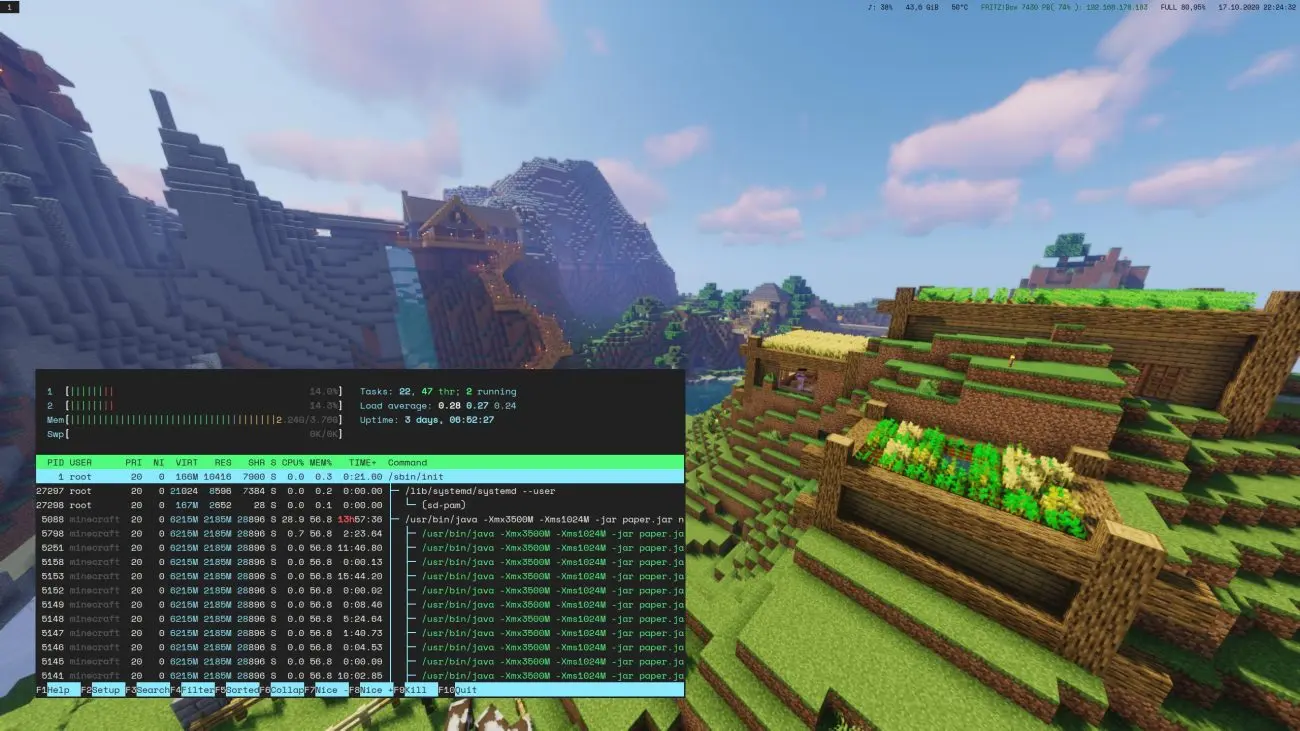
High CPU usage can make a Minecraft server lag, slow down gameplay, and cause problems when multiple players are online. You might notice delayed block breaking, mobs moving slowly, or players getting stuck while exploring new areas.
If your Minecraft server is using 100% CPU, adding more RAM isn’t always the answer. Minecraft servers depend heavily on CPU performance, especially when processing game logic, entities, redstone, plugins, and new chunks.
Before spending money on a hardware upgrade, I’d start by checking the server software, settings, plugins, and background tasks. A few changes can reduce unnecessary work and improve performance without replacing your CPU.
Here’s how to identify the cause and reduce CPU usage on your Minecraft server.
Why Is My Minecraft Server Using So Much CPU?
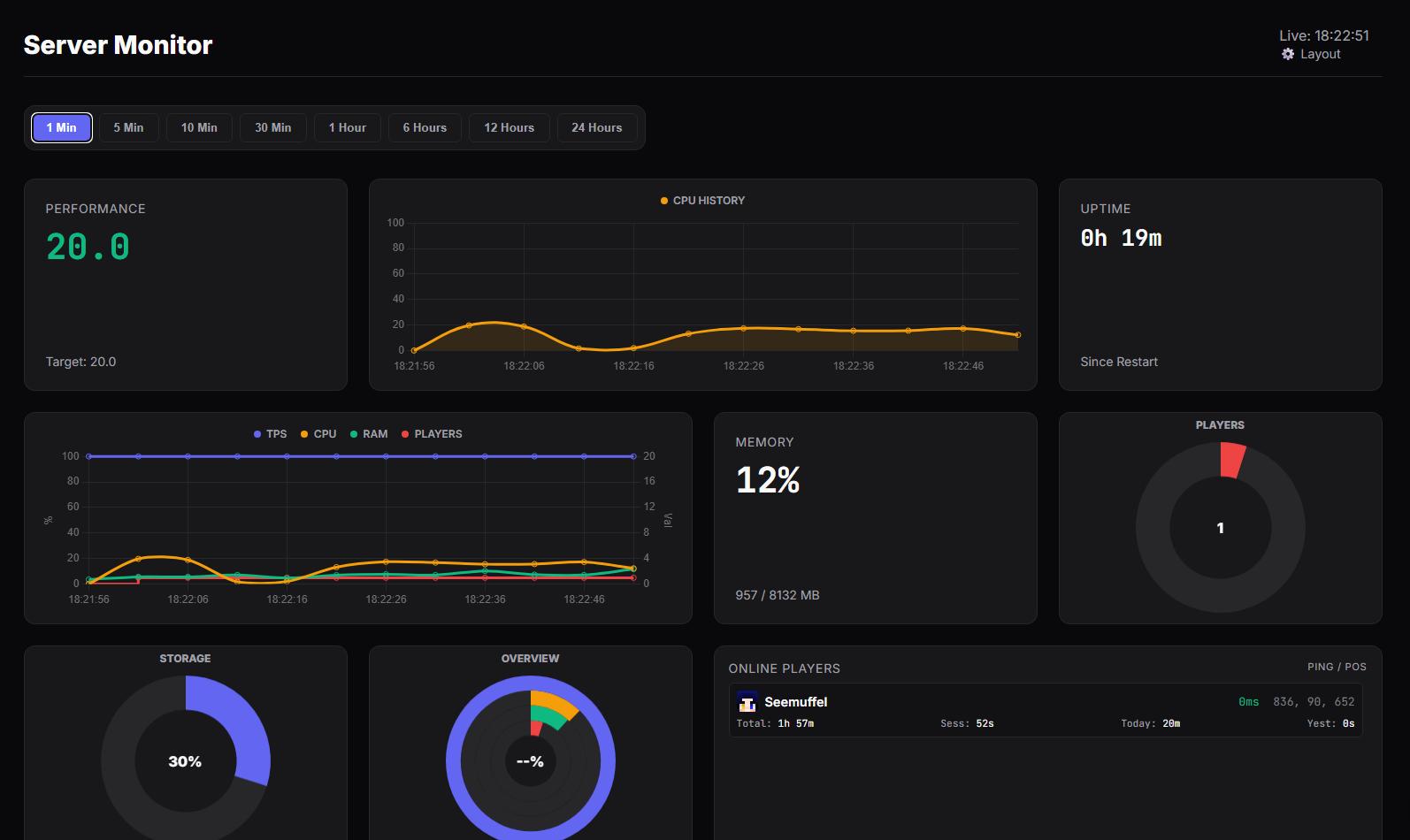
A Minecraft server handles many tasks in the background. It processes player movement, mob behavior, redstone updates, world changes, and other game events.
The more work your server has to handle, the more CPU resources it may need.
Here are some common reasons for high Minecraft server CPU usage:
- Too many players: More players can mean more entities, chunks, block updates, and game events to process.
- Too many mobs and entities: Large farms, animal pens, item drops, and mob grinders can increase server workload.
- Heavy plugins or mods: Some plugins and mods run frequent tasks that use significant CPU resources.
- Large redstone machines: Complex redstone systems, automatic farms, and constantly running mechanisms can create extra work.
- High view distance: The server may need to load and send more chunks to players.
- New chunk generation: Exploring unexplored areas can put extra pressure on the CPU because the server must generate terrain.
- Poor server optimization: Some server software and configurations handle certain workloads less efficiently than others.
- Limited CPU performance: A server with a slow processor may struggle even with a small number of players.
Before changing anything, check whether the problem comes from one specific task or from the server’s overall workload. If CPU usage stays unusually high even when the server isn’t doing much, see our guide on why your CPU can reach 100% when nothing is running.
How to Reduce CPU Usage for a Minecraft Server
Try these methods to lower CPU usage and improve server performance. You don’t need to apply every setting at once. Start with the changes that match your server’s symptoms.
1. Switch to Optimized Server Software Like Paper or Purpur
If you’re running a standard Minecraft Java Edition server, switching from Vanilla to an optimized server platform is worth considering.
Paper and Purpur offer performance improvements and additional configuration options that can help reduce unnecessary server work.
Depending on your setup, these platforms can improve how the server handles:
- Entity ticking and spawning.
- Chunk loading and saving.
- Redstone activity.
- Server configuration and background tasks.
- Plugin-related workloads.
Paper is a common choice for servers that use Bukkit or Spigot plugins. Purpur builds on Paper and offers additional settings for server owners who want more control.
However, don’t expect a guaranteed CPU reduction of 30% or 50%. The actual difference depends on your world, plugins, settings, and player activity.
Before switching, back up your world and configuration files. Also, check plugin compatibility and test the new server software before moving your main server.
For modded servers, make sure the software supports your mod loader. Paper and Purpur aren’t direct replacements for every Forge or Fabric setup.
2. Lower the Server View Distance
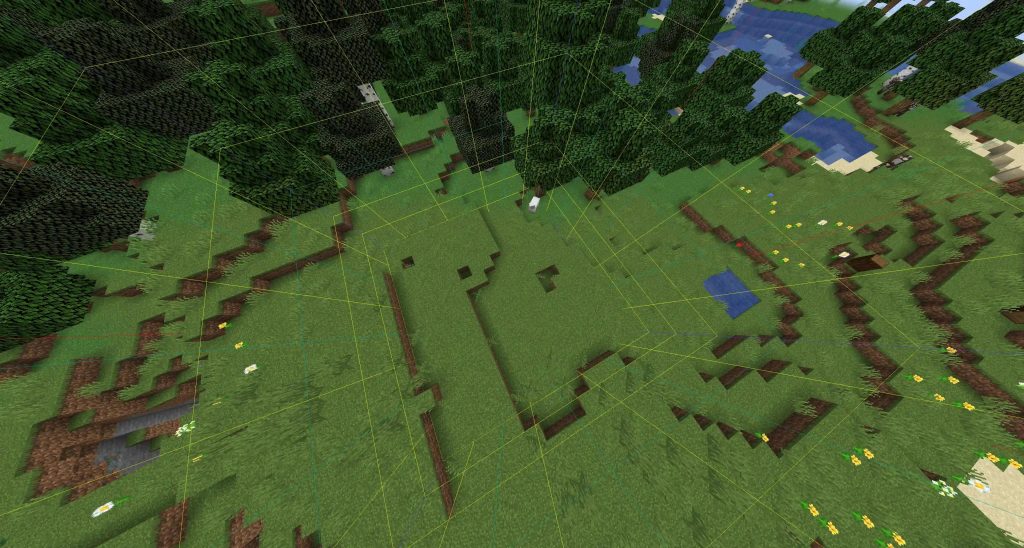
View distance controls how many chunks the server sends to each player. A higher setting allows players to see farther, but it can also increase the amount of work the server needs to handle.
For example, a server running with a view distance of 12 may have more chunk-related work than one using a lower setting.
To change it:
- Stop your Minecraft server.
- Open the
server.propertiesfile. - Find the
view-distancesetting. - Lower the value.
- Save the file and restart the server.
For example:
view-distance=8
You can try values between 6 and 10, depending on your server’s hardware and player count.
Keep in mind that a lower view distance reduces how far players can see. Test different values to find a balance between performance and gameplay.
3. Adjust the Simulation Distance
Simulation distance controls how far from a player the server actively processes certain game activities, such as mob behavior and other world updates.
It’s different from view distance. A chunk can be visible to a player without being actively simulated in the same way.
A high simulation distance can increase CPU usage, especially when several players are spread across the world.
To adjust it, open server.properties and look for:
simulation-distance=6
Try a lower value if your server is struggling. A setting around 4 to 6 can be a useful starting point, but the right value depends on your gameplay needs.
Reducing simulation distance can help limit the number of active chunks the server needs to process.
4. Reduce Unnecessary Mobs and Entities
Too many mobs and dropped items can put extra pressure on your Minecraft server’s CPU.
This often happens in worlds with large mob farms, animal pens, item collection systems, or areas where players leave many items on the ground.
Here are a few ways to reduce the workload:
- Remove unnecessary mobs and animals.
- Clean up dropped items regularly.
- Avoid keeping multiple large mob farms running at the same time.
- Limit excessive entity spawning where appropriate.
- Check whether plugins or mods are creating too many entities.
You can also review the mob spawning settings in your server configuration. However, don’t reduce mob limits too aggressively if your players rely on farms or normal mob spawning for gameplay.
The goal is to remove unnecessary entities, not make the world feel empty.
5. Find and Remove CPU-Heavy Plugins or Mods
Plugins and mods can add useful features, but some may consume more CPU resources than others.
For example, a plugin that constantly checks player locations, updates large areas, or runs frequent background tasks may increase server workload.
If CPU usage started rising after installing a new plugin or mod, that update is worth investigating.
Try this approach:
- Check your server console and logs for errors or repeated warnings.
- Review plugins or mods you recently installed or updated.
- Disable one suspected plugin at a time during a maintenance window.
- Restart the server and compare CPU usage.
- Repeat the process until you identify the problem.
Don’t remove several plugins at once if you want to find the actual cause. Testing them individually makes it easier to identify which one is responsible.
For modded servers, also check whether a mod is generating too many entities, running frequent tasks, or creating excessive world updates.
Minecraft performance problems can have different causes. Our guide to the different types of Minecraft server lag explains why identifying the type of lag matters before choosing a fix.
6. Use Spark to Find Performance Problems
Guessing which plugin, mod, or game mechanic is causing high CPU usage can waste a lot of time.
A profiler helps you find out where the server spends its processing time.
One popular option is Spark, a performance profiling tool for Minecraft servers.
It can help you investigate:
- Which tasks consume the most server processing time.
- Whether a plugin or mod is creating extra workload.
- How much time the server spends on entity ticking.
- Whether chunk-related tasks are affecting performance.
- Which parts of the server need further investigation.
If you’re using a compatible server setup, install Spark and follow its documentation to collect a profile while the lag is happening.
A useful tip: Run the profiler when CPU usage is high or players are experiencing lag. A profile collected while the server is idle may not reveal the problem.
You can find the tool and its documentation at Spark.
7. Pre-Generate Your Minecraft World
Generating new chunks can increase CPU usage, particularly when several players explore unexplored areas at the same time.
This is because the server needs to create terrain, structures, and other world data before players can explore those areas.
Pre-generating chunks moves much of that work outside normal gameplay.
You can use a compatible world-generation tool, such as Chunky, to generate a selected area before players explore it.
This can help reduce sudden CPU spikes caused by new chunk generation.
However, pre-generating a large world also requires time and storage space. Start with the areas your players are most likely to visit instead of generating an unnecessarily large region.
8. Optimize Redstone Machines and Automatic Farms
Large redstone machines can create additional work for a Minecraft server, especially when they run continuously.
Automatic farms, item sorters, clocks, and other mechanisms may trigger frequent block updates or create many entities.
If your server has several large machines running at once, try the following:
- Turn off redstone machines when they’re not needed.
- Avoid unnecessary always-on redstone clocks.
- Reduce the number of automatic farms that run constantly.
- Prevent item drops from accumulating.
- Review complex mechanisms that update many blocks repeatedly.
You don’t need to remove every redstone machine. Focus on systems that run continuously or create a lot of activity without providing much benefit to players.
9. Use Proper JVM Startup Flags
Minecraft Java Edition runs on the Java Virtual Machine (JVM). Its startup options affect how Java manages memory and garbage collection.
Poor memory management can contribute to lag spikes, especially when the server frequently cleans up unused objects.
Aikar’s flags are a well-known set of JVM startup options designed to tune garbage collection for Minecraft servers.
You can find the instructions in the official PaperMC documentation for Aikar’s flags.
Before applying them, keep a few things in mind:
- Use flags that match your Java version and server setup.
- Don’t copy old startup commands without checking whether they’re still recommended.
- Make sure the server has enough allocated memory.
- Avoid adding random JVM options from outdated tutorials.
JVM flags aren’t a guaranteed way to lower CPU usage. Their main purpose is to help manage memory and reduce certain garbage collection problems. If a plugin or entity farm is consuming too much processing time, changing JVM flags won’t fix the underlying cause.
10. Use Server-Side Optimization Mods for Forge or Fabric
If you’re running a modded Minecraft server, optimization mods may help improve performance.
Some mods are designed to improve server-side processing, while others mainly improve graphics and FPS on the player’s computer. These aren’t interchangeable.
Before installing an optimization mod, check:
- Whether it supports your Minecraft version.
- Whether it’s compatible with Forge, Fabric, or your current mod loader.
- Whether it needs to be installed on the server, client, or both.
- Whether it conflicts with other mods in your modpack.
Avoid installing several optimization mods at once without checking compatibility. Some may change similar parts of the game and cause conflicts.
If you’re planning to run a larger modpack, our guide to modded Minecraft server hosting covers some of the hosting considerations worth checking before choosing a plan.
11. Use Fast SSD Storage and Sufficient RAM
An SSD and enough RAM can help your Minecraft server run smoothly, but neither is a direct replacement for CPU performance.
An NVMe SSD can improve world loading, chunk data access, and saving compared with slower storage. However, it won’t automatically reduce the CPU time needed to process mobs, redstone, or plugins.
RAM also matters. If the server doesn’t have enough memory, it may experience memory pressure and more frequent garbage collection.
For a better setup:
- Use an SSD, preferably NVMe, if your server handles frequent world loading and saving.
- Make sure the server has enough RAM for its players, mods, and plugins.
- Avoid allocating far more RAM than the server needs.
- Use a suitable memory configuration for your Java version.
Memory speed can also affect some workloads, but upgrading to faster RAM isn’t usually the first thing I’d recommend when the server is hitting 100% CPU. Find the CPU bottleneck first.
If you’re adjusting memory allocation, see our guide on how to allocate more RAM to Minecraft.
12. Close Unnecessary Background Applications
If you’re hosting Minecraft on your own computer or a dedicated machine, other applications can compete with the server for CPU resources.
For example, running a game, video editor, browser with many tabs, or other server applications at the same time can increase overall CPU usage.
Try these steps:
- Close applications you don’t need.
- Stop unused background services where safe.
- Avoid running multiple resource-heavy programs alongside the server.
- Check Task Manager on Windows to see which processes use the most CPU.
On Windows, press Ctrl + Shift + Esc to open Task Manager. Select the Processes tab and check the CPU column.
If another application is using a large share of the processor, investigate it before changing Minecraft settings.
Don’t end system processes just because they use CPU. Some are required for Windows to work properly.
13. Check for CPU Throttling and System Updates
Sometimes, a CPU can’t maintain its expected performance because of high temperatures, power limits, or system settings.
If you’re hosting the server on your own PC, check whether the processor is overheating or running at unusually low clock speeds.
You can also check for relevant BIOS, chipset, and firmware updates from your computer or motherboard manufacturer.
However, don’t update the BIOS just to reduce Minecraft CPU usage. A firmware update is worth considering when the manufacturer lists a relevant fix or you’re experiencing a known hardware issue. Follow the manufacturer’s instructions carefully.
14. Upgrade to a Better CPU or Minecraft Server Hosting Plan
Sometimes, high CPU usage isn’t caused by poor settings. Your hardware may simply be unable to handle the server’s workload.
This is especially common with large modpacks, many active players, and worlds with complex farms or plugins.
If you’ve already optimized the server and CPU usage remains consistently high, consider upgrading your processor or hosting plan.
What CPU should you aim for?
For a small, lightly modded or vanilla Java server, I’d use a modern 4-core/8-thread processor as a practical starting point. An older 2-core CPU may run a basic server, but it leaves less room for extra players, plugins, and background tasks.
Here is a general guide:
| Server Type | Practical CPU Starting Point |
|---|---|
| Small vanilla server, a few players | Modern 4-core CPU with strong single-core performance |
| Vanilla server with more players and plugins | Modern 4- to 6-core CPU |
| Modded server or larger player base | Modern 6-core CPU or better |
| Large modpacks and busy communities | Recent high-performance 6- to 8-core CPU or better |
These are starting points, not guaranteed player limits. A small server with heavy mods can need more CPU power than a larger vanilla server.
If you’re choosing a hosting plan, look for:
- CPU performance: Prioritize recent processors with strong single-core performance, not just a high core count.
- CPU allocation: For a small server, 2 vCPU can be a starting point. Consider 3–4 vCPU for heavier plugins, modpacks, or more players, depending on the provider’s hardware and CPU limits.
- Dedicated or shared resources: Check whether CPU resources are dedicated, shared, or subject to usage limits.
- RAM: Make sure the server has enough memory for its player count, plugins, or mods.
- Storage: NVMe SSD storage can help with world loading and saving, although it won’t fix every CPU bottleneck.
Minecraft’s main server tick loop relies heavily on a single main thread. This means a processor with strong single-core performance can matter more than simply having more CPU cores.
Adding more RAM won’t automatically reduce CPU usage. If the processor is already the bottleneck, a RAM upgrade alone may not solve the problem.
What to Do When Minecraft Server CPU Usage Reaches 100%
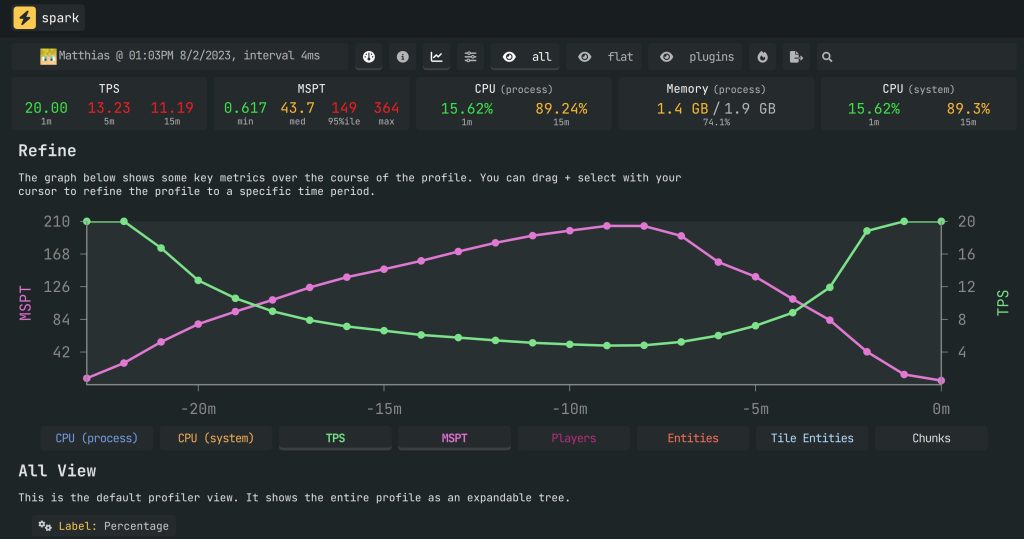
Seeing 100% CPU usage can be worrying, but it doesn’t always mean your server is broken.
Minecraft Java servers often rely heavily on one main server thread. Depending on how your hosting provider reports CPU usage, a single busy thread may appear as 100% usage even when the machine has multiple CPU cores.
What matters is whether the server can keep up with its normal workload.
If CPU usage reaches 100% and players experience lag, check these things:
- Check server performance: Look at TPS and MSPT to see whether the server is struggling to process ticks.
- Check player activity: Find out whether CPU usage increases when more players join or explore new areas.
- Review entities: Look for large farms, excessive mobs, or dropped items.
- Check plugins and mods: Investigate recent installations and CPU-heavy tasks.
- Profile the server: Use Spark to identify where processing time is going.
- Review hosting resources: Check whether your CPU allocation is shared, limited, or being throttled.
Don’t focus only on the CPU percentage. A server can show high CPU usage while maintaining smooth gameplay, and a server with lower CPU usage can still experience lag for other reasons.
How to Monitor Minecraft Server CPU Usage
Monitoring CPU usage helps you understand when the problem starts and whether your changes actually improve performance.
The tools you use depend on how you’re hosting the server.
If you’re using Windows:
Open Task Manager with Ctrl + Shift + Esc, then check the CPU column under Processes. Find the Java process running your Minecraft server.
If you’re using a Linux server:
You can use commands such as:
top
Or:
htop
These tools show running processes and their CPU usage. They can help you identify whether the Minecraft Java process or another application is using the available resources.
If you’re using Minecraft server hosting:
Open your hosting control panel and look for CPU usage graphs or resource monitoring tools. Some providers also show CPU limits and usage history.
For more detailed Minecraft performance information, use a profiler such as Spark.
It’s useful to compare CPU usage during quiet periods and busy gameplay. This helps you see whether the problem is related to player activity, world generation, or a background task.
CPU Usage vs. TPS vs. MSPT: What’s the Difference?
CPU usage, TPS, and MSPT are related, but they measure different things.
| Metric | What It Measures | What to Look For |
|---|---|---|
| CPU usage | How much processor capacity is being used | High usage may indicate a heavy workload |
| TPS | How many server ticks are processed per second | 20 TPS is the normal target for a standard Java server |
| MSPT | How long the server takes to process each tick | Ideally below 50 ms to maintain 20 TPS |
Minecraft normally targets 20 ticks per second. Each tick has about 50 milliseconds available.
If the server regularly takes longer than 50 ms to process a tick, it may struggle to maintain 20 TPS.
For example, a server running at 20 TPS with low MSPT is generally keeping up with its workload. But if MSPT rises above 50 ms for long periods, the server may start falling behind.
This is why checking TPS and MSPT alongside CPU usage gives you a better picture of server performance.
Frequently Asked Questions
Why is my Minecraft server using 100% CPU?
Your server may be using 100% CPU because of heavy entity activity, plugins, mods, redstone machines, chunk generation, or limited processor performance.
If players are experiencing lag at the same time, check TPS and MSPT and use a profiler such as Spark to identify the cause.
Does Minecraft server need a powerful CPU?
Yes, CPU performance is important for Minecraft servers, especially Java Edition servers. The main server tick loop relies heavily on a single thread, so strong single-core performance can make a noticeable difference.
The CPU you need depends on the number of players, server software, plugins, mods, and world activity.
Does adding more RAM reduce Minecraft server CPU usage?
Not necessarily. RAM and CPU handle different tasks.
More RAM can help if your server doesn’t have enough memory, but it won’t automatically reduce the processing work required for mobs, plugins, redstone, or chunk generation.
If CPU usage is the main problem, focus on identifying the workload or upgrading the processor.
Can too many players cause high CPU usage?
Yes. More players can increase the number of active chunks, entities, block updates, and other server tasks.
However, player count isn’t the only factor. A small server with heavy mods or large automatic farms can use more CPU than a larger server with a simpler world.
Is high CPU usage always bad for a Minecraft server?
No. High CPU usage doesn’t automatically mean your server has a performance problem.
If the server maintains 20 TPS and processes ticks within the expected time, high CPU usage may simply mean the processor is being used efficiently.
It becomes a concern when the server can’t keep up with its workload or players start experiencing lag.
Does lowering view distance reduce CPU usage?
It can. Lowering view distance reduces the number of chunks the server needs to send to players.
You can also adjust simulation distance to limit how many nearby chunks actively process game activity. Both settings can help, but they affect gameplay and should be tested.
Is Paper better than Vanilla Minecraft for CPU usage?
Paper includes performance improvements and configuration options that can reduce certain server workloads compared with the standard Vanilla server.
However, results depend on your world, plugins, settings, and player activity. Switching to Paper won’t automatically fix every CPU bottleneck.
What is the minimum CPU for a Minecraft server?
For a small Java Edition server, a modern 4-core CPU with strong single-core performance is a sensible starting point. A basic vanilla server may run on less powerful hardware, but modpacks, plugins, and more players can quickly increase the requirements.
For hosting plans, 2 vCPU can be a starting point for a small server. Larger or modded servers may need 3–4 vCPU or more, depending on the provider and workload.
Final Thoughts
High CPU usage on a Minecraft server can come from several sources, including mobs, plugins, mods, redstone machines, chunk generation, and limited processor performance.
Start by checking TPS, MSPT, and CPU usage together. Then use a profiler to find the tasks that consume the most processing time.
I’d start with software and configuration changes before buying new hardware. Switching to Paper or Purpur when compatible, adjusting view and simulation distance, removing unnecessary entities, and checking plugins can reduce the server’s workload.
If the server still struggles after these changes, consider a CPU upgrade. For a small server, a modern 4-core processor is a reasonable starting point. Larger modded servers will benefit from a stronger CPU with good single-core performance.
The goal isn’t simply to get a lower CPU percentage. It’s to keep the server running smoothly without spending money on resources you don’t need.
You May Also Like
 Computers & PC Games
The Different Types of Minecraft Server Lag
 Computers & PC Games
Is 1TB SSD Enough for Gaming? What You Should Know Before Buying
 Computers & PC Games
10 Best Modded Minecraft Server Hosting Providers for 2026
 Computers & PC Games
Is RomsFun Safe and Legit? My Complete Review and Testing Experience
 Computers & PC Games
GTA 5 Game Size for PC: How Many GB Do You Need?
 Computers & PC Games
