
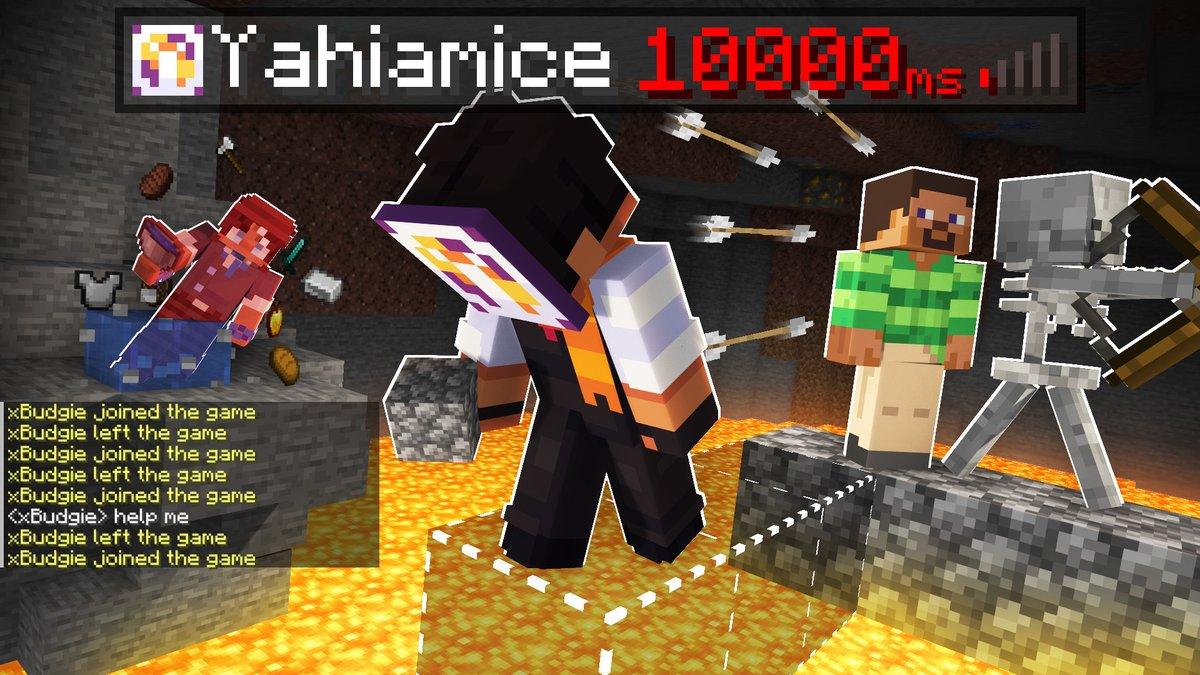
Lag in Minecraft can make even simple tasks feel frustrating. You might break a block, only for it to take several seconds to actually disappear. Other players might appear to move erratically (stuttering), or your screen might freeze entirely as you run into a new area.
However, these issues are not always caused by the same thing. Sometimes, it is the Minecraft server that is experiencing problems. In other cases, the issue lies with your internet connection or your computer.
With that in mind, let’s look at the different types of lag in Minecraft, which will help you find the right solution.
There are three main types:
- Server-side lag: The server takes too long to process game actions.
- Network lag: Your connection to the server is slow or unstable.
- Client-side lag: Your computer struggles to run Minecraft smoothly.
Let’s look at how each type works, what causes it, and how to fix it.
1. Server-Side Lag
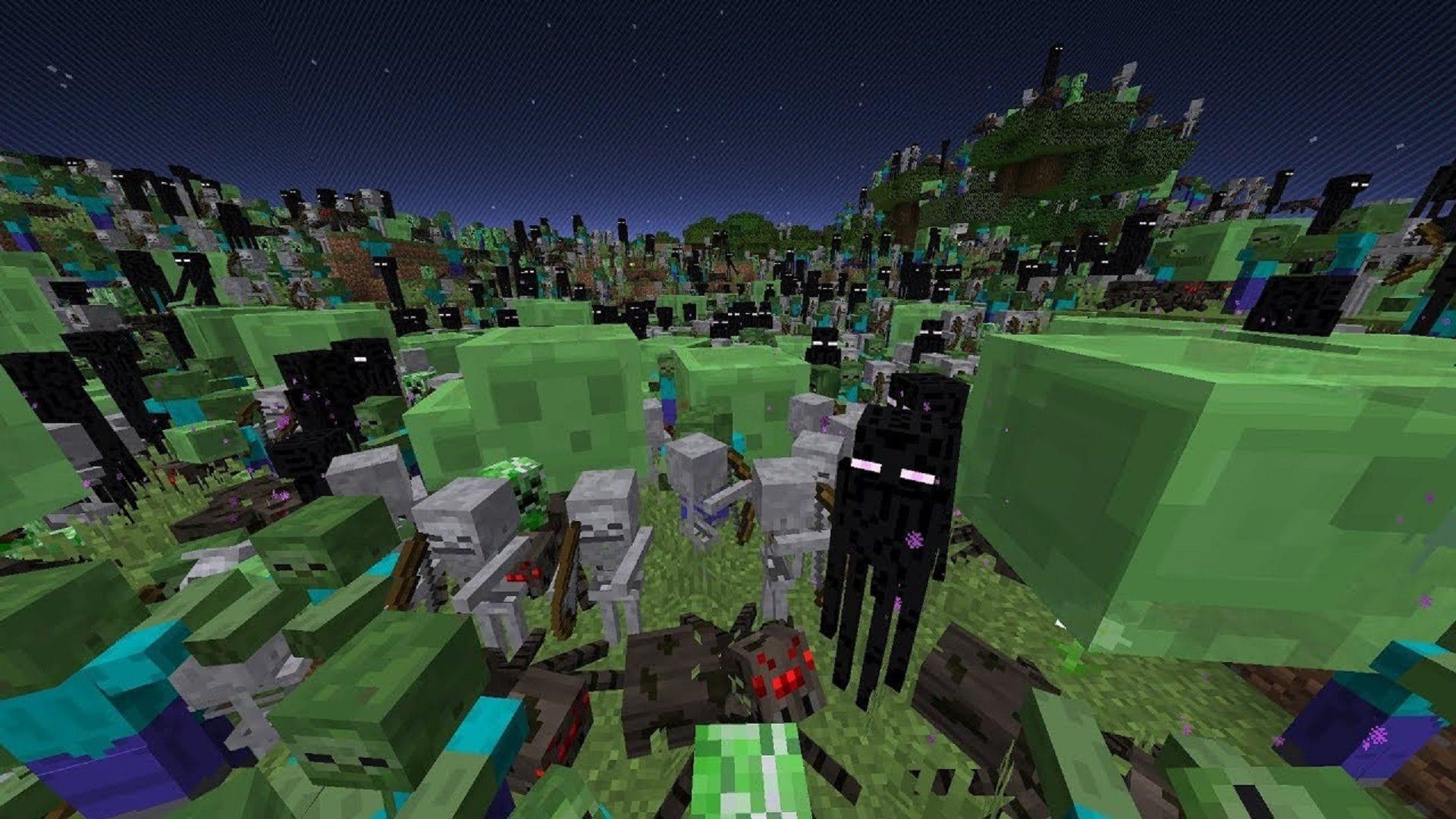
Server-side lag happens when your Minecraft server can’t process game actions fast enough. It can affect everyone playing on that server, even if your PC and internet connections work fine.
For example, you may open a chest, but it takes a few seconds to respond. Mobs may move slowly, redstone machines may stop working as expected, and blocks may take longer to break.
One important sign is that other players experience the same problem.
What Causes Minecraft Server Lag?
Several things can make a Minecraft server slow.
Too many mobs and entities
Every mob, animal, dropped item, and other entity adds work for the server. A large animal farm or mob grinder can create extra load, especially when many entities are close together.
Dropped items can also build up if players leave them on the ground. Over time, this may affect server performance.
Heavy plugins and mods
Plugins and mods add features to Minecraft, but some use more server resources than others.
For example, a server with many plugins, custom mobs, or large modpacks may need more CPU power and memory. Poorly optimized plugins can also cause problems.
Large redstone machines
Redstone farms, automatic sorting systems, and other complex builds can create extra work for the server.
This doesn’t mean every redstone machine causes lag. The effect depends on how it works, how often it runs, and how many other machines are active.
New chunk generation
Minecraft creates new chunks as players explore the world. This process requires server resources.
If several players travel in different directions, the server may need to generate many new chunks at once. This can cause slowdowns, especially on servers with limited resources.
Limited CPU and RAM
A server needs enough CPU power and memory to handle its players, world, plugins, and mods.
RAM stores the data the server needs while running. The CPU handles many of the calculations behind game actions.
However, adding more RAM doesn’t always solve lag. If the CPU is too slow or a plugin is causing problems, the server may still struggle.
You can learn more in our guide to how much RAM a Minecraft server needs.
What Is TPS in Minecraft?
TPS stands for ticks per second. A Minecraft server normally aims to run at 20 TPS.
Each tick is one step in the game’s update process. The server uses ticks to handle things such as mob movement, block updates, and other game events.
When a server maintains 20 TPS, it is keeping up with its normal target speed. If TPS drops, game actions may take longer to process.
For example, a server running at 10 TPS is processing game updates more slowly than one running at 20 TPS.
This is why low TPS is a common sign of server-side lag.
How to Fix Server-Side Lag
The best fix depends on what is slowing down the server. Try these steps:
- Remove extra entities: Clear unnecessary dropped items and reduce large groups of mobs.
- Check plugins and mods: Temporarily disable recently added plugins or mods to see whether performance improves.
- Review redstone machines: Check large farms and automatic systems that run all the time.
- Pre-generate chunks: Generate areas before players explore them to reduce the work needed during gameplay.
- Monitor server resources: Check CPU and RAM usage to see whether the server is reaching its limits.
- Use a profiler: Tools such as Spark can help identify which tasks, plugins, or entities use the most server resources.
If you run a modded Minecraft server, make sure your hosting plan can handle your chosen modpack. Check the CPU, RAM, storage, and player limits instead of looking at RAM alone.
Our guide to modded Minecraft server hosting explains what to look for when choosing a plan.
2. Network Lag
Network lag happens when data takes too long to travel between your computer and the Minecraft server.
Unlike server-side lag, network lag is usually related to your internet connection or the route between your device and the server.
You might see other players teleport from one place to another. Your character may also take a long time to interact with blocks, open doors, or pick up items.
Your FPS can still be high because your computer may be running Minecraft normally. The problem is that the game isn’t receiving or sending data smoothly.
What Causes Network Lag in Minecraft?
High ping
Ping measures how long it takes for data to travel between your computer and the server and back.
A lower ping usually means a faster response. A higher ping can make player movement and other actions feel delayed.
For example, if your Minecraft server is far from your location, your data may need to travel a longer distance. This can increase ping.
Packet loss
Packet loss happens when some data fails to reach its destination.
In Minecraft, this can cause sudden movement, delayed actions, or connection problems. You may see another player move forward and then suddenly jump back to an earlier position.
Even a small amount of packet loss can make online games feel unstable.
Internet congestion
Your connection may become slower when several devices use the same network.
For example, someone in your home may be downloading a large file, watching high-quality video, or uploading files while you’re playing Minecraft.
These activities can compete for network resources and affect your connection.
Weak Wi-Fi
A weak Wi-Fi signal can cause unstable connections, especially when your computer is far from the router or separated by several walls.
Other wireless devices and nearby networks may also cause interference.
Network routing and jitter
Your internet provider decides how data travels to the Minecraft server. Sometimes, the route is not ideal, even when your internet speed looks good.
Jitter is another possible problem. It means ping changes over time instead of staying steady. A connection with high jitter can feel unstable, even if its average ping looks acceptable.
How to Fix Network Lag
Try these solutions before changing your Minecraft settings:
- Use Ethernet: A wired connection is often more stable than Wi-Fi.
- Improve your Wi-Fi signal: Move closer to the router or reduce obstacles between your device and the router.
- Pause downloads: Stop large downloads, uploads, and other activities that use a lot of bandwidth.
- Choose a closer server: A server closer to your location may provide lower ping.
- Restart your router: This can help if your home network has become unstable.
- Check for packet loss: Test your connection to see whether data is being lost.
- Contact your ISP: If the problem continues across different games and services, your internet provider may need to investigate.
Keep in mind that a faster internet plan doesn’t always mean lower ping. A 1 Gbps connection can still have high latency if the server is far away or the network route is poor.
You can read our guides on how to reduce ping, internet jitter, and whether 1 Gig internet is good for gaming.
What about using a VPN?
A VPN changes the route your internet traffic takes. In some cases, it may help if your normal route to a Minecraft server is poor.
However, a VPN can also add extra delay. It isn’t a guaranteed way to lower ping.
3. Client-Side Lag
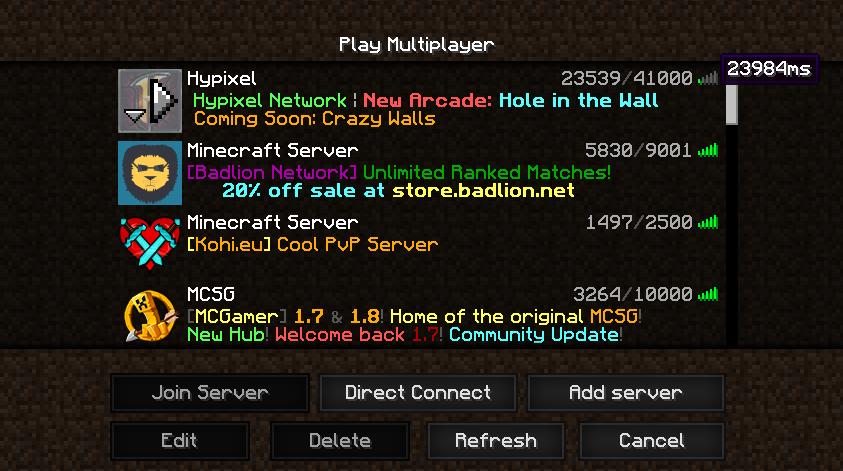
Client-side lag happens when your own computer struggles to run Minecraft.
Unlike server-side and network lag, this type of problem mainly affects how smoothly the game runs on your screen.
The most common sign is low FPS (frames per second). You may notice stuttering, freezing, or slow camera movement while playing.
Other players may not experience the same problem because their computers are running the game normally.
What Causes Client-Side Lag?
Low CPU or GPU performance
Minecraft uses your CPU and GPU to run the game and display graphics.
If your hardware can’t keep up with the game’s workload, FPS may drop. This can happen more often when using shaders, high graphics settings, or large resource packs.
High render distance
Render distance controls how far you can see in the game.
A higher setting lets you see more of the world, but it also makes your computer handle more visible chunks. This can reduce FPS, especially on lower-end computers.
Heavy shaders and resource packs
Shaders can improve Minecraft’s lighting, shadows, water, and other visual effects. However, they can also put extra work on your GPU.
Large or detailed resource packs may also use more memory and graphics resources.
Not enough available RAM
Minecraft needs memory to load worlds, textures, and other game data.
If your computer has very little free memory, the game may stutter or freeze. However, giving Minecraft more RAM isn’t always the answer.
Too much allocated RAM can also be unhelpful, especially if your computer doesn’t have enough memory for Windows and other apps.
Background applications
Web browsers, recording software, launchers, and other programs can use CPU and RAM while Minecraft is running.
If too many apps are open, your computer may have fewer resources available for the game.
How to Fix Client-Side Lag
Here are some settings and changes worth trying:
- Lower render distance: Start with a lower setting and increase it until you find a good balance.
- Reduce graphics settings: Try simpler graphics and lower effects.
- Turn off shaders: Disable shaders to see whether FPS improves.
- Use a lighter resource pack: Large packs may be harder for your computer to handle.
- Close background apps: Shut down programs you don’t need while playing.
- Check your graphics settings: Make sure Minecraft uses the correct GPU if your computer has more than one.
- Check memory use: Look at Task Manager to see whether your RAM is nearly full.
You can also try performance mods such as Sodium, if they support your Minecraft version and mod setup.
If you want to check your performance, read our guide on how to show FPS in Minecraft.
For more information, see how much RAM is good for gaming and how to fix high memory usage in Task Manager.
How to Tell Which Type of Minecraft Lag You Have
Sometimes, the symptoms of different types of lag look similar. A slow connection, for example, can make your actions feel delayed, just like a struggling server.
The easiest way to find the cause is to compare what happens in the game.
| Symptom | Possible cause |
|---|---|
| Low FPS or screen stuttering | Client-side lag |
| High ping | Network lag |
| Blocks reappear after breaking | Network or server lag |
| Mobs move slowly for everyone | Server-side lag |
| Other players teleport | Network lag |
| Minecraft freezes when loading new areas | Client or server performance |
| Everyone on the server experiences delays | Server-side lag |
These signs can help you narrow down the problem, but they don’t always prove the cause. For example, blocks reappearing may happen because of a slow server or an unstable connection.
Can More Than One Type of Lag Happen at Once?
Yes. You can experience server, network, and client-side lag at the same time.
Imagine you’re playing on a modded Minecraft server. The server has too many active machines, your Wi-Fi connection is unstable, and your computer is running a heavy shader.
All three problems can affect your gameplay.
That’s why it’s important to check each part instead of assuming that one setting or upgrade will fix everything.
How to Troubleshoot Minecraft Lag Step by Step
If you’re not sure where the problem comes from, follow these checks in order.
Step 1: Check your FPS
Look at your FPS while playing. If the number is low or keeps changing, your computer may be struggling to run Minecraft.
Try lowering render distance and turning off shaders. If the game becomes smoother, client-side performance was likely part of the problem.
Step 2: Check your ping
If your FPS is stable but other players move suddenly or your actions take a long time to register, check your ping.
Try joining another server. If the problem only happens on one server, its location or network may be part of the issue.
Step 3: Ask other players
Ask whether other players are experiencing the same problem.
If everyone notices slow actions, delayed blocks, or slow mobs, the server may be struggling.
If only you have the problem, check your computer and internet connection first.
Step 4: Check server performance
If you manage the server, look at its TPS, CPU use, and memory use.
A drop below 20 TPS can point to server performance problems. You can also use a profiler to find plugins, mods, or other tasks that create extra load.
Step 5: Review recent changes
Think about what changed before the lag started.
Did you install a new mod? Add a plugin? Increase render distance? Move to a different server?
Undoing a recent change can help you find the cause without making several changes at once.
Frequently Asked Questions
What are the three main types of Minecraft lag?
The three main types are server-side lag, network lag, and client-side lag.
Server-side lag happens when the Minecraft server is slow. Network lag comes from a slow or unstable connection. Client-side lag happens when your computer struggles to run the game.
What is the difference between TPS, ping, and FPS?
These three terms measure different parts of your Minecraft experience.
- TPS: Measures how many game ticks the server processes each second. The normal target is 20 TPS.
- Ping: Measures how long data takes to travel between your computer and the server and back.
- FPS: Measures how many frames your computer displays each second.
Checking all three can help you understand whether the problem comes from the server, your connection, or your computer.
Does more RAM fix Minecraft lag?
Not always. More RAM can help if Minecraft or the server doesn’t have enough memory.
However, lag can also come from a weak CPU, high render distance, heavy shaders, plugins, or network problems.
Before increasing RAM, check what resource is actually causing the slowdown.
Why does Minecraft lag when I join a server?
Minecraft may lag when joining because it needs to load chunks, player data, and other world information.
Your computer, internet connection, or the server itself may also be responsible.
If the problem happens only when joining one server, check whether that server has performance or connection issues.
Why does Minecraft lag even with good server hosting?
Good hosting doesn’t guarantee that a Minecraft server will always run smoothly.
Heavy modpacks, too many entities, large redstone machines, and poorly optimized plugins can still cause performance problems.
The server may also need more CPU power or better settings. Your own internet connection and computer can affect gameplay too.
Why do blocks reappear after I break them?
This often happens when the server takes too long to confirm your action or your connection is unstable.
Your client may show the block as broken before receiving the server’s response. If the server doesn’t confirm the action in time, the block may appear again.
Check your ping and ask other players whether they see the same problem.
Why does Minecraft lag even when the server has 20 TPS?
A server can run at 20 TPS while you still experience lag.
For example, high ping can delay your actions even when the server is running normally. Low FPS can also make the game feel slow because your computer isn’t displaying frames smoothly.
Check ping and FPS as well as TPS before deciding that the server is the problem.
Final Thoughts
Minecraft lag can come from the server, your internet connection, or your computer. Although these problems can look similar, each one has different signs and solutions.
Start by checking your FPS, ping, and server performance. Then focus on the part that’s causing the problem.
You don’t always need a faster internet plan, more RAM, or a new computer. Finding the real cause first can save you time and money.
You May Also Like
 Computers & PC Games
Is 1TB SSD Enough for Gaming? What You Should Know Before Buying
 Internet
Starlink Mini Review: Is It Worth It for Portable Internet in 2026?
 Internet
Is Xfinity Mobile Worth It in 2026? Plans, Coverage, and Costs Explained
 Computers & PC Games
10 Best Modded Minecraft Server Hosting Providers for 2026
 Computers & PC Games
Is RomsFun Safe and Legit? My Complete Review and Testing Experience
 Computers & PC Games
