
Minecraft Bedrock lags on Realms because the Realm’s shared server is working harder than it can handle, whether that load comes from entities and farms inside the world, from the distance and quality of your connection to that server, or from a known performance problem on Microsoft’s Realms infrastructure itself. Unlike a local world, everything on a Realm runs on a hosted server, so both the world’s weight and your network path to it decide how smooth the game feels. Figuring out which of those three causes applies to you is the first step, because the fix is completely different for each one.
This guide walks through every common cause of Realm lag, how to tell which one is hitting you, and the fixes that actually work, ordered from quickest to most involved.
How Realms Actually Work, and Why That Matters for Lag

A Realm is not your world running on your device. When you host a Realm, Minecraft uploads your world to Microsoft’s servers, and every player, including you, connects to that server as a client. The server runs the simulation: mob AI, crop growth, redstone ticks, chunk loading, and all the background logic that makes the world feel alive.
That design has two consequences. First, the server’s performance ceiling is shared by everyone on the Realm, so one player’s overbuilt mob farm can lag the whole world even if their own device runs fine. Second, your experience depends on your connection to that server, which is why two players on the same Realm can have wildly different lag at the same moment. Our full breakdown of the different types of Minecraft server lag explains this split in depth, and it is the single most useful concept for diagnosing Realms problems.
Why Is Minecraft Bedrock Lagging on Realms?
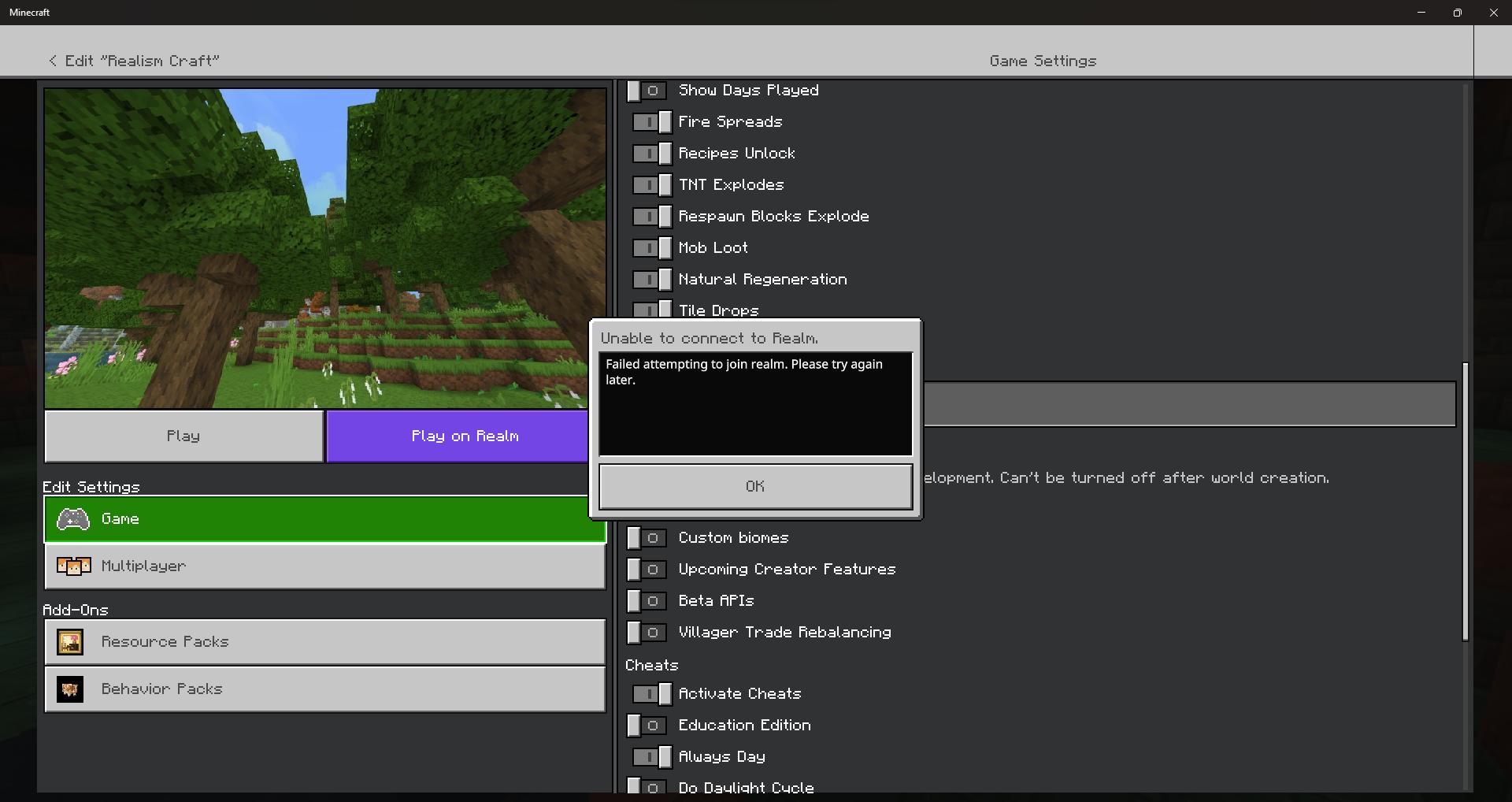
Here are the causes, roughly in order of how often they turn out to be the culprit.
Server-Side Lag: The World Itself Is Too Heavy
The Realm’s server has a fixed simulation budget, measured in ticks. Minecraft aims to run 20 ticks per second, and when the world demands more than the server can process in that window, everything starts to fall behind. Blocks break and reappear, mobs freeze mid-step, and chests take a second to open. The heaviest contributors are:
- Large mob farms and overbuilt spawners. Hundreds of entities crammed into breeding cells force the server to track and simulate every one of them. Even though Bedrock does not apply Java-style entity cramming, farms that stack mobs into tight spaces still pile on simulation cost.
- Hopper networks and item-sorting systems. Hoppers run constant inventory checks, and sprawling item lines are a classic hidden lag source.
- Item frames, armor stands, and dropped items. Bedrock renders and tracks these generously, and a storage room with hundreds of item frames genuinely shows up in performance.
- Huge loaded chunk areas from high simulation distance. Simulation distance controls how far from each player the game keeps updating blocks and mobs, and per the Minecraft Wiki it should ideally sit at or below render distance because updating entities inside that radius is the expensive part.
- Expanding world size. Realms that have been explored widely load more terrain data, and community reports plus tracked bugs on Mojang’s public issue tracker tie worsening Realm lag to large or older worlds.
Network Lag: The Path Between You and the Realm
The second family of causes lives entirely outside Minecraft. Every action you take travels from your device to the Realm’s server and back, and that round trip is your ping. High ping produces rubberbanding, where you walk forward and the server snaps you back to an earlier position, the single most reported Realms symptom on community forums.
Ping alone is not the whole story, though. Ping measures delay, but jitter, the variation in that delay from packet to packet, is what makes movement stutter unpredictably, and our explainer on internet jitter covers why a connection can have a decent ping average and still feel awful. Congested Wi-Fi, an ISP problem in the evening, or a bad route between your provider and the hosting region all produce this pattern. If your lag follows a schedule, for example it is fine in the morning and terrible at 8 pm, that points squarely at congestion, and our guide to why the internet is slow at night explains the mechanics.
Client-Side Lag: Your Device Is the Bottleneck
Sometimes the Realm is fine and your device simply cannot keep up. Client-side lag shows up as low frames per second, choppy rendering, and input delay, but crucially it does not rubberband you or delay block actions the way server lag does. On phones, consoles, and older PCs, low RAM availability and background processes are the usual suspects. If you are not sure which kind you have, the next section gives you a test, and our guide on how to show FPS in Minecraft lets you put numbers on it.
Known Realms Service Problems
Sometimes none of the above applies because the problem is Microsoft’s side of the fence. Mojang’s public bug tracker carries open Realm-specific issues describing severe lag spikes and rubberbanding that users confirmed were unrelated to their worlds or add-ons. Realms also runs periodic maintenance, and short degradation windows around updates are common. Before you spend an hour reengineering your world, check whether everyone on the Realm lags identically. If they do, and the lag started abruptly without any world changes, the service itself is the likely cause, and waiting it out beats deleting your farms.
Server-Side Lag or Client-Side Lag: A 60-Second Diagnosis
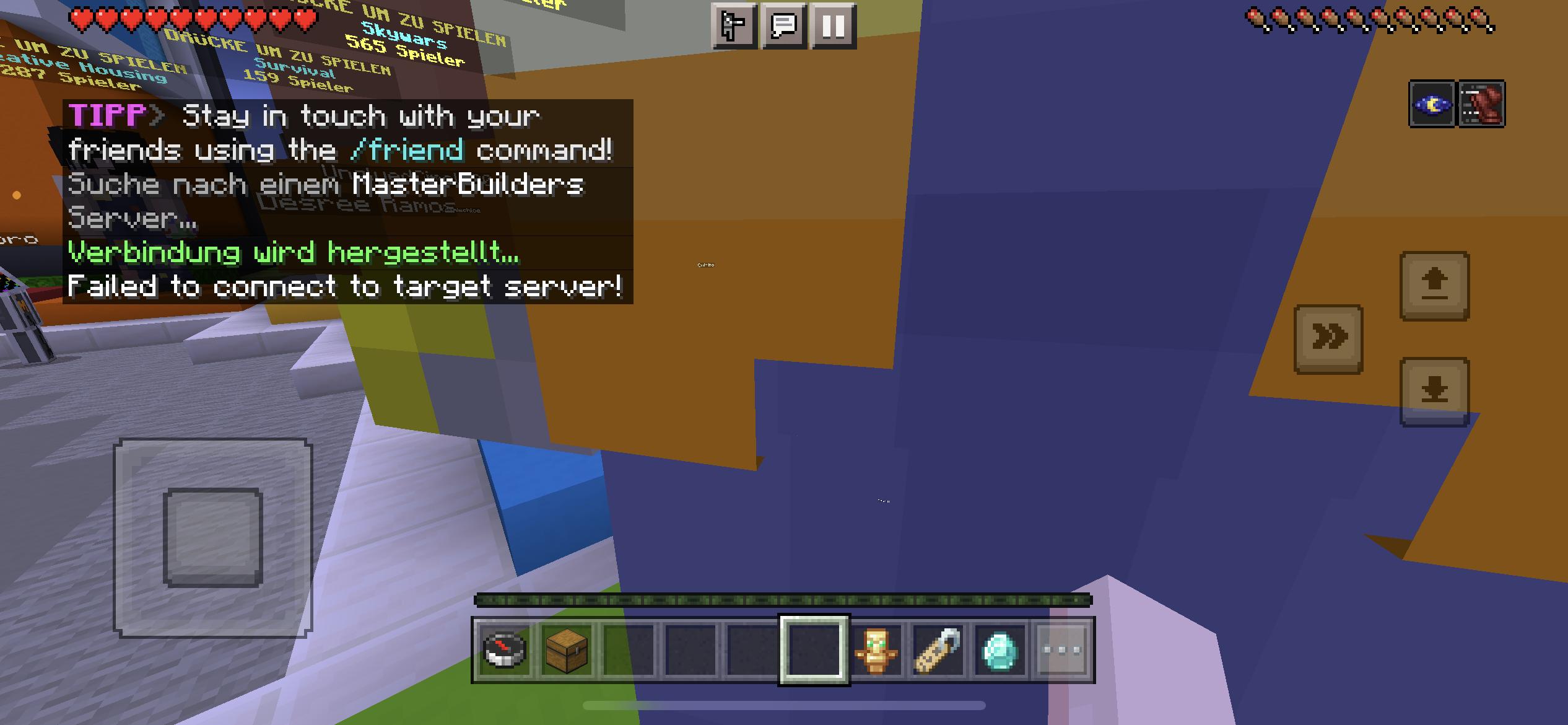
Run this quick test before changing anything:
- Watch what the lag does to your position. If you move and get snapped backward, or blocks you mined reappear, that is server-side lag. If the world just renders choppily but your position stays honest, that is client-side.
- Ask the other players. If everyone lags in the same places, for example near the communal farm, the world’s load is the cause. If only you lag, the cause is your connection or your device.
- Check the timing pattern. Constant lag points at world weight. Lag that spikes when several players spread out and explore points to chunk loading and simulation distance. Evening-only lag points to network congestion.
How to Fix Minecraft Realm Lag
Work through these fixes in order. The first three cost you nothing and resolve a large share of cases.
1. Lower Simulation Distance and Render Distance
Have the Realm owner open the world’s settings on the Realm and reduce simulation distance. On Bedrock Realms this setting controls how far the server actively updates blocks, mobs, and growth around each player, and dropping it immediately cuts the server’s per-player workload. Then each player should lower their own render distance in the video settings, because rendering is client-side cost that has no effect on other players. Simulation distance at or below render distance is the efficient configuration, per the Minecraft Wiki’s guidance. This one-two change fixes the “fine with two players, unplayable with six” pattern better than anything else.
2. Trim the World’s Entity Load
Send the Realm on an entity diet:
- Shut down or relocate mob farms that stockpile hundreds of live mobs, and switch kill chambers to designs that dispose of mobs promptly instead of collecting them.
- Break up long hopper lines and replace pure item-transport hoppers with water streams where possible.
- Cut item frame and armor stand counts in storage rooms. Display a sample, not the whole inventory.
- Clear out ground item piles, especially around farms and mob grinders.
3. Fix the Network Side
If the diagnosis pointed at your connection:
- Wire in. An ethernet cable removes the entire Wi-Fi variable, and Wi-Fi is the most common source of jitter on home networks. If running cable is impossible, our comparison of a Wi-Fi booster versus a Wi-Fi extender covers when extenders genuinely help.
- Reboot the modem and router. It is a cliché because it works, and community reports of Realm rubberbanding routinely resolve after a full network power cycle.
- Close bandwidth hogs. Downloads, cloud backups, and a sibling streaming in 4K all inflate your latency to the Realm. Our guide on reducing lag in online games walks the full checklist.
- Know your speed floor. Realms traffic is lightweight compared to streaming, so almost any modern connection has enough raw bandwidth. Consistency matters far more than capacity, which is why our article on whether 1 gigabit internet is good for gaming concludes that stability beats headline speed every time.
- Work the ping down directly. For the full set of latency levers, from routing to server selection, see our guide on how to reduce ping and its companion on reducing internet latency.
4. Fix the Device Side
If the lag is client-side:
- Restart the device before you play. Bedrock runs on everything from phones to consoles, and a week of uptime shows.
- Free up RAM. On Windows specifically, close browser tabs and launchers, and if memory use looks bloated before you even open the game, our guide to fixing high memory usage in Task Manager cleans it up. Background CPU hogs matter too, and our walkthrough on reducing CPU usage while gaming covers the usual offenders, including the notorious antimalware scans that spike mid-session.
- Lower video settings. Fancy graphics, particles, and smooth lighting all cost frames, and on Bedrock the difference between low and fancy settings is dramatic on weaker hardware.
- Keep the game updated. Some Bedrock versions ship with performance regressions that patches fix within weeks, and playing on an outdated build leaves you exposed to already-solved bugs.
5. Check VPNs and Add-Ons
Two extras deserve a warning. If you play through a VPN, the tunnel adds a stop between you and the Realm, and a distant VPN server can double your effective latency. VPNs occasionally help when your ISP’s route to the hosting region is bad, but that is the exception, and our honest look at whether a VPN really improves Minecraft ping explains when and why. If you must use one and it lags, our fix guide for lag and high ping when using a VPN in Minecraft sorts it out.
Behavior packs and add-ons deserve the same suspicion. Poorly written packs can run heavy logic on every tick, and a Realm that started lagging right after an add-on update has its suspect. Remove recent add-ons and test.
When to Consider Something Other Than Realms
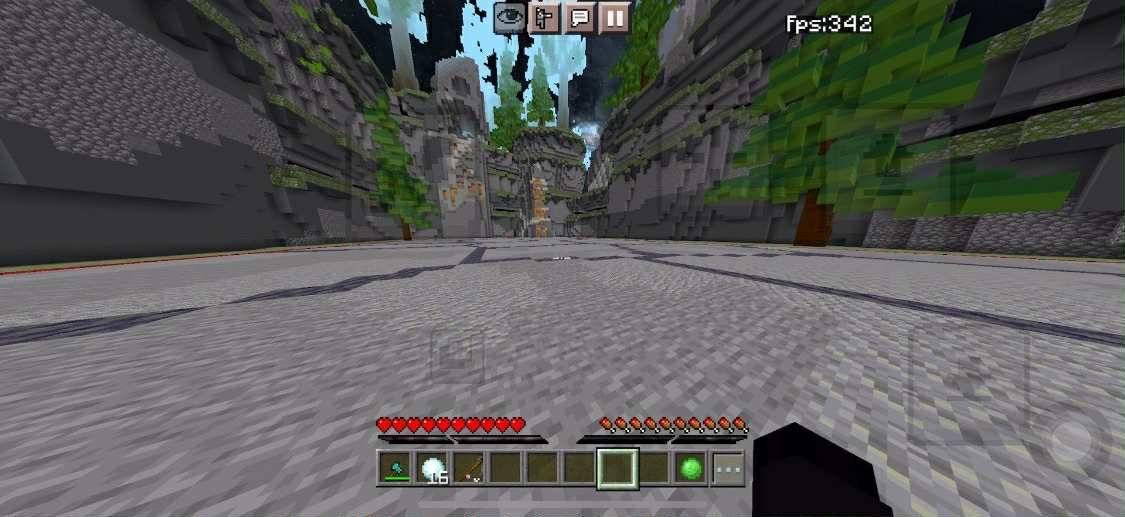
Realms trades flexibility for convenience, and if your group has outgrown it, the upgrade path is straightforward. Third-party hosting lets you pick server hardware and location, tune simulation distance per your own budget, and allocate dedicated RAM, which Realms never lets you touch. Our guides on how much RAM a Minecraft server needs and reducing CPU usage for a Minecraft server cover what that hardware actually requires, and our comparisons of hosting providers show what a step up looks like in practice. For heavily modded or large-community worlds, that route ends the ceiling problem permanently.
Frequently Asked Questions
Why is my Realm laggy but my single-player worlds run fine?
Because the work happens in different places. Single-player runs the simulation on your device, where your hardware handles the load. Realms run it on Microsoft’s shared hosting, where the world’s total weight and your network path both matter, so a Realm can lag even on a powerful device with fast internet.
Why do I rubberband on Realms but not on other servers?
Realms hosting sits in a limited set of regions, so some players connect across much longer routes than they would to a community server hosted near them. Longer routes mean more ping and more exposure to jitter, and rubberbanding is the classic symptom of that delay.
Does lowering render distance on my Realm help other players?
Lowering your own render distance only helps your own frames. The setting that helps everyone is simulation distance, which the Realm owner changes in the world settings, because that controls how much of the world the server actively simulates.
Can the Realm owner fix lag for everyone?
Partly. The owner controls simulation distance, world settings, and can lead an entity cleanup, which addresses server-side lag for the whole group. But network lag and client-side lag are each player’s own to fix, on their connection and their device.
How do I know if the lag is Realms’ fault and not mine?
If every player on the Realm lags at the same time, regardless of location or device, and the lag began suddenly without any world changes, the Realms service itself is the likely cause. Check Mojang’s bug tracker and Realm status channels, then wait rather than rebuild.
Does more RAM on my device fix Realm lag?
Only if your device is the bottleneck. Client-side stutter from a memory-starved phone or PC improves with more available RAM, but server-side rubberbanding and block lag live on the Realm’s server and will not change no matter how much memory your device has.
The Bottom Line
Realms lag always traces back to one of three places: the world asking too much of its shared server, the network path between you and that server, or the device in your hands. Lower simulation distance, put the world on an entity diet, wire in your connection, and free up your device’s resources, in that order, and most Realms go from unplayable to smooth without anyone rebuilding a thing. And if everyone lags equally no matter what you change, the problem is upstream on Microsoft’s side, and the smartest fix is patience plus a bug report.
You May Also Like
 Computers & PC Games
FM27 Best Settings for FPS: How to Fix Low FPS, Lag, and Stuttering on PC
 Computers & PC Games
Hostinger Minecraft Server Hosting Review: Plans, Pricing, and Mod Support
 Computers & PC Games
How Big is Fortnite? GB Size & Space Does Fortnite Take Up
 Computers & PC Games
10 Best Modded Minecraft Server Hosting Providers for 2026
 Computers & PC Games
GTA 6 System Requirements: Minimum & Recommended PC Specs (Predicted)
 Computers & PC Games
