
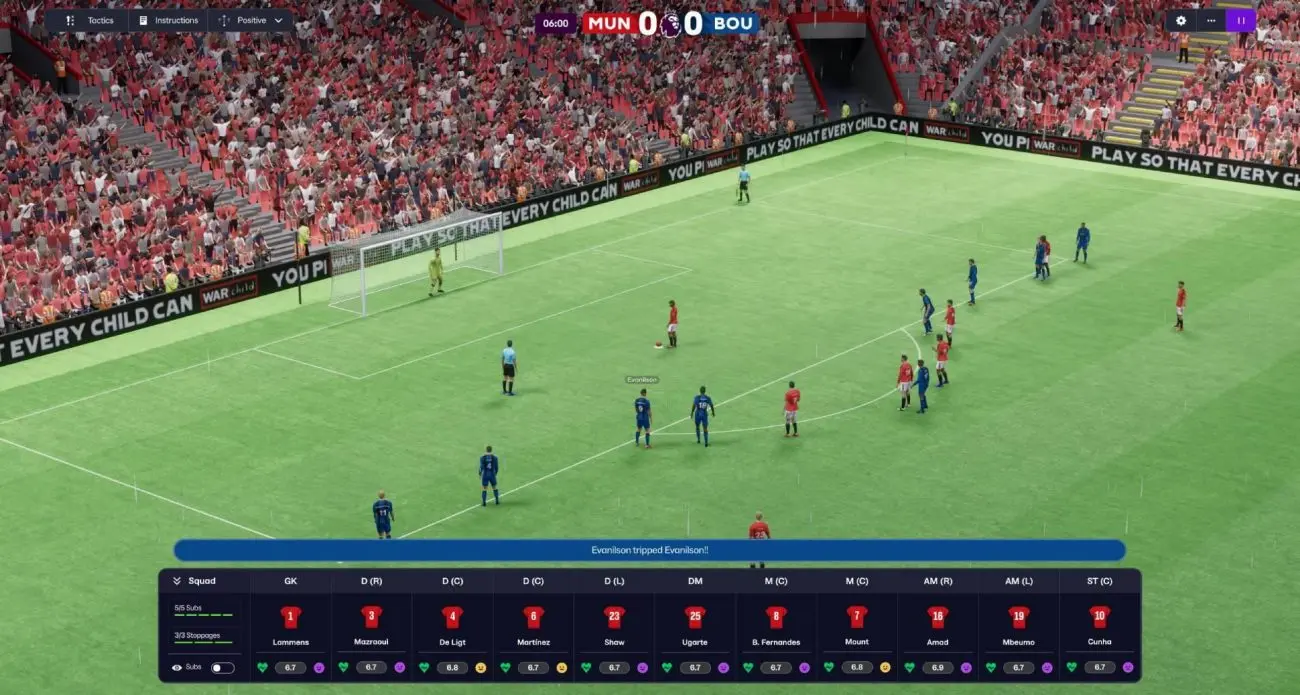
Football Manager 2027 is more enjoyable when match highlights run smoothly, but not every PC handles the 3D match engine the same way. You might experience choppy animations, inconsistent frame rates, or sudden stuttering even when the rest of the game seems fine.
The good news is that you don’t necessarily need a new CPU or graphics card to improve FM27 performance. Adjusting the graphics settings, checking your monitor’s refresh rate, and reducing unnecessary background activity can make a noticeable difference.
My reference CPU is an Intel Core i5-10400, and I’ll also use the AMD Ryzen 5 5500 as a hardware comparison. Both are six-core, 12-thread desktop processors, but their clock speeds, integrated graphics, and platform support differ.
I wouldn’t promise a specific FPS result based on the CPU alone. Your graphics card, RAM, resolution, and game settings also play important roles.
In this guide, I’ll cover the FM27 settings I’d start with, how to troubleshoot stuttering, and what to check before spending money on hardware upgrades.
What Causes FM27 Low FPS and Stuttering?
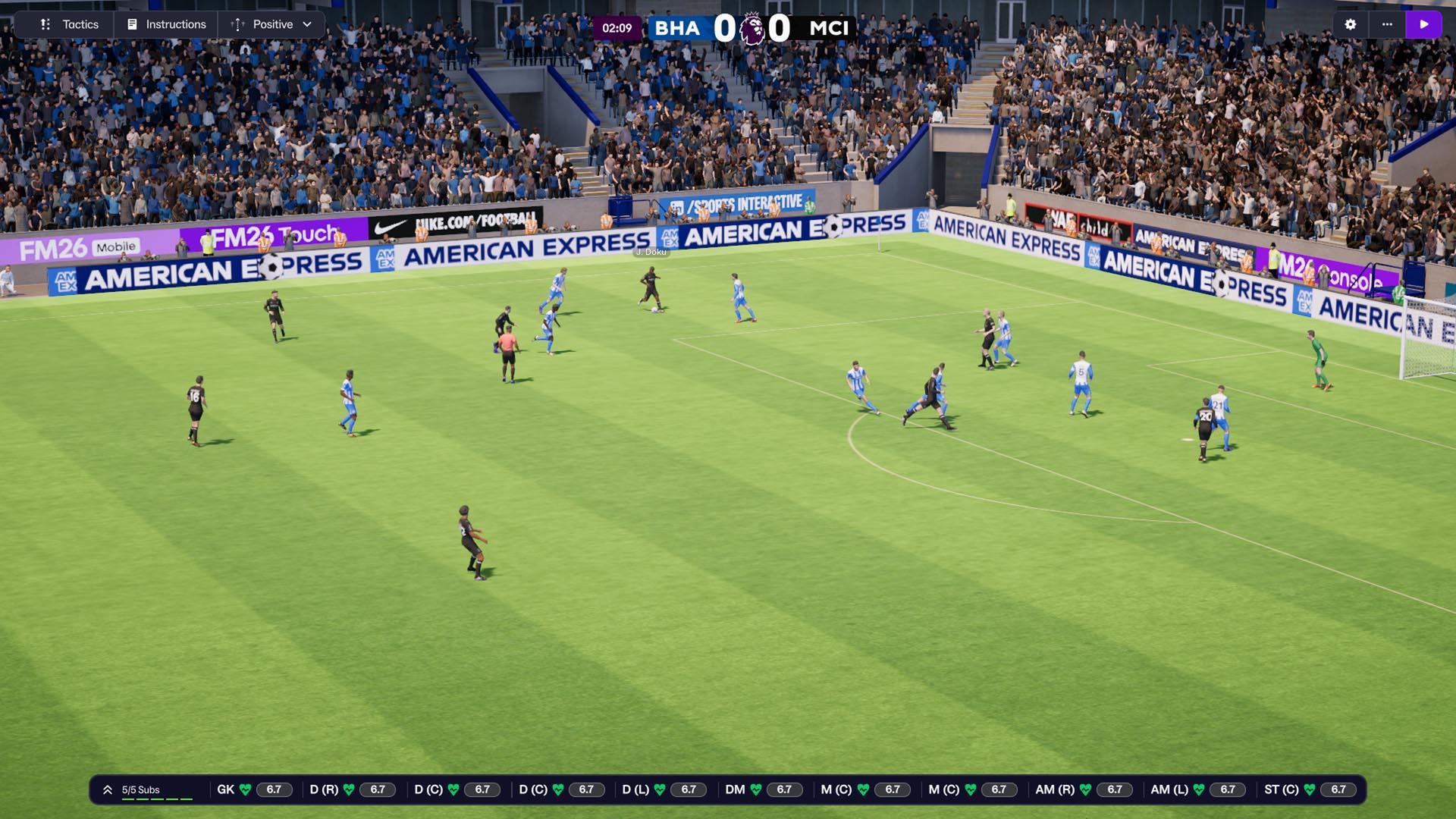
Before changing settings, it’s worth understanding why the game might not run smoothly.
FM27 performance problems can come from several different areas. Some affect the 3D match presentation, while others make career progression and general gameplay feel slow.
Graphics Settings Are Too Demanding
The 3D match engine renders players, stadiums, lighting, shadows, crowds, and other visual details.
Higher settings increase the amount of work your graphics card has to handle. If your GPU cannot render frames quickly enough, you may notice low FPS or inconsistent animations.
Crowd details, shadows, enhanced lighting, and render scale are reasonable places to start when reducing graphics demand.
CPU Bottlenecks
Your CPU handles many background tasks, including match simulation, player activity, and other game calculations.
A large career database with many active leagues can also increase processing demand. Even if your graphics card is capable, a CPU bottleneck can affect overall performance.
I’m using an Intel Core i5-10400 as my reference processor, which gives us a useful example of a mainstream six-core CPU for this discussion.
Insufficient System Memory
RAM can also affect how smoothly FM27 runs, especially when you have several applications open.
Windows, browsers, launchers, and background utilities all use memory. When available RAM becomes limited, Windows may rely more heavily on the page file, potentially causing additional delays.
If you’re seeing unusually high memory usage, check our guide on how much RAM is good for gaming.
Monitor Refresh Rate and Frame Rate Settings
Another possible cause is a mismatch between your monitor’s refresh rate and the game’s frame-rate target.
For example, a 144 Hz monitor configured to run at 60 Hz in Windows won’t display the full refresh rate you paid for.
FM27 also has its own frame-rate setting, so it’s worth checking both before lowering graphics quality.
Too Many Active Leagues and Large Databases
Not every performance problem comes from 3D graphics.
If FM27 runs smoothly during matches but takes a long time to advance to the next day, the number of active leagues and the size of your career database may be contributing factors.
Reducing shadows won’t solve a problem caused by a heavy simulation workload.
FM27 Best Graphics Settings for FPS on PC
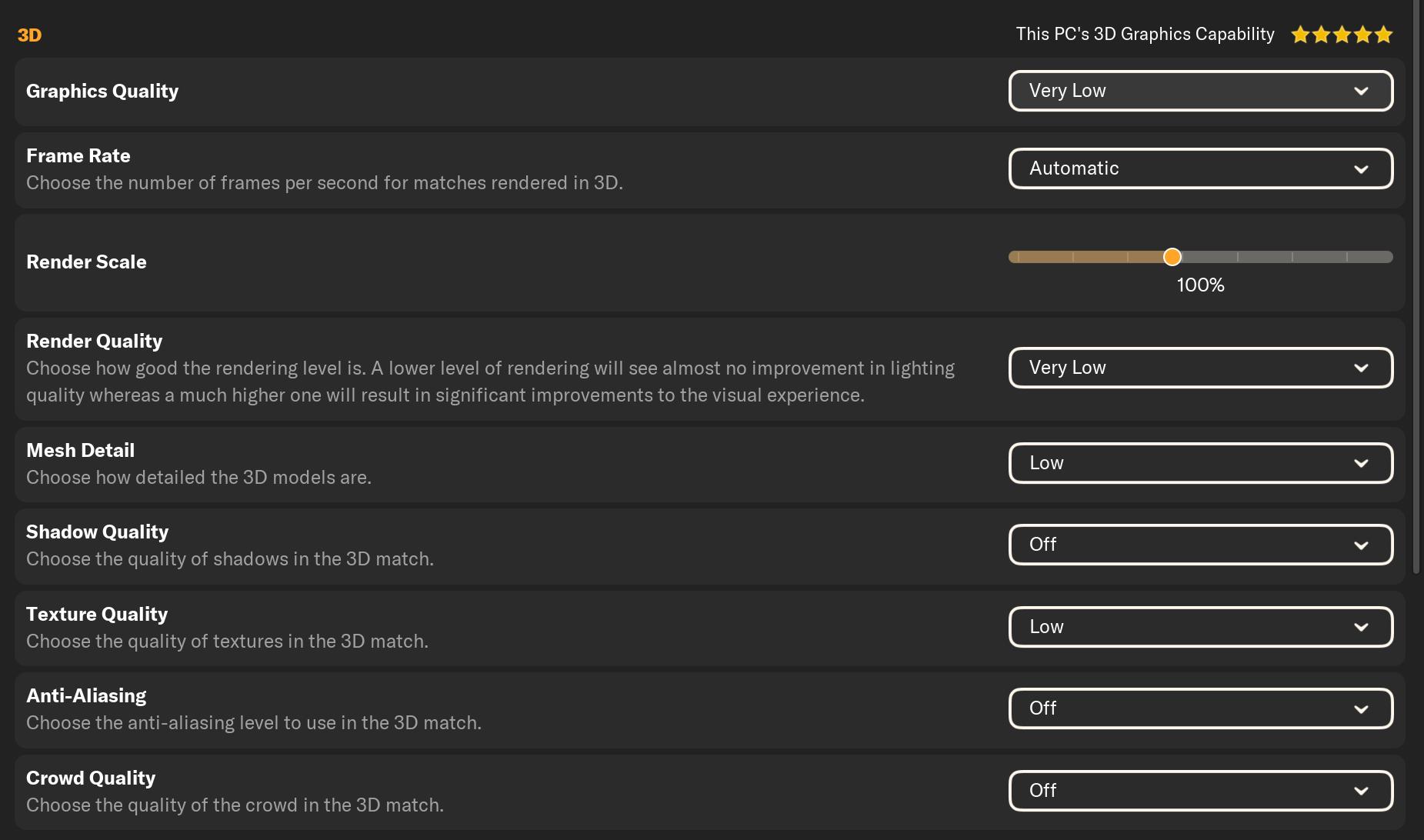
I’d start with a Custom graphics profile rather than immediately setting everything to its lowest value.
Open Preferences > Match Day and change Graphics Quality to Custom. This gives you access to individual options so you can reduce demanding effects without unnecessarily sacrificing image quality.
Here are the starting settings I’d recommend:
| Graphics setting | Recommended starting point | What to adjust |
|---|---|---|
| Graphics Quality | Custom | Allows individual adjustments |
| Frame Rate | Automatic | Check your Windows refresh rate |
| Output Resolution | Native resolution | Keep your monitor’s normal resolution |
| Render Scale | 100% | Lower only if FPS remains low |
| Crowd Quality | Low | Reduce crowd detail |
| Enhanced Lighting | Off | Enable later if performance allows |
| Shadow Quality | One level lower | Reduce further if necessary |
| Mesh Detail | One level lower | Balance detail and performance |
| Anti-Aliasing | Low | Try Disabled if needed |
| Texture Quality | Keep current setting | Lower if graphics memory is limited |
These are starting recommendations, not a benchmarked preset. Your results will depend on your hardware and preferred image quality.
1. Set Graphics Quality to Custom
Open FM27 and navigate to Preferences.
Select the Match Day section and change Graphics Quality to Custom.
This is useful because automatic presets can change several settings together. With Custom enabled, you can adjust the options that affect performance without lowering everything unnecessarily.
2. Change Frame Rate to Automatic
If you’re using a high-refresh-rate monitor, try setting Frame Rate to Automatic.
This allows FM27 to follow the display’s refresh-rate target rather than remaining restricted to a fixed 60 FPS setting.
However, changing this option won’t make your PC produce more frames than its hardware can handle.
For example, a computer rendering 50 FPS won’t suddenly reach 144 FPS just because the monitor supports 144 Hz.
3. Lower Crowd Quality
Crowd Quality is one of the first settings I’d reduce.
Large stadium crowds add visual detail, but they’re not usually the most important part of following a football match.
Try Low first. You can always increase it later if your PC has enough performance headroom.
4. Turn Off Enhanced Lighting
Lighting effects add atmosphere, but they can also increase graphics workload.
Try turning Enhanced Lighting off and compare the match presentation.
I prefer reducing optional visual effects before changing the resolution because it lets me preserve a sharper image.
5. Reduce Shadow and Mesh Detail
Shadows and stadium details can also contribute to graphics workload.
Start by reducing Shadow Quality and Mesh Detail by one available level.
Don’t immediately choose the lowest settings. Make one change at a time so you can see whether the performance improvement is worth the visual difference.
6. Adjust Anti-Aliasing
Anti-Aliasing helps smooth jagged edges around players and objects.
Low is a reasonable starting point. If FM27 still struggles, try disabling it and compare the result.
The downside is that some outlines may look rougher, especially at lower resolutions.
7. Keep Texture Quality at Its Current Setting Initially
I wouldn’t lower Texture Quality as the first troubleshooting step.
Texture settings can affect graphics memory usage, but changing them may not help if your problem is actually CPU-related.
Leave the setting alone initially and reduce it only if your graphics card has limited memory or you’re experiencing GPU-related performance problems.
How to Get FM27 Above 60 FPS
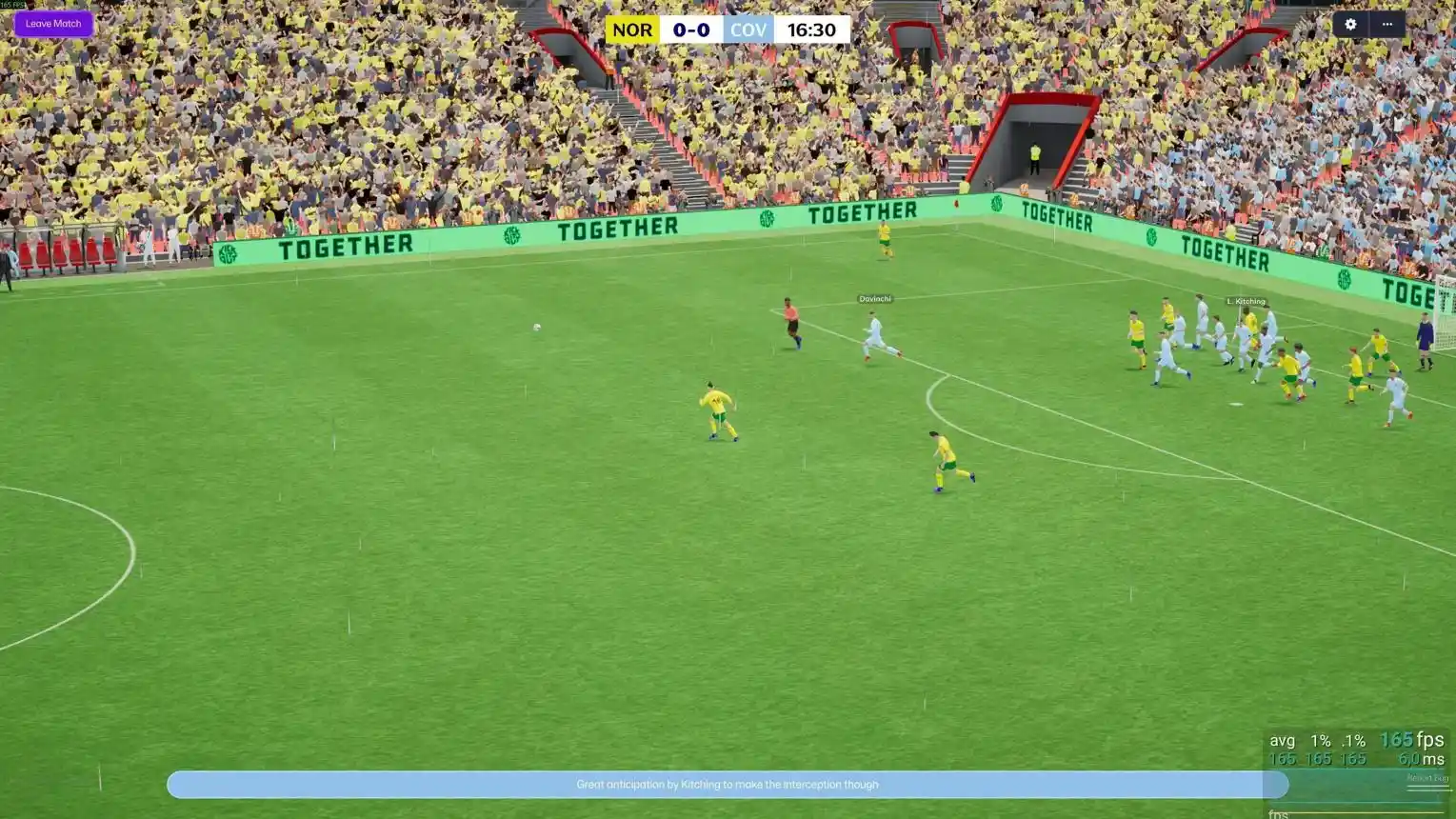
If your monitor supports 120 Hz, 144 Hz, or higher, check its Windows configuration before changing more graphics settings.
Follow these steps:
- Open Windows Settings.
- Select System, then Display.
- Open Advanced display.
- Select the monitor you use for gaming.
- Choose its intended refresh rate, such as 144 Hz.
- Open FM27 and navigate to Preferences > Match Day.
- Set Graphics Quality to Custom.
- Change Frame Rate to Automatic.
Your available refresh rates depend on your monitor, graphics card, cable, and display configuration.
There’s another thing worth understanding: refresh rate and FPS are related but different.
A 144 Hz monitor can refresh the image up to 144 times per second, but your PC still needs to render the frames.
For example:
- 60 FPS produces a frame approximately every 16.67 milliseconds.
- 120 FPS produces a frame approximately every 8.33 milliseconds.
- 144 FPS produces a frame approximately every 6.94 milliseconds.
These are mathematical frame intervals, not actual FM27 performance measurements.
You also don’t need to chase 144 FPS if a stable 60 FPS already looks smooth to you. A lower frame-rate target can reduce power consumption, heat, and fan noise.
Intel Core i5-10400 vs. AMD Ryzen 5 5500 for FM27
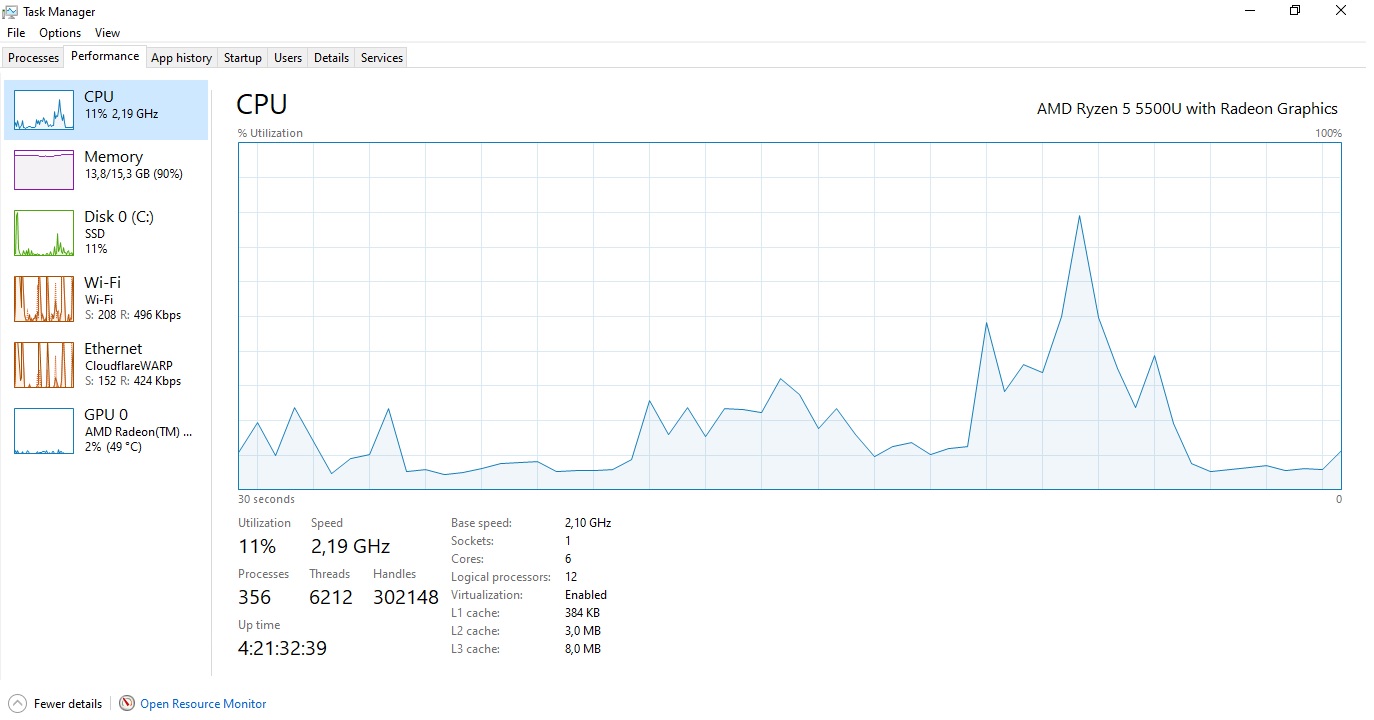
I use an Intel Core i5-10400 as my reference CPU. For comparison, the AMD Ryzen 5 5500 is another six-core desktop processor worth looking at.
Here’s how their basic specifications compare:
| Specification | Intel Core i5-10400 | AMD Ryzen 5 5500 |
|---|---|---|
| CPU architecture | Comet Lake | Zen 3 |
| Cores | 6 | 6 |
| Threads | 12 | 12 |
| Base clock | 2.9 GHz | 3.6 GHz |
| Maximum boost | Up to 4.3 GHz | Up to 4.2 GHz |
| Integrated graphics | UHD Graphics 630 | None |
| Default TDP | 65W | 65W |
Both processors have six cores and 12 threads, which makes them reasonable candidates for a desktop gaming setup.
The Ryzen 5 5500 has a higher base clock, while the i5-10400 has a slightly higher advertised maximum turbo frequency. However, clock speed alone doesn’t tell you which CPU will deliver better FPS.
Architecture, actual operating frequency, memory configuration, cooling, and the game workload all matter.
There’s also an important graphics difference. The standard Intel Core i5-10400 includes UHD Graphics 630, while the Ryzen 5 5500 requires a dedicated graphics card.
If you’re using the integrated graphics on the i5-10400, the 3D match presentation may be limited by graphics performance. A dedicated GPU can make a substantial difference, depending on the model.
I wouldn’t claim that either CPU is definitively faster in FM27 without testing both systems under the same conditions.
How to Check Whether Your CPU or GPU Is Causing Low FPS
Before buying new hardware, I’d check which component is actually limiting performance.
You can do this through Windows Task Manager.
- Press Ctrl + Shift + Esc.
- Open the Performance tab.
- Start FM27 and load a 3D match.
- Check CPU, Memory, and GPU usage while the match is running.
Look for these patterns:
- CPU usage consistently near 100%: The processor may be limiting performance or struggling with background workloads.
- GPU usage consistently near 100%: Graphics settings or GPU capability may be the main bottleneck.
- RAM usage close to capacity: Background applications or the game may be putting pressure on system memory.
- Disk activity spikes: Storage activity may contribute to temporary slowdowns, particularly when memory is under pressure.
These readings aren’t perfect on their own. A game can be limited by one CPU core even when total CPU usage isn’t at 100%.
For more troubleshooting, see our guide on how to reduce CPU usage while gaming.
How to Reduce FM27 Stuttering Without Upgrading Your PC
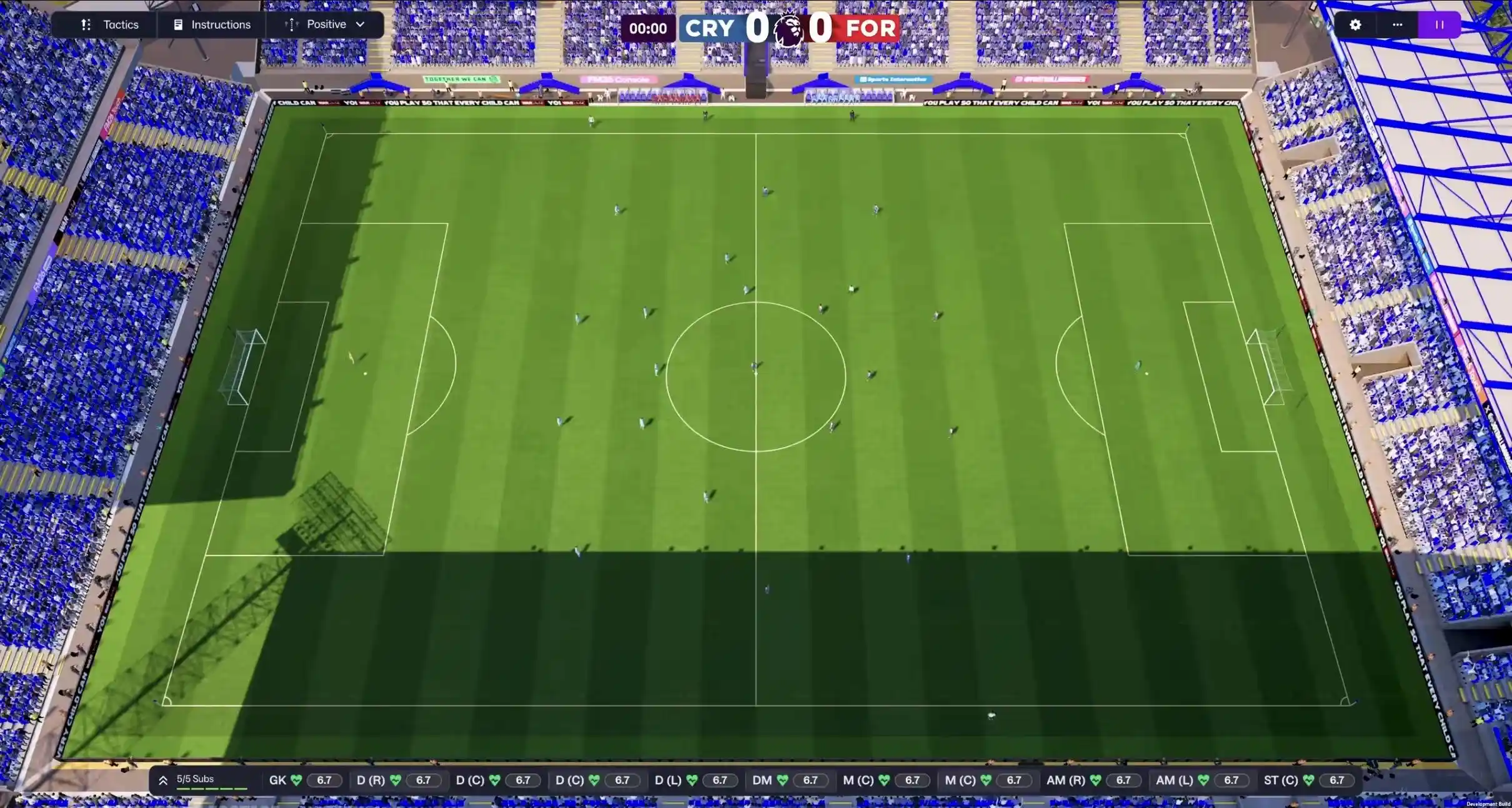
If you’ve already adjusted the graphics settings, try these additional steps before spending money on new hardware.
Close Unnecessary Background Applications
Browsers, launchers, downloads, and other applications can use CPU time and memory while FM27 is running.
You don’t need to close every background process, but I’d avoid keeping several demanding applications open during a match.
Check Your Graphics Driver
An outdated or problematic graphics driver can cause rendering issues in some games.
Check your GPU manufacturer’s official software or website for available driver updates. If the problem started immediately after a driver update, consider whether the previous version worked better.
Verify Game Files
If FM27 started stuttering after an update or unexpected shutdown, verify the game files through Steam or the launcher you use.
This can help identify missing or corrupted installation files without requiring you to reinstall the entire game.
Reduce Your Active Leagues
If the main problem is slow processing between matches, try reducing the number of active leagues in a new career.
A smaller database may reduce the amount of simulation work the game needs to handle.
This is different from graphics optimization. It targets career processing rather than the visual quality of 3D matches.
Adjust Continue Flow
FM27’s Continue Flow options influence how many interruptions and information screens appear while progressing through a save.
Streamlined may suit players who prefer fewer stops, while Balanced, Comprehensive, and Custom provide different levels of interaction.
This changes the flow of your career, not a verified FPS or CPU-performance setting.
Does Internet Speed Affect FM27 FPS?
Not usually. It’s important to distinguish graphics performance from network performance.
FPS depends mainly on your CPU, GPU, memory, and graphics settings. Internet latency affects online connectivity and communication with remote services, but a faster internet plan won’t automatically improve the frame rate of a local 3D match.
If you’re playing an online mode and experience connection delays, ping, jitter, and packet loss are worth investigating.
However, I wouldn’t buy a gaming VPN or upgrade to gigabit internet just to fix local FPS drops.
You can read more about how to reduce lag in online games if your problem involves an unstable multiplayer connection rather than graphics performance.
Frequently Asked Questions
What are the best FM27 settings for FPS?
Start with Custom graphics, Automatic Frame Rate on a suitable display, native output resolution, and 100% Render Scale. Then lower Crowd Quality, turn off Enhanced Lighting, and reduce Shadow Quality and Mesh Detail if necessary.
Why is FM27 stuck at 60 FPS?
Check the game’s Frame Rate setting and your Windows monitor refresh rate. A monitor capable of 144 Hz may still be configured to operate at 60 Hz.
Does lowering Render Scale improve FM27 FPS?
It can help when graphics rendering is the bottleneck. However, lowering Render Scale makes the internal image less detailed, so try reducing optional visual effects first.
Is Intel Core i5-10400 good enough for FM27?
The i5-10400 is a six-core, 12-thread processor that can serve as a reasonable starting point for a gaming PC. However, actual FM27 performance also depends on the graphics card, RAM, database size, and settings. I wouldn’t promise a specific FPS without knowing the complete system.
Is Ryzen 5 5500 better than Intel Core i5-10400 for FM27?
Both have six cores and 12 threads. Their different architectures and operating characteristics mean clock speeds alone aren’t enough to establish which performs better in FM27. A controlled test using the same GPU, RAM, and settings would be needed for a reliable comparison.
Should I use Unlimited or Automatic FPS?
Automatic is a useful starting point for following the monitor’s refresh rate. A deliberate FPS cap can also make sense if you prefer lower heat, power use, and fan noise. Your PC still needs enough performance to reach the selected target.
Does network latency cause low FPS in FM27?
Not normally in local 3D match rendering. Network issues are more relevant to online connectivity, while FPS problems usually come from hardware, graphics settings, or system resource limitations.
Final Thoughts
Getting smoother performance in FM27 doesn’t always require a CPU or GPU upgrade. I’d start with Custom graphics, check the monitor’s refresh rate, lower demanding stadium effects, and monitor system usage during an actual match.
My Intel Core i5-10400 provides a useful reference point for discussing mainstream six-core gaming CPUs, while the Ryzen 5 5500 offers an interesting comparison. But neither processor should be judged by clock speed alone.
The most important thing is identifying your actual bottleneck. If the GPU is struggling, lowering graphics detail may help. If memory is running out, closing background applications or adding RAM may be more useful. If career progression is slow, reducing the number of active leagues may make more sense than changing visual settings.
Make one adjustment at a time, compare the results, and keep the settings that give you the smoothest match experience without sacrificing more visual quality than necessary.
You May Also Like
 Computers & PC Games
Hostinger Minecraft Server Hosting Review: Plans, Pricing, and Mod Support
 Computers & PC Games
How Big is Fortnite? GB Size & Space Does Fortnite Take Up
 Computers & PC Games
10 Best Modded Minecraft Server Hosting Providers for 2026
 Computers & PC Games
GTA 6 System Requirements: Minimum & Recommended PC Specs (Predicted)
 Computers & PC Games
Why Is Minecraft Bedrock Lagging on Realms? How to Fix It
 Computers & PC Games
