
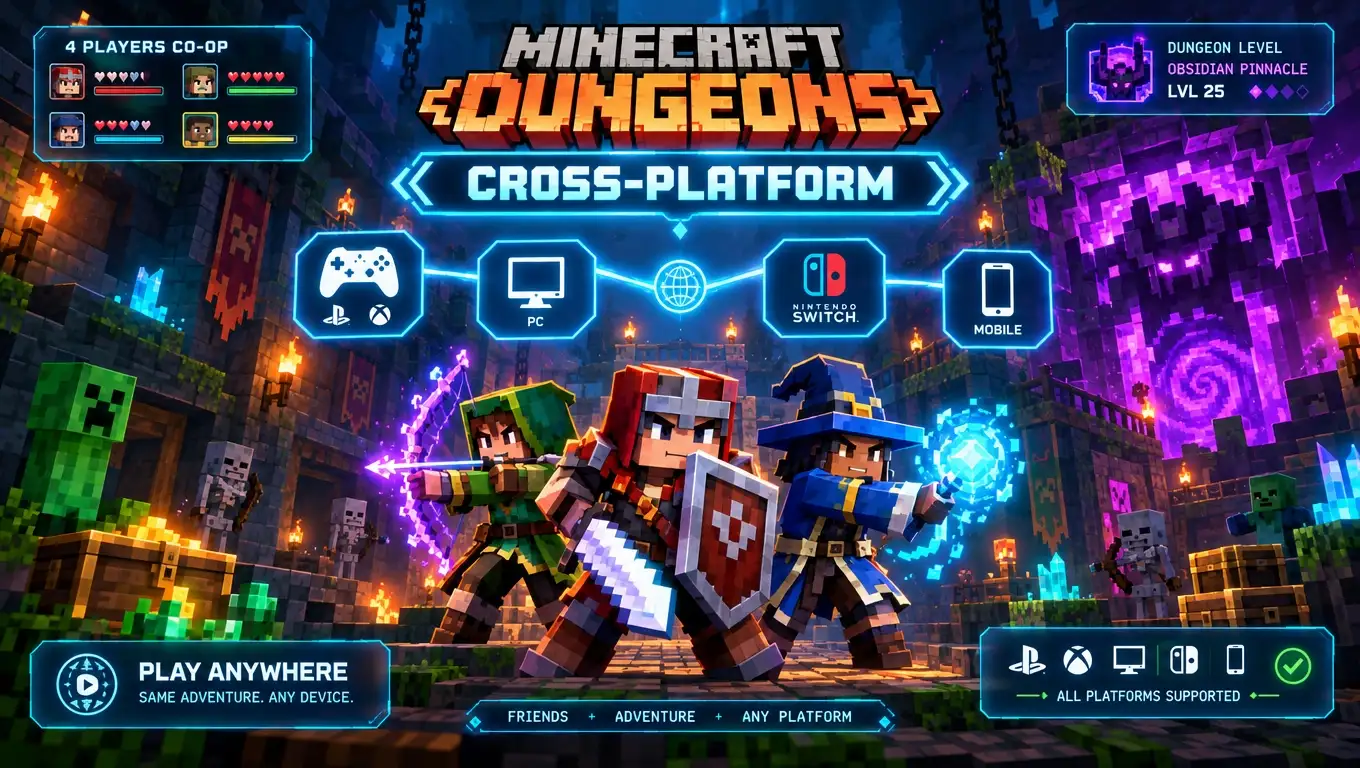
Is Minecraft Dungeons cross-platform? Yes. Minecraft Dungeons supports cross-platform online multiplayer on Windows PC, Xbox, PlayStation, and Nintendo Switch. Up to four players can join the same online game, even when they use different supported systems.
For example, a Nintendo Switch player can join friends on Windows PC, Xbox Series X|S, or PlayStation 5. You do not need to buy the game on the same type of system as your friends, but every player needs access to Minecraft Dungeons on the device they use.
Cross-play is separate from Cloud Saves and couch co-op. Cross-play connects players on different devices, while Cloud Saves let you manually move a hero between supported devices. Couch co-op is local multiplayer on one compatible device and screen.
According to the Minecraft Help Center, cross-platform multiplayer is supported across Nintendo Switch, PlayStation 4 and 5, Windows PC, and Xbox. The game supports up to four players, and its difficulty changes based on the number of players in the session.
Minecraft Dungeons Cross-Platform Support at a Glance
| Platform | Online Cross-Play | Manual Cloud Hero Transfer |
|---|---|---|
| Windows PC, including Steam | Yes | Yes |
| Xbox One | Yes | Yes |
| Xbox Series X|S | Yes | Yes |
| PlayStation 4 | Yes | Yes |
| PlayStation 5 | Yes | Yes |
| Nintendo Switch | Yes | Yes |
The Minecraft Help Center uses Windows PC as the supported platform category rather than listing every PC storefront separately. That category includes supported Windows releases such as the Steam version.
Minecraft Dungeons does not have native macOS, Linux, Android, or iOS releases. Cloud-streaming availability, where offered, is separate from native platform support and may depend on the service, subscription, device, and region.
Which Platforms Can Play Minecraft Dungeons Together?
Any combination of supported Windows, Xbox, PlayStation, and Nintendo Switch systems can join the same online party, up to the four-player limit.
That includes:
- Windows PC with Xbox, PlayStation, or Nintendo Switch
- Xbox with PlayStation or Nintendo Switch
- PlayStation with Nintendo Switch
- Xbox One with Xbox Series X|S
- PlayStation 4 with PlayStation 5
A party is not limited to two platform families. The same four-player online session can include players on Windows PC, Xbox, PlayStation, and Nintendo Switch.
What You Need for Minecraft Dungeons Cross-Play
Before creating a cross-platform party, make sure each player has:
- Access to Minecraft Dungeons on a supported platform
- The latest available game update
- A Microsoft account connected to the game where required
- Online multiplayer and cross-network permissions enabled
- A stable internet connection
- The online multiplayer subscription required by their console platform
A Microsoft account provides the identity Minecraft Dungeons uses for cross-platform friends and Cloud Saves. On Xbox or Windows, that account may already be part of the normal sign-in process. PlayStation and Nintendo Switch players may need to link one manually.
Creating a Microsoft account is free, and you do not need to own an Xbox console to use one.
Console players generally need the online multiplayer subscription currently required by their platform, such as Xbox Game Pass Core, PlayStation Plus, or Nintendo Switch Online. Subscription names, tiers, and policies can change, so check the current requirements displayed by your console.
How to Enable Cross-Platform Play
On PlayStation and Nintendo Switch, the usual Microsoft account-linking process is:
- Launch Minecraft Dungeons.
- Open Settings from the main menu.
- Select Game.
- Choose Configure Cross-Platform Play.
- Select Activate Cross-Platform Play.
- Choose Link Account.
- Open the Microsoft linking page shown by the game.
- Enter the code displayed on your console.
- Sign in to the Microsoft account you want to connect.
- Return to Minecraft Dungeons and wait for the account information to update.
Menu labels may change slightly after an interface or game update. If the wording on your screen differs, look for the options related to cross-platform play and Microsoft account linking.
After linking an account, fully close and restart Minecraft Dungeons if your Microsoft gamertag or cross-platform friends do not appear immediately.
How to Invite Cross-Platform Friends
Once the required accounts are connected:
- Add your friend using their Microsoft gamertag.
- Launch Minecraft Dungeons.
- Select Online Game.
- Create a game or open an available friend’s session.
- Open the friends menu.
- Invite the players you want to join.
- Begin or continue the mission after the party is ready.
The Microsoft gamertag is important because it may not match the name a player uses on another platform. A PlayStation Network ID, Nintendo account name, or Steam display name can be different from the gamertag shown in Minecraft Dungeons.
If someone does not appear in your friends list, confirm their exact Microsoft gamertag before changing router settings or troubleshooting the broader internet connection.
Does Minecraft Dungeons Have Cross-Progression?
Yes, but cross-platform progression uses a manual hero-transfer process rather than continuous synchronization.
Minecraft Dungeons Cloud Saves let you upload a hero from one supported device and download that hero on another while signed in to the same Microsoft account.
According to the official Minecraft Dungeons Cloud Saves announcement, players can upload heroes to up to 20 cloud slots per account. An uploaded hero can then be downloaded on another supported platform using the same Microsoft account.
The downloaded hero carries the saved character data and equipment associated with that hero. However, progress made after the download does not automatically update the older copy stored on another device.
How to Upload a Hero
- Open Minecraft Dungeons on the device containing your current hero.
- Go to Hero Settings.
- Select the hero you want to transfer.
- Choose Upload Hero.
- Select an appropriate cloud slot.
- Confirm the upload.
Check the selected cloud slot before confirming the upload. Reusing an occupied slot may replace the hero already stored there.
How to Download a Hero
- Launch Minecraft Dungeons on the destination device.
- Sign in with the same Microsoft account used for the upload.
- Open Hero Settings.
- Select an available hero slot.
- Choose Download Hero.
- Wait for the hero data to finish downloading.
Are Minecraft Dungeons Cloud Saves Automatic?
No. Cloud Saves use a manual upload-and-download process.
Suppose you upload a hero from Xbox and download it on PC. If you then complete missions and collect new gear on PC, those changes will not automatically appear in the older Xbox copy.
To move the updated hero back to Xbox, upload the current version from PC and then download that version on Xbox.
Practical rule: Upload your current hero before changing devices, then download the latest cloud copy on the platform you are about to use.
Cloud Saves also do not give you ownership of the game on another platform. You still need to own or otherwise have access to Minecraft Dungeons on every device where you want to play.
What Transfers Between Devices?
The simplest way to understand Cloud Saves is that you are moving a saved hero rather than enabling permanent background synchronization across every copy of the game.
| Feature | How It Works |
|---|---|
| Cross-play | Players on different supported systems play together online. |
| Hero transfer | A hero can be uploaded to the cloud and downloaded on another supported device. |
| Hero equipment | Equipment saved with the uploaded hero moves with that hero data. |
| Automatic synchronization | Progress is not continuously synchronized; an updated hero must be uploaded again. |
| Game access | Cloud Saves do not replace the need to own or access the game on the destination platform. |
Cross-Play vs. Cloud Saves vs. Couch Co-Op
These features are related to multiplayer or progression, but they solve different problems.
| Feature | What It Means |
|---|---|
| Cross-play | Players on different supported systems join the same online game. |
| Cloud Saves | A hero is manually uploaded and downloaded between supported devices. |
| Couch co-op | Multiple players play locally on one compatible device and screen. |
| Cross-generation play | Players on different console generations connect, such as Xbox One with Xbox Series X|S or PS4 with PS5. |
If your friends use separate devices, select Online Game and use cross-play. If everyone is in the same room and playing on one device, couch co-op is the relevant feature.
Cross-play does not connect Minecraft Dungeons to other Minecraft games. Minecraft Dungeons is separate from Minecraft: Bedrock Edition, Minecraft: Java Edition, and Minecraft Realms. A Minecraft Dungeons party cannot join a Bedrock world, Java server, or Realm.
How Many People Can Play Minecraft Dungeons Together?
Up to four players can play Minecraft Dungeons together in online multiplayer or local couch co-op.
The game adjusts its difficulty based on the number of players in the session. Adding players therefore changes more than the number of characters on the screen.
Minecraft Dungeons uses mission-based multiplayer rather than the persistent open-world structure associated with standard Minecraft. Players enter missions together, fight enemies, collect equipment, and complete objectives as a group.
Does Minecraft Dungeons Have Public Matchmaking?
The original Minecraft Dungeons does not offer automatic public matchmaking with random players. Its online multiplayer is centered on friend sessions and invitations.
To play online, connect the appropriate Microsoft account, add other players by their Microsoft gamertags, and invite them or join an available friend session.
This guide covers the original Minecraft Dungeons. Features announced for a sequel or another Minecraft title should not be assumed to apply to the original game.
Why Is Minecraft Dungeons Cross-Play Not Working?
Cross-play can fail because of an incorrect account, outdated game version, multiplayer restriction, missing console subscription, or network problem. Check the game-specific settings first before changing advanced router settings.
Make Sure Everyone Selected Online Game
Players using separate devices need an online multiplayer session. A local or offline game will not appear as a cross-platform session that remote friends can join.
Check the Connected Microsoft Account
Make sure each player is signed in to the Microsoft account they intend to use.
On Nintendo Switch and PlayStation, revisit:
Settings → Game → Configure Cross-Platform Play
If you recently linked an account, fully close Minecraft Dungeons and restart it before sending another invitation.
Verify the Microsoft Gamertag
Confirm the exact Microsoft gamertag connected to the game. Do not assume that a Steam display name, PlayStation Network ID, or Nintendo account name is the identity you need to add.
If necessary, remove an incorrect friend connection, verify the gamertag, and add the correct Microsoft account again.
Update Every Device
Different game builds can cause compatibility or connection problems. Check for Minecraft Dungeons updates on every PC and console in the party, not just the host’s device.
After installing an update, restart the game before trying the invitation again.
Review Privacy and Family Settings
Account restrictions may prevent online multiplayer or cross-network play. Depending on the account and platform, relevant permissions may include:
- Online multiplayer: Whether the account can join online games
- Cross-network play: Whether the account can interact with players on other platforms
- Friend requests: Whether new friends can be added
- Game invitations: Whether invitations can be sent or received
- Communication: Whether interaction with other players is allowed
For a child or family-managed account, the family organizer may need to change the relevant multiplayer, privacy, or communication settings. Exact labels can differ between Microsoft and console account menus.
Check Online Multiplayer Access
Confirm that each console player has the online multiplayer access currently required by their platform. If Minecraft Dungeons displays a subscription or network-access message, review the account’s subscription status before troubleshooting the router.
Restart the Game and Check the Network
Close Minecraft Dungeons completely and restart the PC or console. If several devices are having connection problems, restarting the modem and router may help clear a temporary issue.
Latency, jitter, and packet loss can affect online play even when the connection has a high advertised download speed. If the session has delayed actions or repeated disconnects, try Ethernet where practical, pause large downloads, and reduce unnecessary network activity.
For broader connection troubleshooting, see our guides on how to fix slow internet, how to reduce lag in online games, and how to reduce internet latency.
Does Minecraft Dungeons Need a Private Server?
No. You do not need to rent, configure, or maintain a private server to play Minecraft Dungeons with friends.
Minecraft Dungeons uses online game sessions rather than the player-managed dedicated server setup commonly associated with Minecraft: Java Edition. For normal cross-play, connect the appropriate Microsoft accounts, add your friends, and join the same online session.
Traditional Minecraft server requirements are a separate topic. If you are setting up a Java or modded server instead, see our guides to how much RAM you need for a Minecraft server and modded Minecraft server hosting.
Frequently Asked Questions
Is Minecraft Dungeons cross-platform between Xbox and PC?
Yes. Windows PC players can play online with people using Xbox One or Xbox Series X|S.
Can PC and PlayStation play Minecraft Dungeons together?
Yes. Windows PC players can join PlayStation 4 and PlayStation 5 players through cross-platform online multiplayer.
Can Xbox and PlayStation play Minecraft Dungeons together?
Yes. Xbox and PlayStation players can join the same online session when their accounts, friend connections, subscriptions, and multiplayer permissions are configured correctly.
Can Nintendo Switch and PC play Minecraft Dungeons together?
Yes. Nintendo Switch and Windows PC players can play together online. The Switch player must connect the game to the appropriate Microsoft account for cross-platform features.
Can Nintendo Switch and PlayStation play together?
Yes. Nintendo Switch, PlayStation 4, and PlayStation 5 are included in the supported cross-platform multiplayer network.
Can PS4 and PS5 players play Minecraft Dungeons together?
Yes. PlayStation 4 and PlayStation 5 players are supported for online multiplayer and cross-platform play.
Does Minecraft Dungeons support cross-save?
Yes, through manual Cloud Saves. You can upload a hero and download it on another supported device while using the same Microsoft account.
Do Minecraft Dungeons Cloud Saves update automatically?
No. Cloud Saves do not continuously synchronize progress. After playing on another device, upload the updated hero before downloading that newer version elsewhere.
Does cross-save transfer equipment?
Yes. Equipment saved with the uploaded hero is included with that hero data.
Do all players need a Microsoft account?
Players using cross-platform features should use the Microsoft account connected to Minecraft Dungeons. Xbox and Windows players may already use one during the normal sign-in process, while PlayStation and Nintendo Switch players may need to link one manually.
Does Minecraft Dungeons have cross-platform couch co-op?
No. Couch co-op itself is local, not cross-platform. Cross-play connects separate devices through online multiplayer. Couch co-op lets multiple people play on one compatible device and screen.
How many players can join a Minecraft Dungeons game?
Up to four players can play together in online multiplayer or local couch co-op.
Is Minecraft Dungeons the same as Minecraft: Bedrock Edition?
No. Minecraft Dungeons is a separate action-adventure game. It cannot join Minecraft: Bedrock Edition worlds, Minecraft: Java Edition servers, or Minecraft Realms.
Sources and Verification
- Minecraft Dungeons Multiplayer and Cross-Platform Play — supported platforms, online multiplayer, player limits, and cross-platform setup
- Minecraft Dungeons Cloud Saves Out Now — manual hero uploads, cross-platform downloads, and cloud-slot limits
- Minecraft Dungeons official overview — online and couch co-op player limits
- Requirements to Play Minecraft Multiplayer Games — console multiplayer account and subscription requirements
Editorial and Fact-Checking Note
This guide covers the original Minecraft Dungeons and keeps it separate from Minecraft: Bedrock Edition, Minecraft: Java Edition, Minecraft Realms, and any separately announced sequel.
We reviewed the Minecraft Help Center and official Minecraft documentation to verify platform support, player limits, Microsoft account linking, and Cloud Saves. Claims based on documentation are attributed to those sources rather than presented as independent hands-on findings.
We have not claimed that every possible platform combination was independently tested. Interface labels, subscriptions, platform policies, and account-linking steps may change, so check the options currently displayed by Minecraft Dungeons and your platform.
You May Also Like
 Computers & PC Games
How to Reduce CPU Usage for a Minecraft Server
 Computers & PC Games
The Different Types of Minecraft Server Lag
 Computers & PC Games
Is 1TB SSD Enough for Gaming? What You Should Know Before Buying
 Computers & PC Games
10 Best Modded Minecraft Server Hosting Providers for 2026
 Computers & PC Games
Is RomsFun Safe and Legit? My Complete Review and Testing Experience
 Computers & PC Games