
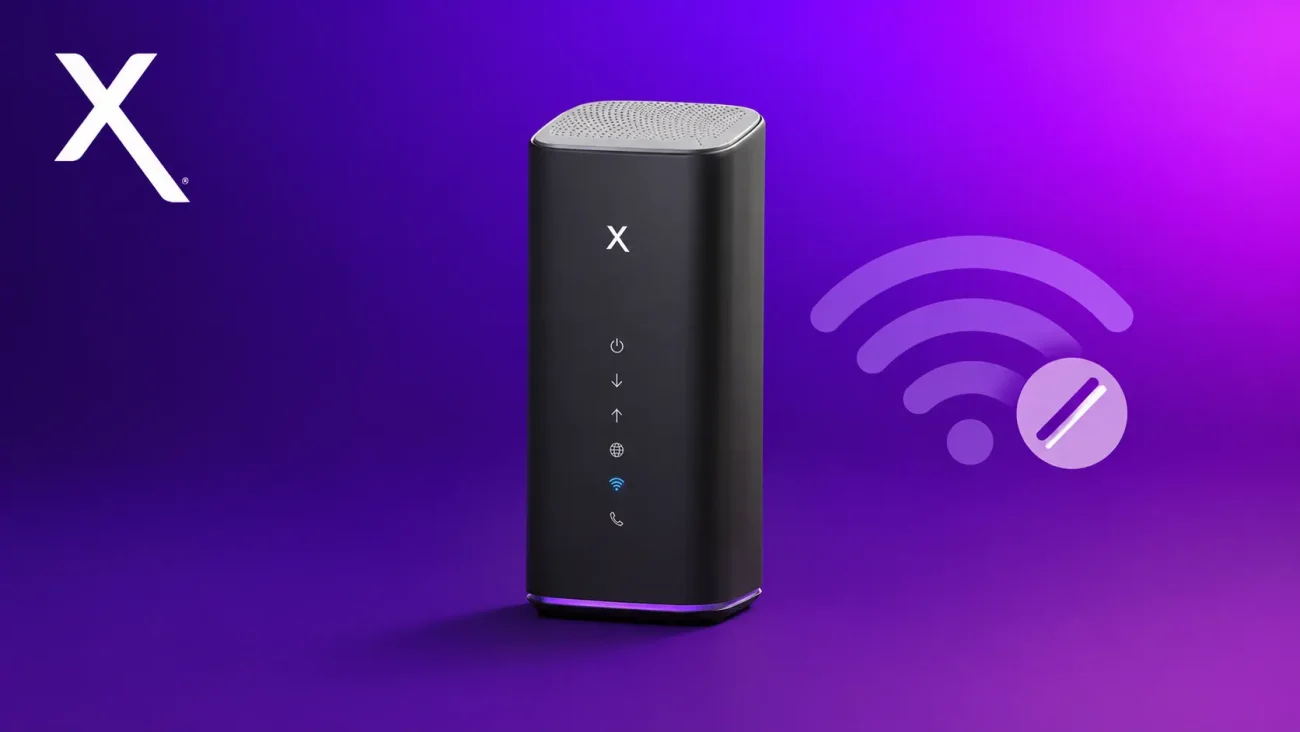
I have been an Xfinity customer for three years, and one thing I learned pretty quickly is that “turning off Wi-Fi” can mean several different things.
You might want to stop one device from getting online. You might want to disable the public xfinitywifi hotspot. Or you may actually want to shut off the Wi-Fi radios on your Xfinity gateway.
Those are not the same thing.
So, how do I disable Xfinity WiFi? The answer depends on what you are trying to accomplish. In this guide, I will show you the practical options, what each one actually does, and when you should use it.
How Do I Disable Xfinity WiFi?
If you want to disable the Wi-Fi provided by your Xfinity gateway, you generally need to change the gateway’s Wi-Fi settings. The exact options can vary by gateway model, firmware, and the settings available on your Xfinity account.
There are also simpler options depending on what you actually want to do:
- Stop one device from using the internet: Pause that device in the Xfinity app.
- Turn off the public Xfinity WiFi hotspot: Disable the hotspot feature through the available Xfinity account settings.
- Hide your private Wi-Fi name: Disable SSID broadcasting if your gateway provides that option.
- Disable your gateway’s Wi-Fi: Turn off the available wireless settings through the gateway’s configuration.
- Use your own router: Consider Bridge Mode if your Xfinity gateway and service support it.
- Shut everything down: Unplug the gateway, which also disconnects wired devices and other services that depend on it.
The important thing is to choose the method that matches your goal. Pausing a device, hiding your Wi-Fi name, disabling Wi-Fi, and using Bridge Mode are different things.
Important Notes
- Wi-Fi bands can be managed differently: Some Xfinity gateways manage 2.4 GHz and 5 GHz under the same Wi-Fi name, while others provide more control over individual bands. The available options depend on your gateway model and software.
- Seeing another wireless network does not necessarily mean your private Wi-Fi is still active: Nearby routers, extenders, mesh systems, and Xfinity WiFi hotspots can appear in a phone’s Wi-Fi list. Check the name of the network you are actually trying to disable.
- Settings can vary after configuration changes: If your gateway is reset, replaced, updated, or reconfigured, check the Wi-Fi settings again rather than assuming the previous configuration is unchanged.
- Bridge Mode is a different solution: It is mainly useful when you want your own router to handle your network. You do not need Bridge Mode simply because you want to turn off Wi-Fi.
Pausing a Device vs. Turning Off Wi-Fi
This is one of the easiest things to confuse.
I did too when I first started using the Xfinity app.
- Pausing a device: This stops a selected phone, computer, tablet, or other managed device from accessing the internet through your Xfinity network. Your Wi-Fi remains active for everything else.
- Turning off Wi-Fi: This disables wireless connectivity from the gateway, so devices cannot connect to your private Wi-Fi network while the wireless radios are disabled.
For example, if you only want to stop a child’s tablet from streaming at night, pausing the device is much easier than turning off your whole Wi-Fi network.
On the other hand, if you are replacing your router, troubleshooting wireless problems, or intentionally want the gateway’s Wi-Fi disabled, you need a different approach.
How to Turn Off the Public Xfinity WiFi Hotspot
Your private home Wi-Fi network and the public xfinitywifi hotspot are separate services. If your main concern is that your Xfinity gateway is participating in the public hotspot network, you can disable that feature without shutting down your private home Wi-Fi.
Depending on your account and current Xfinity interface, the hotspot controls may be available through your Xfinity account or app.
Using the Xfinity app
- Open the Xfinity app and sign in.
- Open the section for your Wi-Fi or gateway.
- Look for the hotspot or Xfinity WiFi hotspot settings.
- Choose the option to turn the hotspot off.
- Follow the confirmation instructions.
Using your Xfinity account online
Xfinity has changed parts of its account interface over time, so the exact menu names may be different on your account.
Look for the settings related to Xfinity WiFi hotspot or hotspot management and choose the option to disable it.
One important distinction: turning off the public hotspot does not turn off the private Wi-Fi network inside your home.
If Xfinity shows a notice that the change can take time to propagate, follow that timeframe rather than assuming the hotspot should disappear immediately.
How to Turn Off Your Private Home Wi-Fi
This is probably what most people mean when they search for how do I disable Xfinity WiFi.
There are two different approaches here, and they have very different results.
Option 1: Hide Your Wi-Fi Network Name
Some Xfinity gateways let you disable the broadcast of your Wi-Fi network name, also called the SSID.
This can make the network less visible in a normal list of nearby Wi-Fi networks, but it does not actually turn the Wi-Fi radios off.
Depending on your Xfinity app and gateway, you may find a setting similar to:
- Open the Xfinity app.
- Open WiFi or your Wi-Fi settings.
- Select your Wi-Fi network or gateway.
- Open the Wi-Fi settings.
- Look for an option related to Broadcast WiFi Name or SSID visibility.
- Disable the broadcast option if it is available.
Again, hiding the network name is not the same as disabling Wi-Fi. The wireless radios can still be active, and a hidden network should not be treated as a security feature by itself.
Option 2: Disable the Wi-Fi Radios
If you want the Xfinity gateway to stop providing wireless connectivity, you need to disable the available Wi-Fi bands in the gateway configuration.
On gateways that provide access to the local administration interface, the settings are commonly available through 10.0.0.1 while you are connected to your home network.
- Connect to the Xfinity gateway. An Ethernet connection is preferable if you are planning to disable Wi-Fi.
- Open a web browser.
- Go to
10.0.0.1. - Sign in using the administrator credentials required by your gateway.
- Open the section for the gateway’s Wi-Fi or wireless settings.
- Disable the available wireless bands.
- Save or apply the changes.
The exact options depend on the gateway model. Older gateways and newer Xfinity gateways do not necessarily expose the same settings.
You may see bands such as 2.4 GHz and 5 GHz. Some newer equipment may also support 6 GHz. Disable all wireless bands that you do not want the gateway to operate.
Important: Do not disable the Wi-Fi radios while relying on a Wi-Fi connection to manage the gateway unless you are prepared to lose that connection. An Ethernet cable is the safer choice.
Why 10.0.0.1 May Not Give You All the Settings
This is where many Xfinity users get confused.
The local gateway interface has changed over the years, and some newer Xfinity setups rely more heavily on the Xfinity app for configuration.
You may also see different options depending on your gateway model, firmware, account configuration, or whether you are using Xfinity WiFi Extenders.
So if you open 10.0.0.1 and do not see the exact menus described in an older tutorial, that does not necessarily mean your gateway is broken.
First, check the Xfinity app for the same setting. If the option is not available there either, Xfinity support may be required for that particular configuration.
Should You Use Bridge Mode?
Bridge Mode is different from simply switching off your Xfinity gateway’s Wi-Fi.
I moved to my own router after using Xfinity for a while because I wanted more control over my network. In that setup, Bridge Mode made sense because I wanted my separate router to handle the network instead of having both devices perform routing functions.
When Bridge Mode is enabled on a compatible Xfinity gateway, the gateway generally stops performing its normal router functions so your own router can take over. The exact behavior, including Wi-Fi behavior, can depend on the gateway model.
Bridge Mode is therefore most useful when you are intentionally using your own router. It is not something you need just because you want to temporarily turn off Wi-Fi.
Before enabling Bridge Mode
- Make sure your own router is ready: It will become the device handling your local network.
- Expect your Xfinity gateway’s normal routing features to change: Features provided by the gateway may no longer work the same way.
- Use Ethernet when possible: Setup is much easier when you are not depending on Wi-Fi during the transition.
- Check your gateway’s instructions: Bridge Mode availability and behavior can vary by model.
If your only goal is “I don’t want Xfinity Wi-Fi broadcasting,” disabling the gateway’s Wi-Fi settings is usually a more direct solution than changing the gateway into Bridge Mode.
What Happens If You Just Unplug the Xfinity Gateway?
Yes, unplugging the gateway will stop its Wi-Fi and internet connection because the gateway itself is powered off.
But it also disconnects everything else that depends on the gateway.
That includes:
- Wired Ethernet devices.
- Wireless devices.
- Other services that depend on the gateway, depending on your setup.
- Xfinity Voice service, if you use it through the gateway.
For a short shutdown, such as troubleshooting or leaving home for an extended period, unplugging may be perfectly reasonable. It is not the best everyday way to disable only Wi-Fi.
Need Scheduled Downtime Instead?
Sometimes you do not actually need to turn Wi-Fi off.
You may simply want certain devices to stop accessing the internet during specific hours.
Xfinity’s app provides device and profile management features, although the exact options can vary by account, gateway, device, and app version.
Depending on your setup, you may be able to:
- Pause a device.
- Create a profile for family members.
- Schedule periods of downtime.
- Manage access for selected devices.
This is usually a better solution for parental controls because the rest of your home’s Wi-Fi can continue working normally.
Useful Xfinity App Features You May Want to Check
Rename Your Devices
One small feature that has made network management much easier for me is device naming.
A new device may appear with a generic name such as Android-9f2c, a manufacturer name, or another identifier that tells you very little.
Renaming your devices makes future troubleshooting much easier. When an unknown device appears, you can quickly compare it with the devices you already know.
Pause a Device
If one phone, laptop, TV, or game console needs to be disconnected temporarily, pausing the device is much easier than turning off your entire wireless network.
This is especially useful when troubleshooting because you can isolate one device without disrupting everyone else.
Review Connected Devices
I also recommend reviewing the devices connected to your network from time to time.
You may find older phones, smart home products, streaming devices, or other equipment that you forgot was still connected.
An unfamiliar device does not automatically mean your network has been compromised. First check whether it belongs to someone in your household or one of your smart home devices.
Troubleshooting After You Disable Xfinity WiFi
I Lost Access to the Admin Page
This is expected if you disabled Wi-Fi while connected to the gateway wirelessly.
Connect a computer to the gateway using Ethernet and try accessing the gateway’s management interface again.
If you do not have an Ethernet connection available, you may need to restore the Wi-Fi settings through the Xfinity app or another supported management method.
My Wi-Fi Network Is Still Visible
First, confirm whether you disabled the Wi-Fi radio or only hid the network name.
These are different settings.
If you disabled all available Wi-Fi bands but still see a wireless network, check whether the network belongs to another access point, extender, mesh device, or nearby router.
One Device Still Has Internet
Check how that device is connected.
If the device uses Ethernet, disabling Wi-Fi will not disconnect it. Disabling wireless only affects the gateway’s Wi-Fi connection.
Wi-Fi Comes Back After a Change
If your Wi-Fi settings seem to change after a gateway update, reset, replacement, or configuration change, check the settings again.
My experience is that gateway behavior can change when the equipment or configuration changes, so it is worth verifying the settings instead of assuming the previous configuration is still active.
A Better Way to Troubleshoot Slow Xfinity Internet
Turning off Wi-Fi is not always the solution to a slow connection.
I initially blamed my Xfinity plan when streaming became unreliable in the evening. The bigger issue turned out to be how many devices were using my network at the same time.
When troubleshooting speed, test both the connection coming into your home and the device that is actually having the problem.
A gateway-side or built-in speed test can help show whether the connection to your home is performing normally. A test from the affected phone, laptop, TV, or console can reveal additional Wi-Fi or local-network limitations.
If only one device is slow, turning off the entire network may not solve anything. Check that device’s Wi-Fi signal, network connection, background downloads, and other local factors first.
Xfinity Wi-Fi Security Settings Worth Checking
Check Your Wi-Fi Security Mode
Use a modern Wi-Fi security mode supported by your devices and gateway, such as WPA2 or WPA3.
Avoid obsolete security standards such as WEP.
If you recently replaced your gateway or changed its configuration, checking the wireless security settings is a sensible step.
Secure Your Gateway Administration
Do not assume that the login details shown in an old Xfinity tutorial apply to your gateway.
Xfinity has used different gateway models and management systems, so administrator credentials and access methods can vary.
Use the login method provided for your specific gateway and avoid reusing a weak password.
When Should You Contact Xfinity?
You can solve many Wi-Fi changes yourself, but some situations are better handled by Xfinity support.
- You cannot access the settings you need: The option may not be exposed on your gateway or account.
- Your gateway behaves differently after an update or replacement: Your model may use a different configuration system.
- Bridge Mode is not available: Compatibility can depend on the gateway and service configuration.
- Your connection remains unstable: The problem may be outside your Wi-Fi settings.
- You use Xfinity Voice and need help changing gateway settings: Support can help you understand how the change may affect the service.
Which Method Should You Use?
| What You Want to Do | Best Option |
|---|---|
| Stop one device from using the internet | Pause the device |
| Stop scheduled internet access for a profile | Use available profile or downtime controls |
| Disable the public xfinitywifi hotspot | Turn off the Xfinity WiFi hotspot feature |
| Hide your private Wi-Fi name | Disable SSID broadcasting if available |
| Actually stop the gateway from providing Wi-Fi | Disable the available Wi-Fi bands |
| Use your own router | Consider Bridge Mode |
| Turn off everything | Unplug the gateway |
Bottom Line
So, how do I disable Xfinity WiFi? Start by deciding exactly what you want to disable.
If you only want to stop one device, pause it in the Xfinity app. If you do not want your gateway participating in the public xfinitywifi hotspot, turn off that feature separately.
If you want to stop your private gateway from providing wireless access, look for the Wi-Fi or wireless settings and disable the available bands. Just remember that the exact menus can vary by Xfinity gateway and software version.
Hiding your network name is not the same as turning Wi-Fi off. Bridge Mode is also a different solution and makes the most sense when you are using your own router.
For me, the biggest lesson was that you do not always need to shut down your entire network to solve a Wi-Fi problem. Once you understand the difference between pausing a device, hiding the SSID, disabling Wi-Fi, and using Bridge Mode, Xfinity’s network settings become much easier to manage.
And before making a major change, especially on a gateway you also use for phone or other services, check which devices and services depend on it. A few minutes of checking can save you from accidentally taking the whole house offline.
You May Also Like
 Internet
DISH vs Optimum vs Hughesnet: Which Is Better for Internet, TV, and Gaming?
 Computers & PC Games
How to Reduce Ping: 8 Fixes That Actually Help (PC, PS5, and Xbox)
 Internet
Is Tachus (Ezee Fiber) Internet a Good Provider? Complete Review & Plans
 Internet
Wi-Fi Connected but No Internet? Find the Cause and Fix It
 Internet
Is 1000 Mbps Good for Gaming? What 1000 Mbps Internet Speed Really Means
 Internet